 PRING Help
Using the Event app (Schedule)
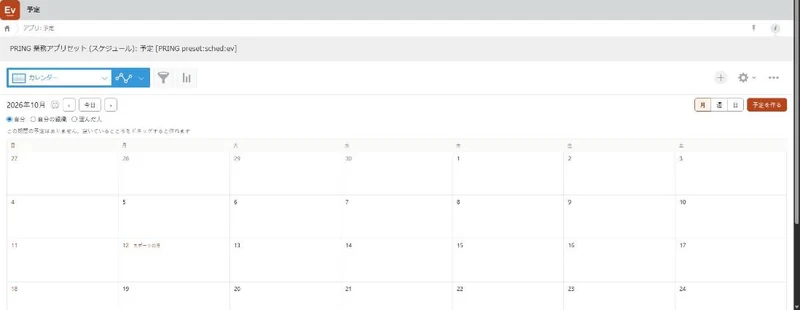
Create the Schedule set on the App sets tab under Business apps to get one Event app for meetings, visits and days off. In the Calendar view, switch between Month, Week and Day, and show events for Me, My organization or Choose people. In the week or day view, drag an empty slot to open the create screen with start, end and attendees filled in. Only the title and the date and time are required.
Steps
Screenshots are taken from the real PRING plugin (v6) with sample data; the surrounding kintone screen is simplified. Your kintone and plugin version may differ in details. The plugin UI is in Japanese.
1. Create the app (admins)
On the App sets tab under Business apps in the settings screen, choose the Schedule row and create it. Language, space and who can use it work as for the other app sets ([Create business app sets](/en/help/admin/app-presets)). It is a single app, with no document flow or approval.
2. Open the calendar
Open the Event app and choose the Calendar view. Use Month, Week and Day at the top right to change the view, and ‹, Today and › at the top left to change the period. In the month view, press a date to open that day.
3. Choose whose events to show
Me shows events you attend. My organization shows events of the members of your organizations (Include sub-organizations adds the ones below). With Choose people, type part of a name or code in the box and press Enter. If it narrows to one person, they are added. If not, "Choose from the suggestions" appears next to the box; pick from the suggestions. To remove someone, press the × next to their name.
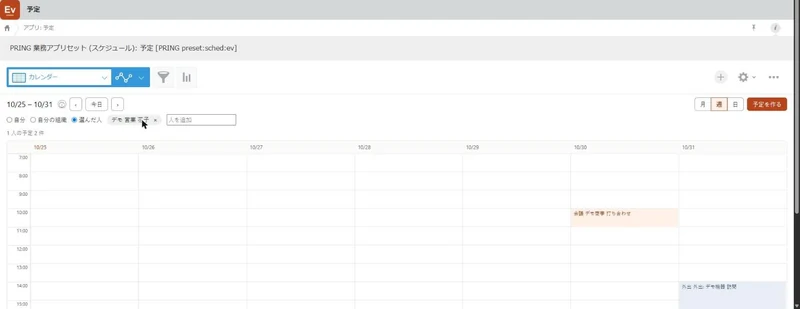
The week view. The chosen person's meeting and outing appear at their times 4. Create an event
In the week or day view, drag an empty slot. kintone's standard create screen opens with the start, end and attendees filled in (in the day view, the person on the row you dragged). Without dragging, press New event to the right of Day at the top right. Only the title and the date and time are required. Kind (Meeting, Visit, Out, Off, Trip, Other), visibility and repeat can stay at their defaults.
5. See your organization's events (managers)
Choose My organization to see the members' events whose visibility is Public. Open the day view to see each member's time side by side, for example to find a free slot for a meeting. Managers have no special permission: Attendees only and Private events stay hidden unless you are the creator or an attendee.
Fields
The fields on the create screen. Only the title, start and end are required.
| Field | What to enter |
|---|---|
| Title | What it is for (required) |
| Kind | Meeting, Visit, Out, Off, Trip or Other. The calendar color follows the kind (default Meeting) |
| Start and end | Date and time (required). Select All day for all-day events |
| Place | The meeting room or where you visit |
| Attendees | The people the event appears for (default: the creator) |
| Visibility | Public (everyone) / Attendees only / Private (the creator only). Default Public |
| Repeat | None / Daily / Weekly / Monthly / Yearly. For weekly, also choose the days |
| Repeat end | Empty means one year |
| Memo and related record | For example the URL of a deal or customer record (optional) |
Notifications use kintone’s standard ones (record added, comments, reminders). PRING sends no notifications.
Related pages
Frequently asked questions
I type a name but no one is added
If no one or more than one person matches what you typed, no one is added and "Choose from the suggestions" appears next to the box. Type a little more of the name to narrow it to one person, or pick from the suggestions.
I cannot see other people's events
Attendees only events are visible to the creator and attendees, and Private events only to the creator. Events you cannot see look like free time on the calendar. The creator chooses the visibility for each event (the default is Public).
Who can edit or delete an event?
Public events can be viewed and edited by everyone. Attendees only events by the creator and attendees, and Private events only by the creator. Only the creator can delete an event.
I want to add a weekly meeting
On the create screen, set Repeat to Weekly and check the days. If the repeat end is empty, the event repeats for one year. kintone's reminders arrive only for the first time, so if you need a reminder every time, create each event separately instead of repeating.
Is this the same as the document scheduler?
No. The Scheduler tab in the settings screen outputs documents automatically at set times. The Event app is for people's meetings, visits and days off.