 PRING Help
Gather evidence for an audit
Gather the evidence for an audit with Document links on the detail screen of any document in the case. The documents from request to payment are listed by stage, with number, file, version, approver, date, status, amount, matching result and missing documents. The evidence bundle PDF downloads one PDF with a cover, and Save to case summary writes the case totals to the case summary app.
Steps
Screenshots are taken from the real PRING plugin (v6) with sample data; the surrounding kintone screen is simplified. Your kintone and plugin version may differ in details. The plugin UI is in Japanese.
1. Open Document links and output the evidence bundle PDF (accounting)
Any document of the case will do (for example 債務管理 (Payables)). Press Document links on its detail screen: the case number, subject, invoiced total, paid total and unpaid total appear at the top, and the documents of each stage below. Check what is missing and the matching results, then press Evidence bundle PDF to download one PDF that joins a cover (case information, document list, missing documents, SHA-256) and the PDF of each document.
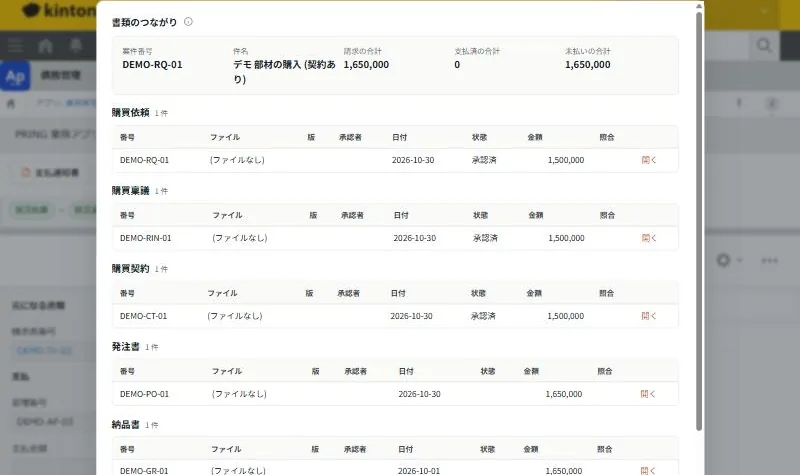
Document links. The case's documents are listed by stage, starting from the request 2. Save to the case summary and review the list (accounting)
Press Save to case summary on the same screen; the case number, subject, totals and missing documents are written to the case summary app (for purchasing, 購買管理). The 購買管理 list shows the unpaid and paid totals of each case. For each case you hand to the auditor, output the evidence bundle PDF from Document links on a document of that case.
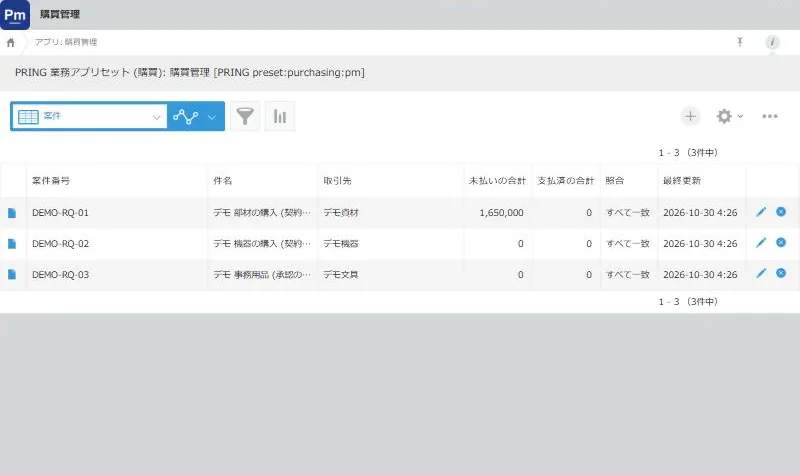
The purchasing case summary list. Each case's totals on one screen
What people do and what fills in automatically
| Step | App | What people do | What fills in automatically | If you let AI do it |
|---|---|---|---|---|
| 1 | A document of the case (for example payables) | Open Document links, check, press Evidence bundle PDF | Documents by stage, totals, missing documents, SHA-256 matching, a PDF with a cover | — |
| 2 | 購買管理, 経費管理 or 販売管理 (case summaries) | Press Save to case summary and review the list | Case number, subject, totals, missing documents | — |
- Apps created with a business app set show Document links without any setup. For matching results, an administrator creates the file log app.
- The case summary is saved in your own kintone apps. Download the evidence bundle PDF and keep it on your side.
Detailed pages for each app
- Case links and the evidence bundle: the case summary app, step definitions and matching
- Seals, document links and audit log: the Document links screen and its buttons
Related pages
Frequently asked questions
The matching result shows mismatch, not recorded or cannot match.
Matching compares the SHA-256 of the attached file with the records in the file log app. Mismatch means there is a record with the same file name but no SHA-256 matches; not recorded means the file was attached without going through PRING; cannot match means the file could not be fetched (permission or deletion) or no file log app is set.
Where is the evidence bundle PDF saved?
Keep the downloaded file on your side; the PRING server does not keep it. Its creation is recorded in the audit log. One bundle holds up to 30 MB and 100 files, and only PDFs and images are included. For documents other than PDF, such as xlsx, only the file name and SHA-256 are listed on the cover.
Is a case that skipped the contract shown as missing?
No. For a case where no contract was chosen in the purchase approval or sales quotation, the contract stage says the contract was skipped, and it does not count as missing.