 PRING Help
Set up AI mapping (BYOK Gemini)
AI mapping is BYOK (Bring Your Own Key). Register a Gemini API key issued in Google AI Studio on the "AI 設定" (AI settings) tab, and the template editor's AI suggestion button becomes available. Google bills API usage to you; it is not part of the PRING fee.
Steps
Screenshots are taken from the real PRING plugin (v6) with sample data; the surrounding kintone screen is simplified. Your kintone and plugin version may differ in details. The plugin UI is in Japanese.
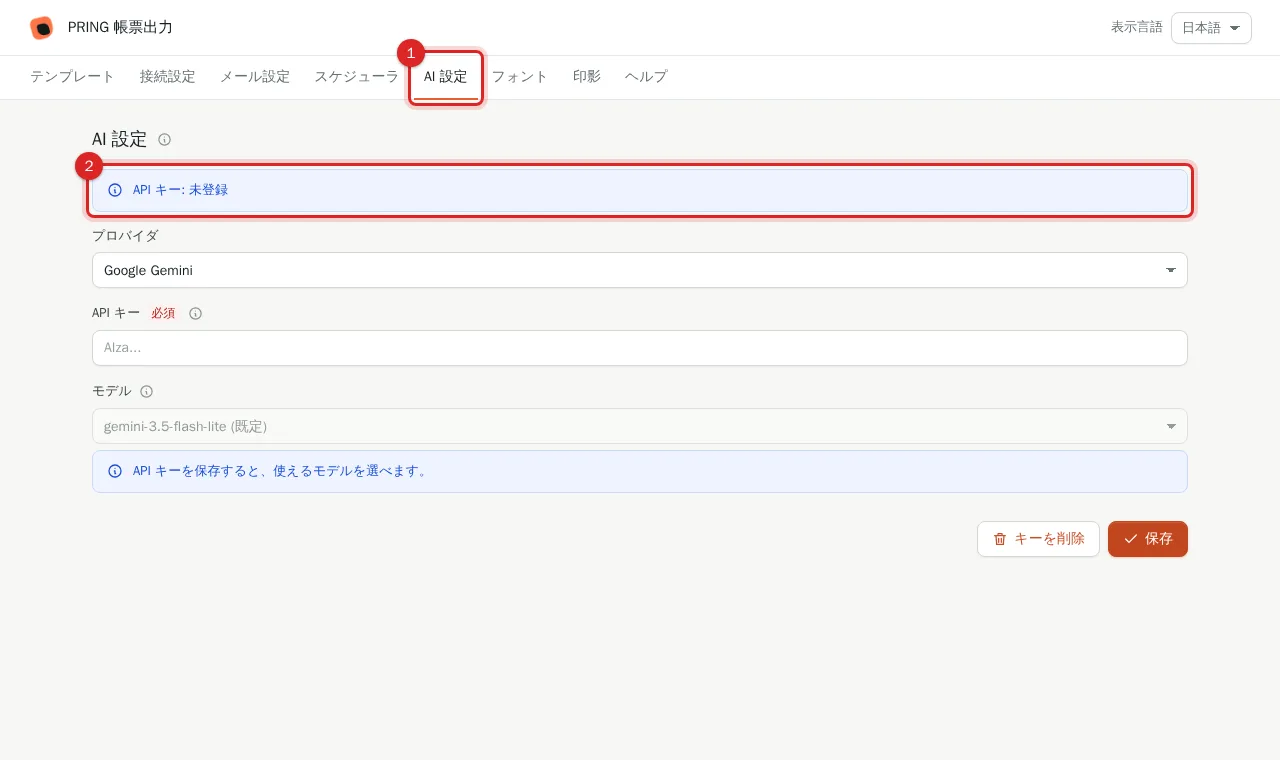
1. Open the "AI 設定" (AI settings) tab
Press the AI 設定 tab at the top of the settings screen.
2. Enter provider, API key and model
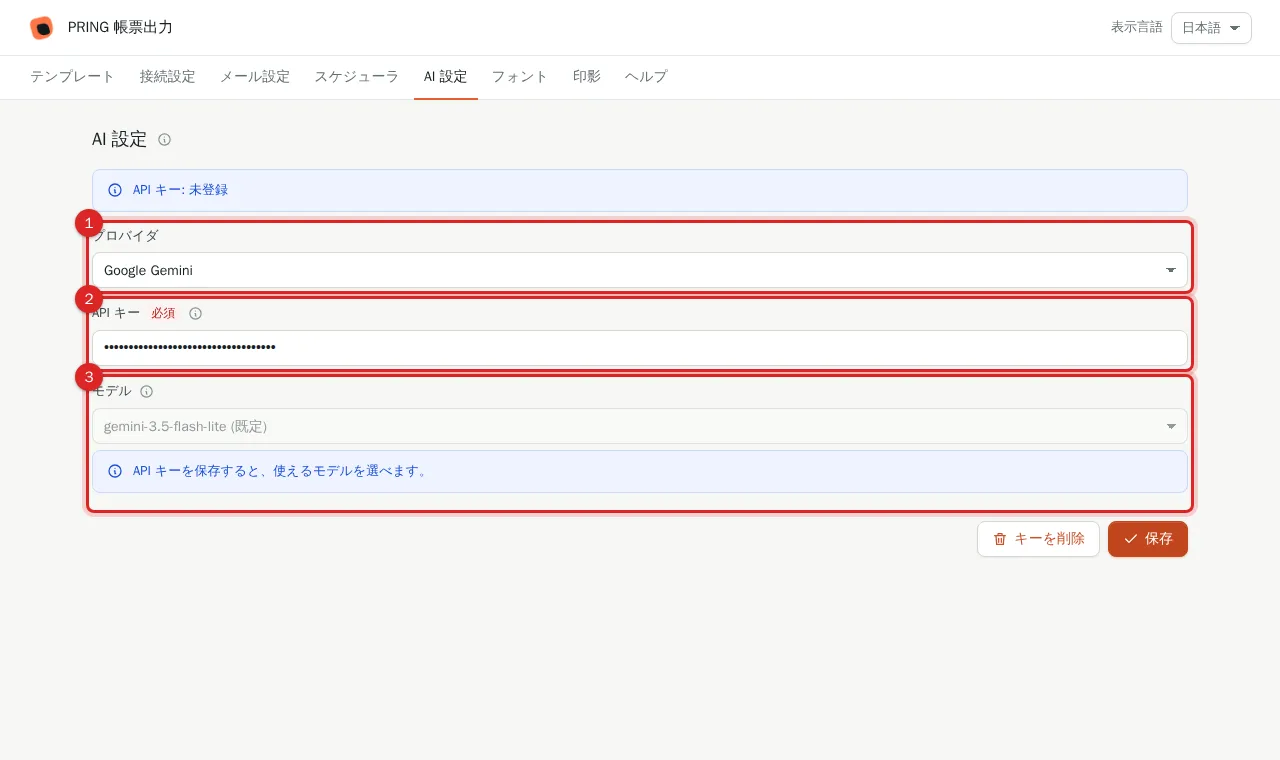
Leave the provider as Google Gemini, paste the API key from Google AI Studio, and pick a model. The key is stored encrypted.
3. Press "保存" (Save)
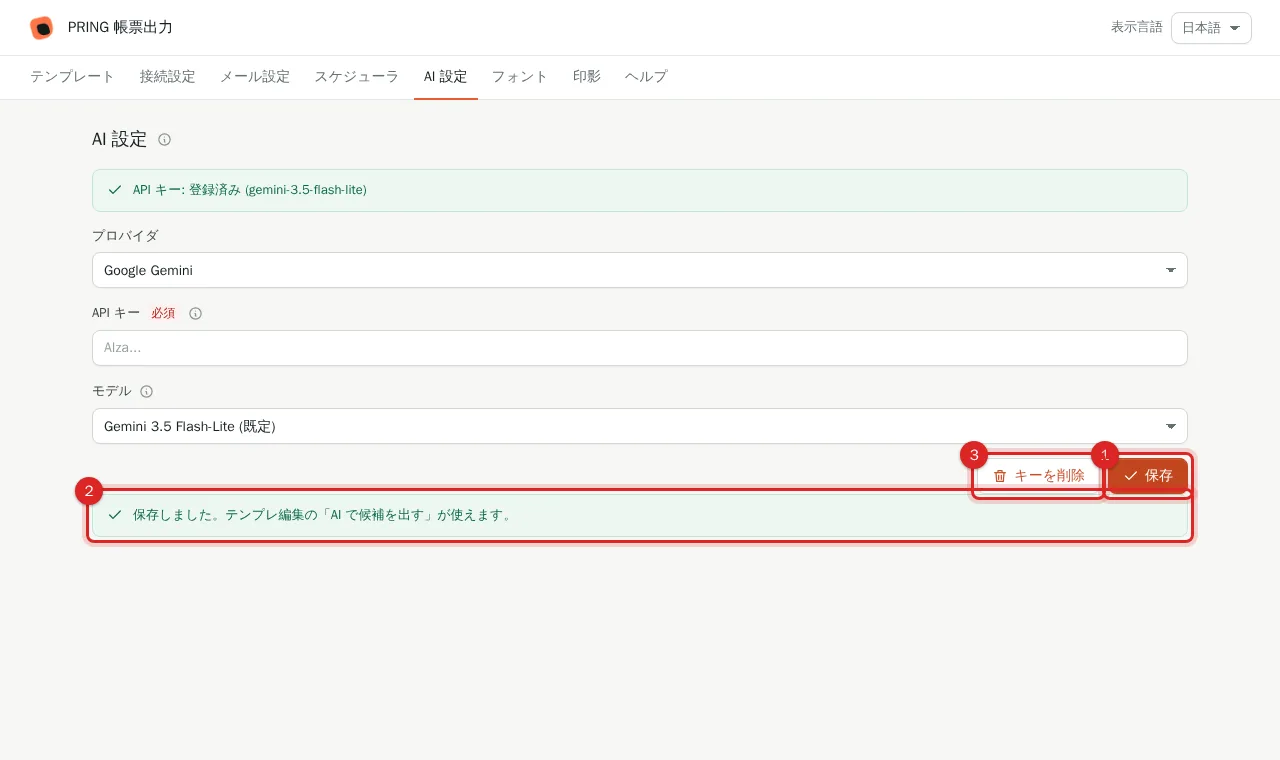
Press "保存". The "AI で候補を出す" (AI suggestions) button in the template editor is then ready. Use "キーを削除" (Delete key) to remove the key.
Related
- Accepting and editing suggestions: steps 4 to 6 of Register a template
- Troubleshooting
Frequently asked questions
Where do I get a Gemini API key?
Sign in to Google AI Studio (aistudio.google.com) and use "Get API key". The key belongs to your Google account and Google bills usage to you.
Is record data sent to the AI?
No. PRING sends the template's cell positions and headings plus kintone field names and types. Record values are not sent.
Can I register a template without an API key?
Mapping suggestions need a key. Without one, pressing the AI button in the template editor shows a link to this settings tab.