 PRING Help
Register seals and place them in documents
On the 印影 (Seal) tab choose the seal image and 使うユーザー (the user), then press 登録 (Register). In the template editor, set a cell mapped to a user-selection, creator or modifier field to embed the seal; that user's seal is placed on export. Users without a seal get a date stamp or their name as text. Use a merged cell about 15 mm square (e.g. 2 × 3 cells) so stamps stay readable.
Steps
Screenshots are taken from the real PRING plugin (v6) with sample data; the surrounding kintone screen is simplified. Your kintone and plugin version may differ in details. The plugin UI is in Japanese.
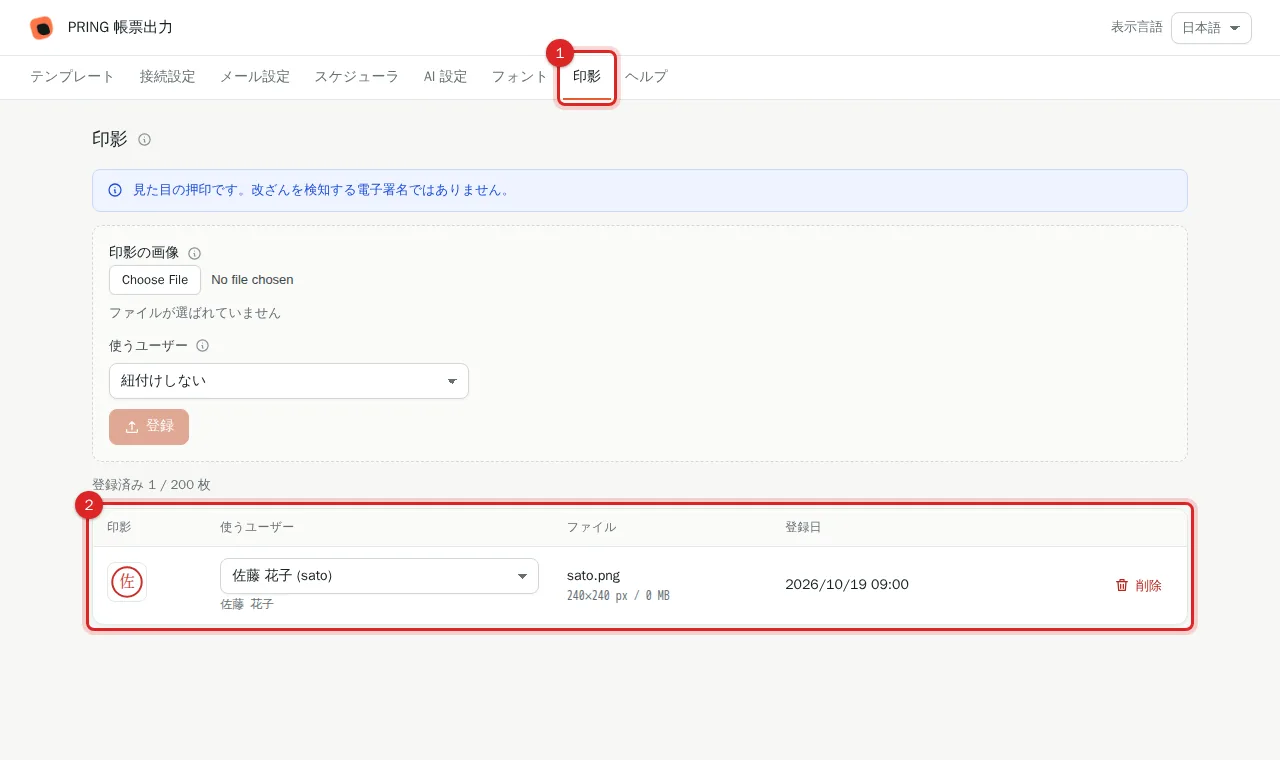
1. Open the 印影 (Seal) tab
Press the 印影 tab in the settings screen. The list shows the registered seals (seal, user, file, registered date) and the count (n / 200).
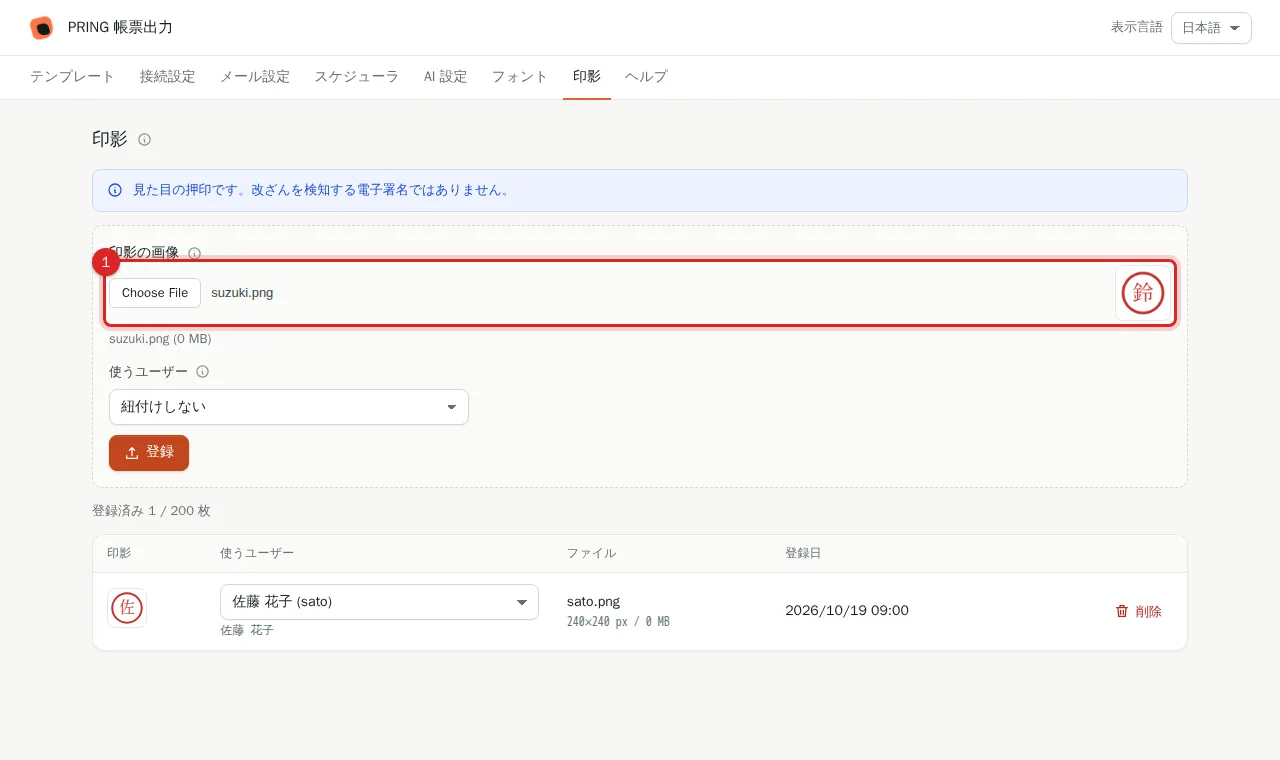
2. Choose the image under 印影の画像
Pick a PNG / JPEG / GIF image; a preview appears next to it. A transparent PNG overlays cleanly. One seal per user.
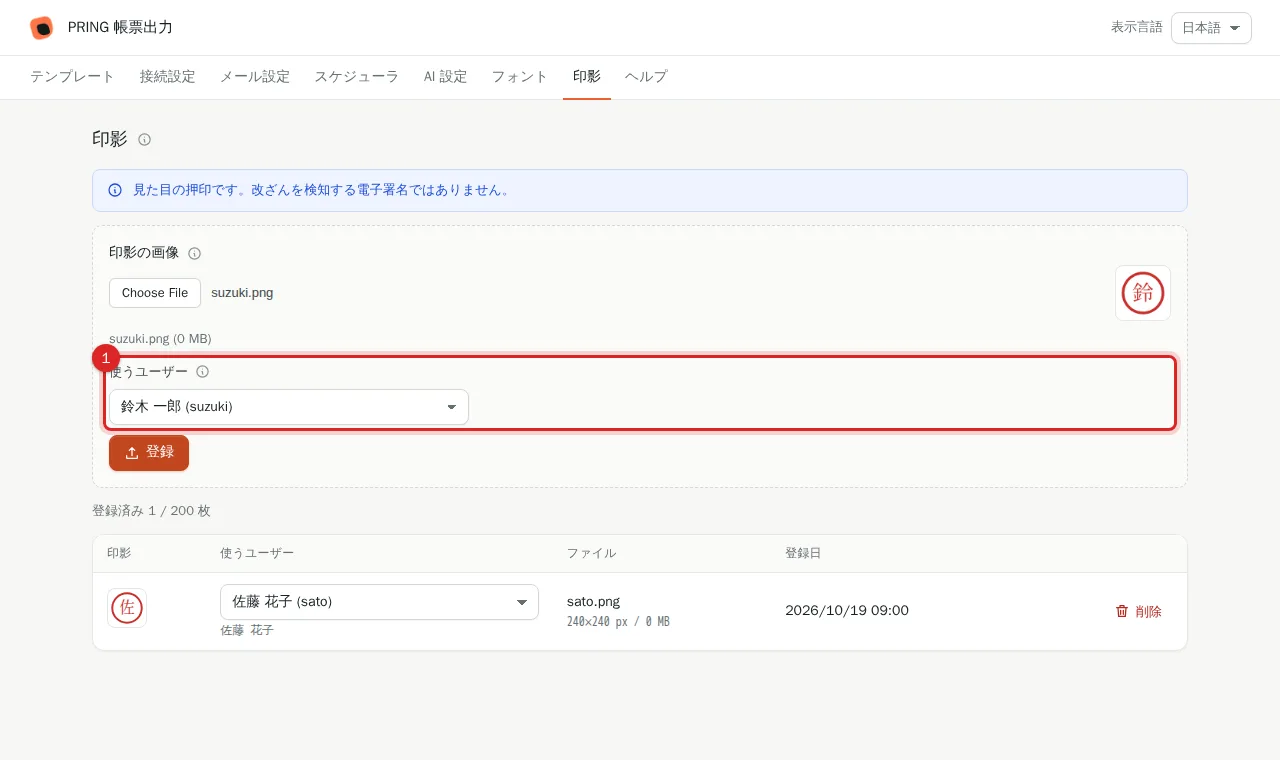
3. Choose 使うユーザー (the user)
Select the kintone user who uses this seal. You can change it later in the list, or choose 紐付けしない to register without a user. If that user already has a seal, change that seal's user first.
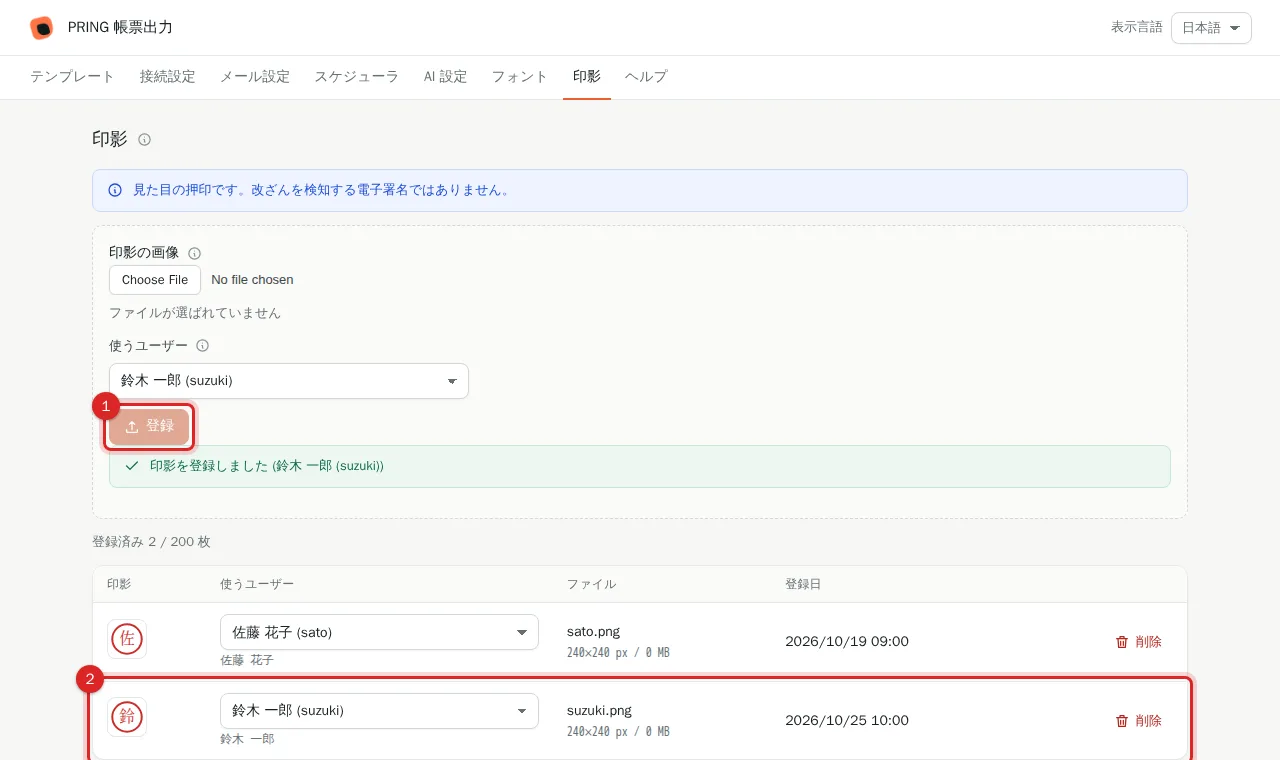
4. Press 登録 (Register)
Press 登録. The screen says the seal was registered and it is added to the list. Registering again for the same user asks 印影を置き換えますか? (replace?). Delete seals you no longer need, for example for people who left.
5. Set the template cell to embed the seal
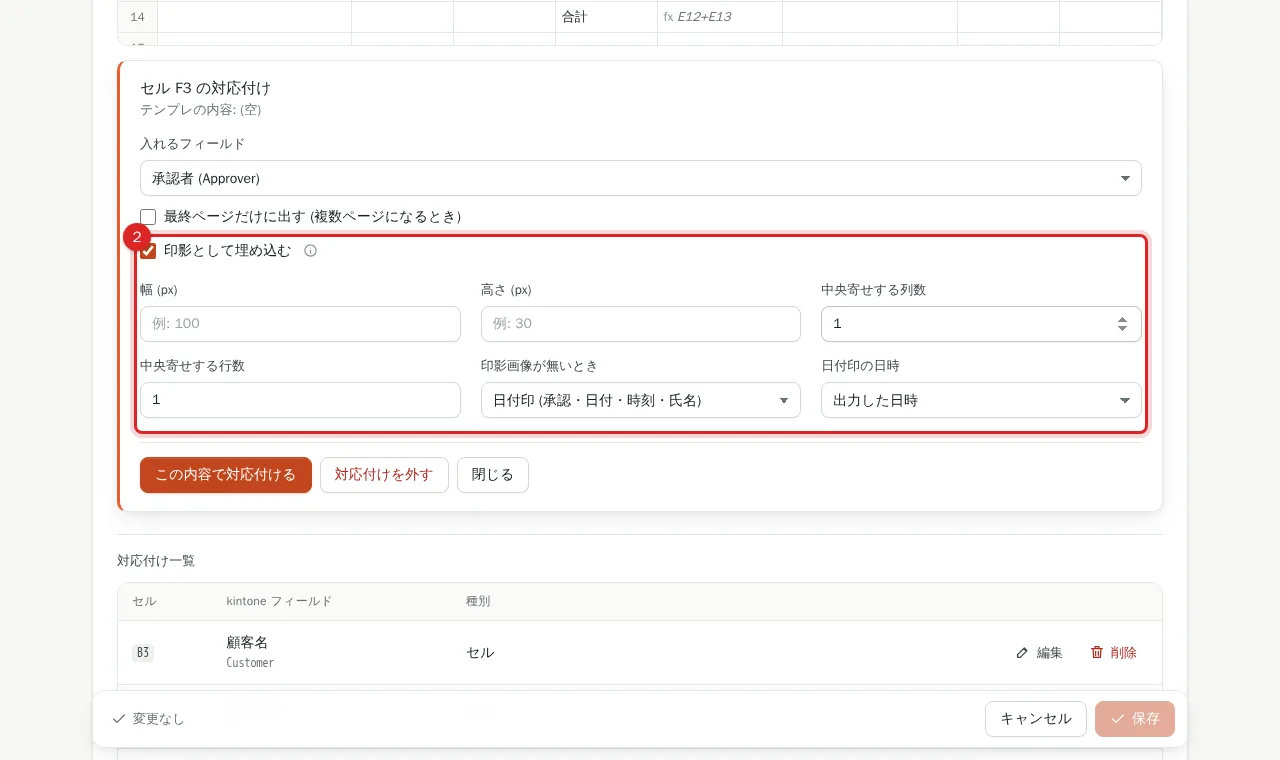
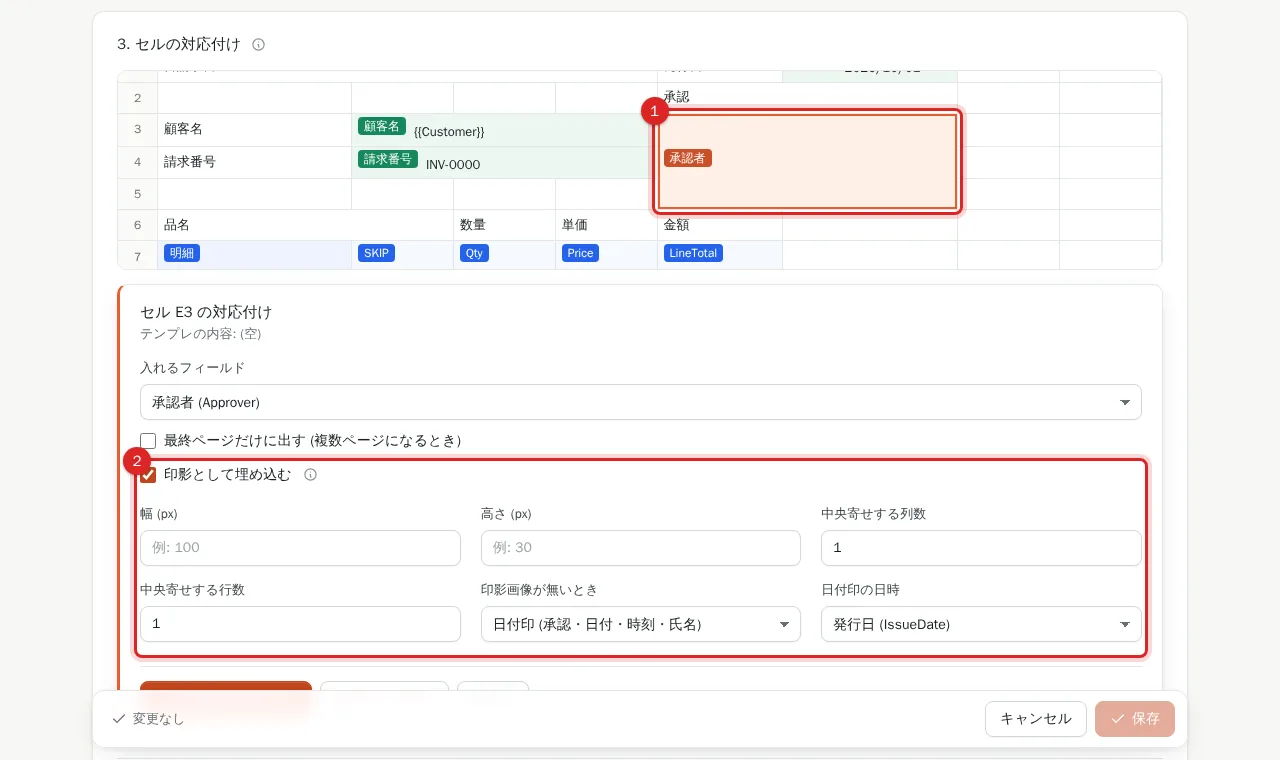
In "3. セルの対応付け" click the cell (for example the approver box), choose a user-selection, creator or modifier field and turn on 印影として埋め込む (embed as seal). Set the box width and height in px (empty = fit the cell), the columns and rows to centre in, and 印影画像が無いとき (when there is no seal image: date stamp or name only), press この内容で対応付ける (apply) and save. For multi-select fields the first user is used.
6. Use a larger merged cell for the seal
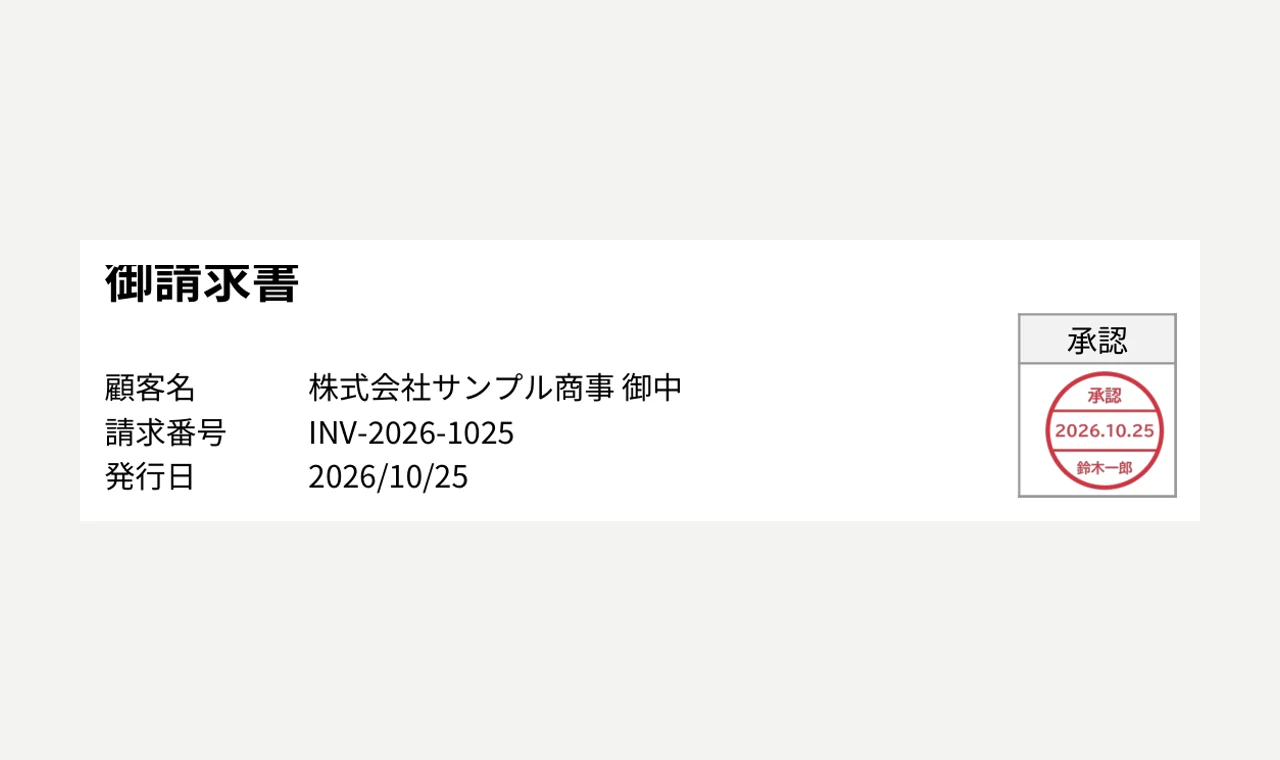
Both the seal and the date stamp (the round approval / date / time / name stamp used for users without a seal image) are scaled down to fit the seal cell. In an ordinary one-row cell they end up about 3-4 mm across and cannot be read, so in the Excel template merge cells to about 15 mm square (for example 2 columns × 3 rows) and use that as the seal cell. In the template editor, press the top-left cell of the merged range and turn on 印影として埋め込む (Embed as seal): the seal fills the whole merged range, with no need to set the number of columns or rows. Under 日付印の日時 (Date for the stamp) you can choose a DATE or DATETIME field; if none is chosen, the time of export is used. To print only the name for users without an image, choose 氏名の文字だけ (Name as text only) under 印影画像が無いとき (When there is no seal image).
7. Export and check
On export the seal is centred in the cell (or the range you set). For users without a seal, a date stamp (approval, date, time, name) or the name as text is written, as set in 印影画像が無いとき, and the export does not stop.
Frequently asked questions
Is this a digital signature?
No. Seals are a visual substitute for stamping; they do not detect tampering the way an electronic signature does.
Image requirements?
PNG / JPEG / GIF, up to 1 MB and 1000×1000 px per file, 200 seals per tenant. Use PNG for transparency.