 PRING Help
Register a template
Register a template in this order: "テンプレ追加" (Add template) → ID and output format → upload the xlsx → accept and edit the AI's mapping suggestions → file-name rule → save. Allow about 10 minutes per template. AI mapping needs a Gemini API key registered first.
Steps
Screenshots are taken from the real PRING plugin (v6) with sample data; the surrounding kintone screen is simplified. Your kintone and plugin version may differ in details. The plugin UI is in Japanese.
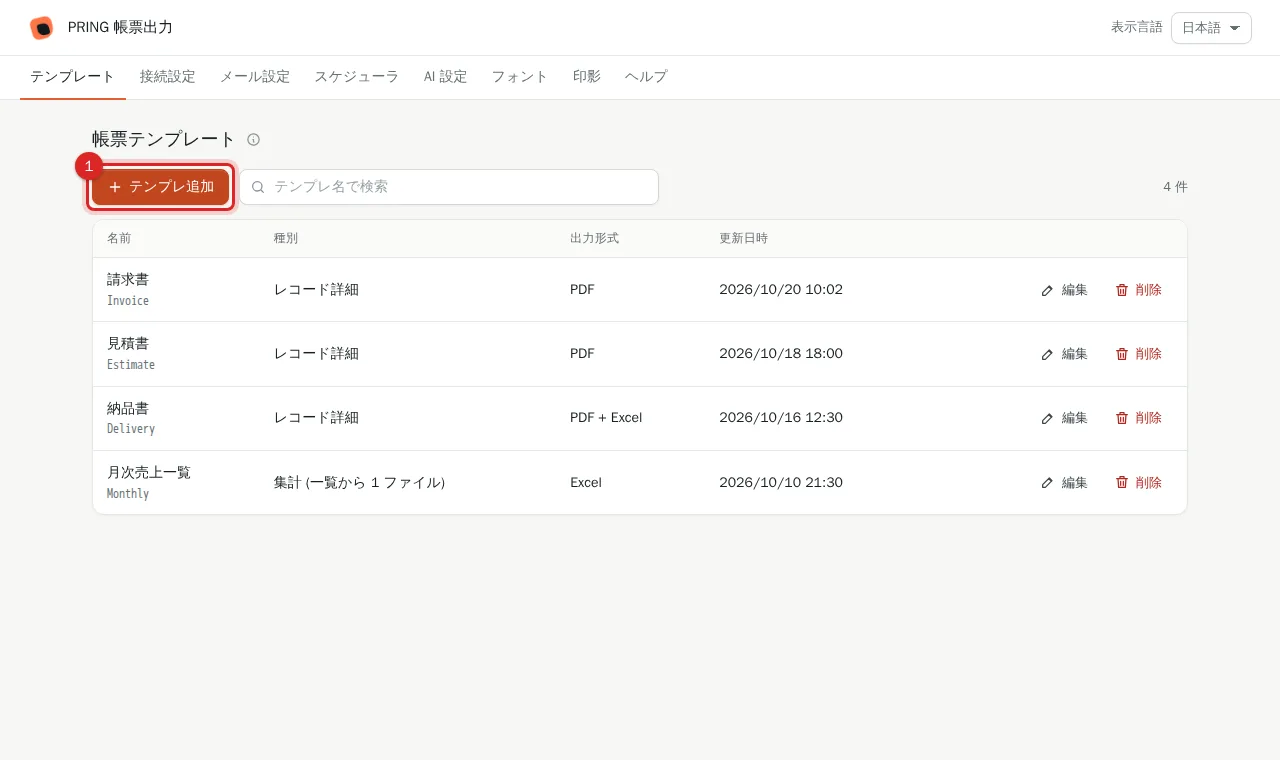
1. Press "テンプレ追加" (Add template)
On the Templates tab of the settings screen, press "テンプレ追加". The template editor opens.
2. Enter the template ID, button name and output format
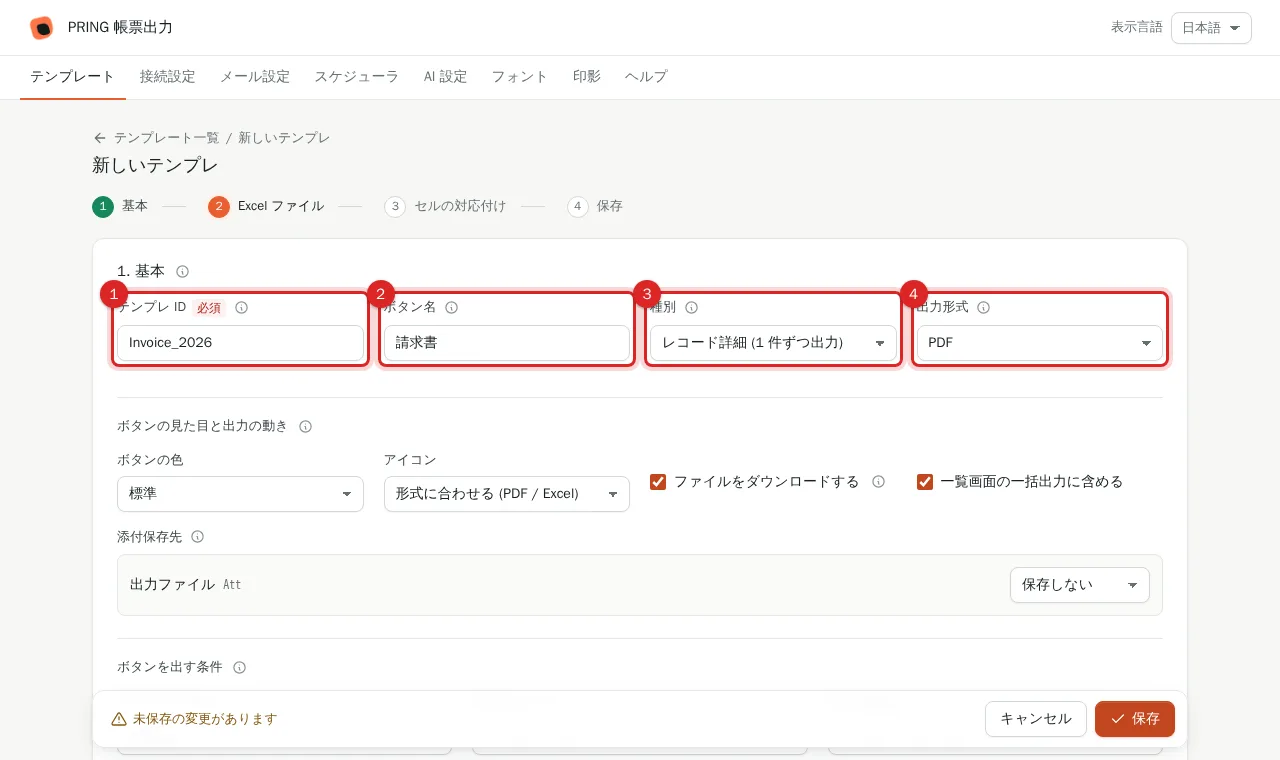
In "1. 基本" (Basics), type a name in "テンプレ ID" using letters, digits and underscores (for example Invoice_2026), a name users will see in "ボタン名" (button name, for example 請求書), and choose the type and output format (PDF / xlsx / both). The button name is what appears on the export buttons in the record view.
3. Choose and upload the Excel file (xlsx)
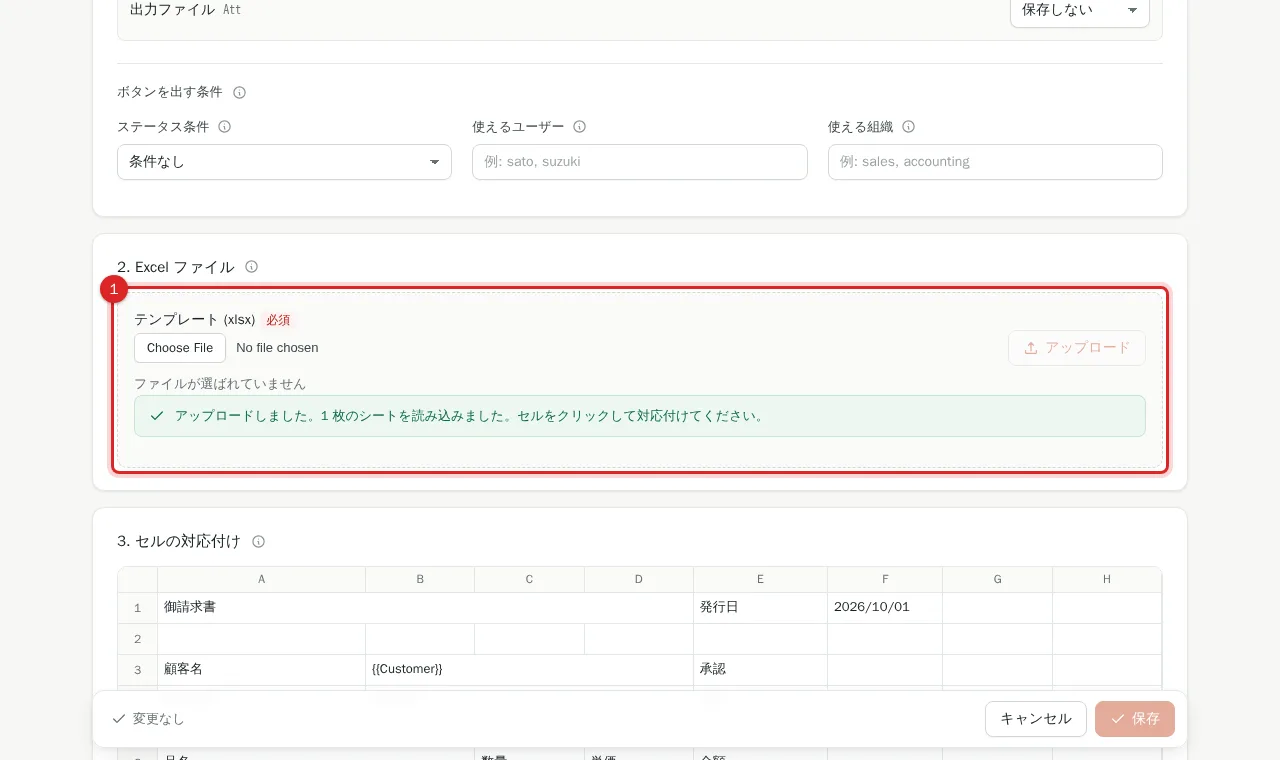
In "2. Excel ファイル", use "ファイルを選択" (Choose file) to pick the Excel file to fill and press "アップロード" (Upload). Only .xlsx, up to 32 MB. After the upload the cell layout appears in "3. セルの対応付け" (Cell mapping).
4. Press "AI で候補を出す" (AI suggestions)
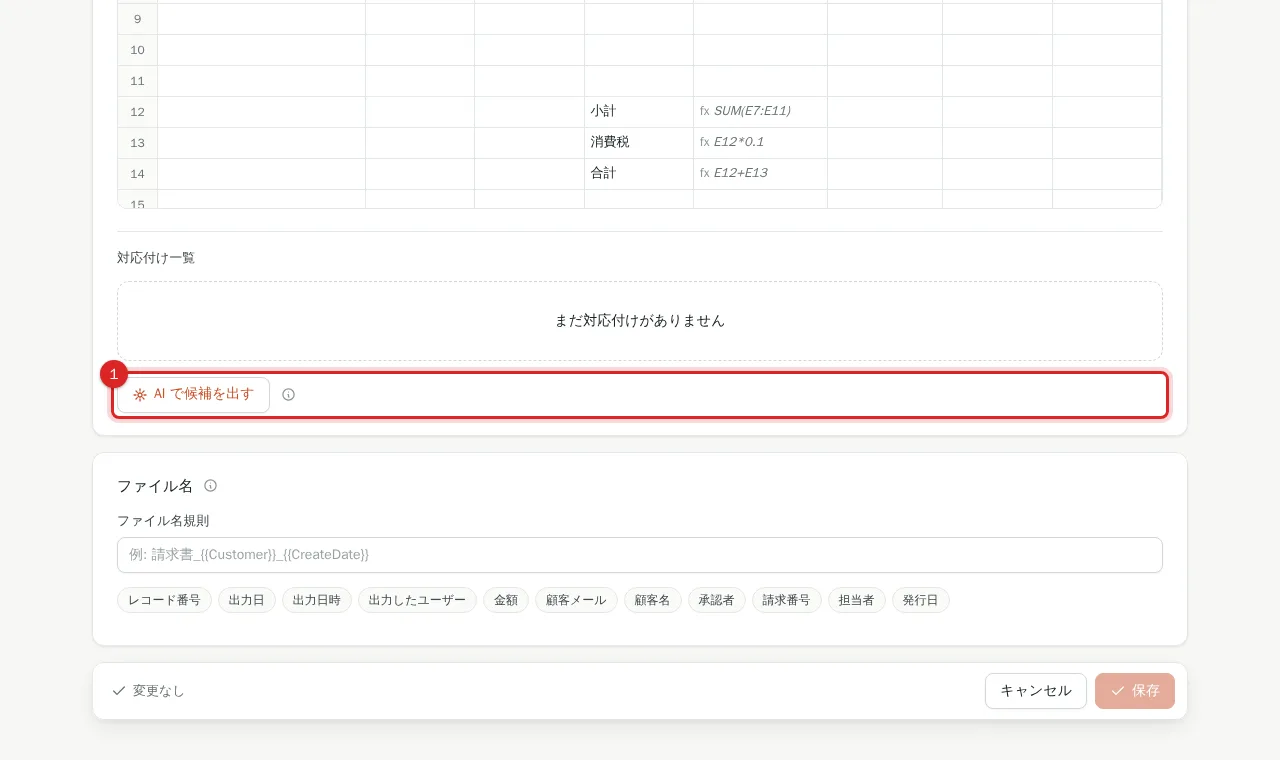
Press "AI で候補を出す" below the cell mapping grid. If no Gemini API key is saved on the AI 設定 tab, a link to that tab appears here instead.
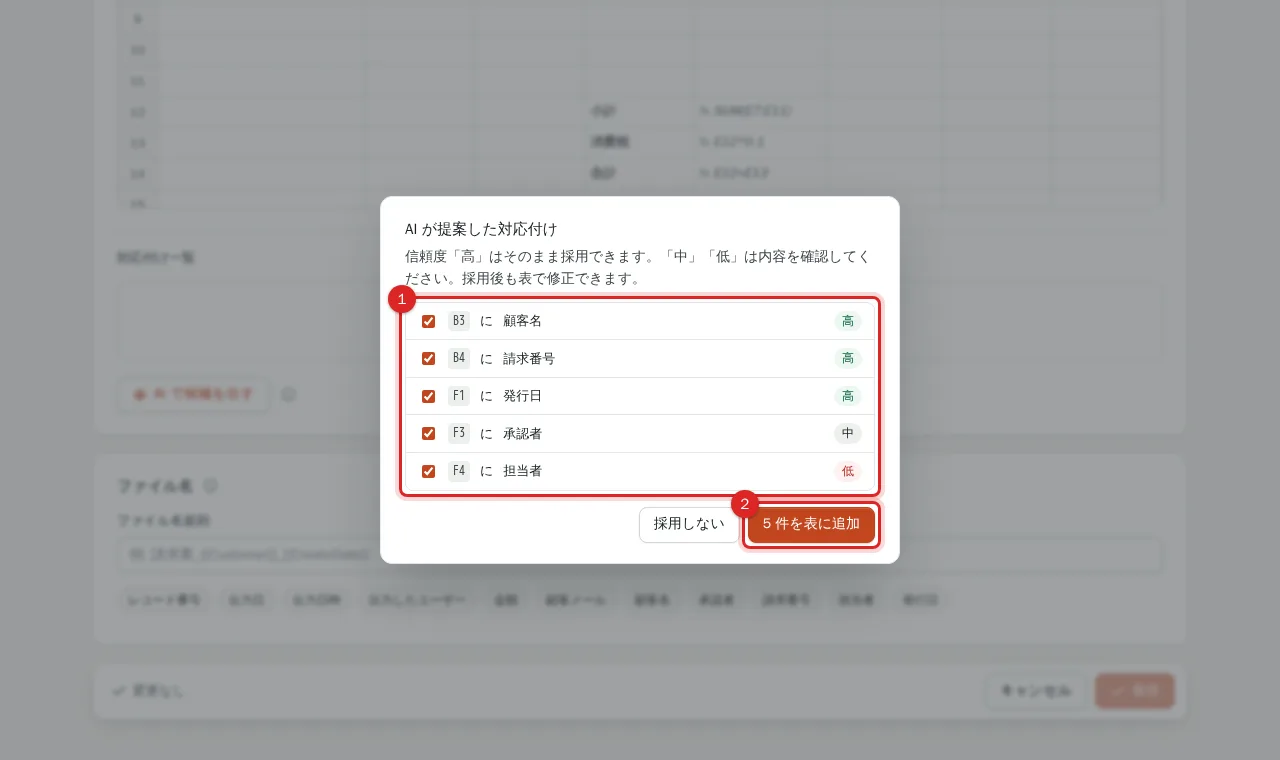
5. Review the suggestions and add them to the table
Check each suggested cell-to-field pair and its confidence (high / medium / low), then press the add button. Verify medium and low items in the next step.
6. Correct cells and fields in the table
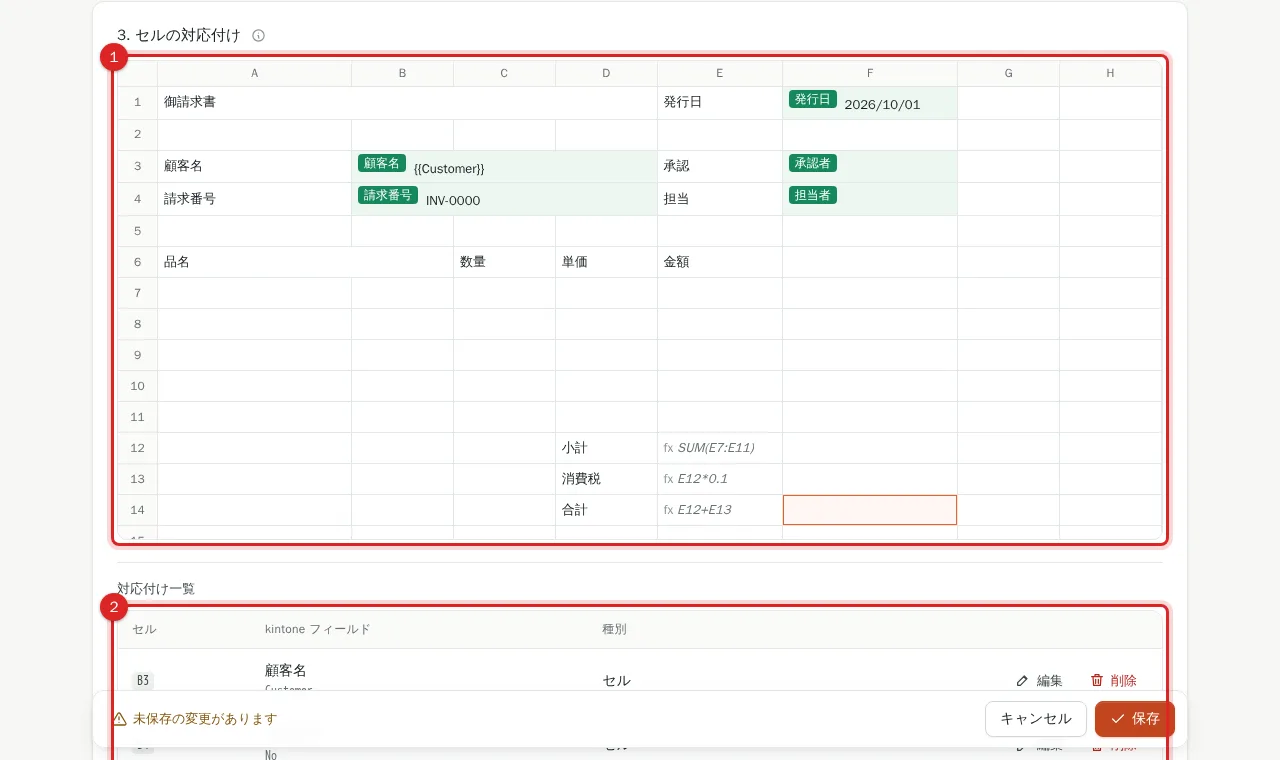
Mapped cells are coloured in the cell grid, and "対応付け一覧" (mapping list) below shows each cell (for example B3) with its kintone field. Click a cell in the grid to choose the field for it or remove the mapping. For line items, click the first cell and choose the subtable field (see [Set up the subtable layout](/en/help/admin/subtable)).
7. Enter the file-name rule (NameRule)
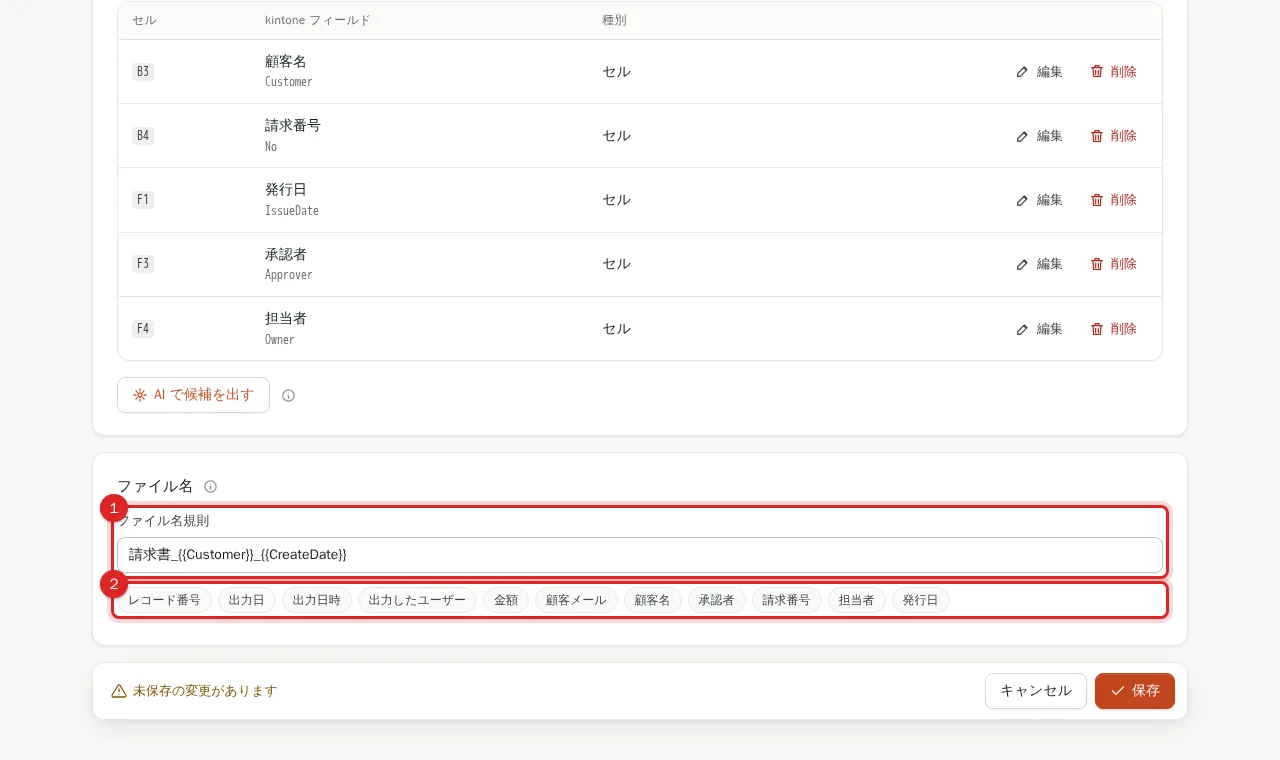
Type the output file name in "ファイル名規則" (file-name rule). The buttons below it (record number, output date, output date-time, output user and each field) insert {{RecordID}}, {{CreateDate}}, {{CreateDateTime}}, {{CreateUser}} and {{FieldCode}}. The extension (.pdf / .xlsx) is added automatically; if left empty the name is the template ID plus the date and time. Example: 請求書_{{Customer}}_{{CreateDate}}
8. Press "保存" (Save)
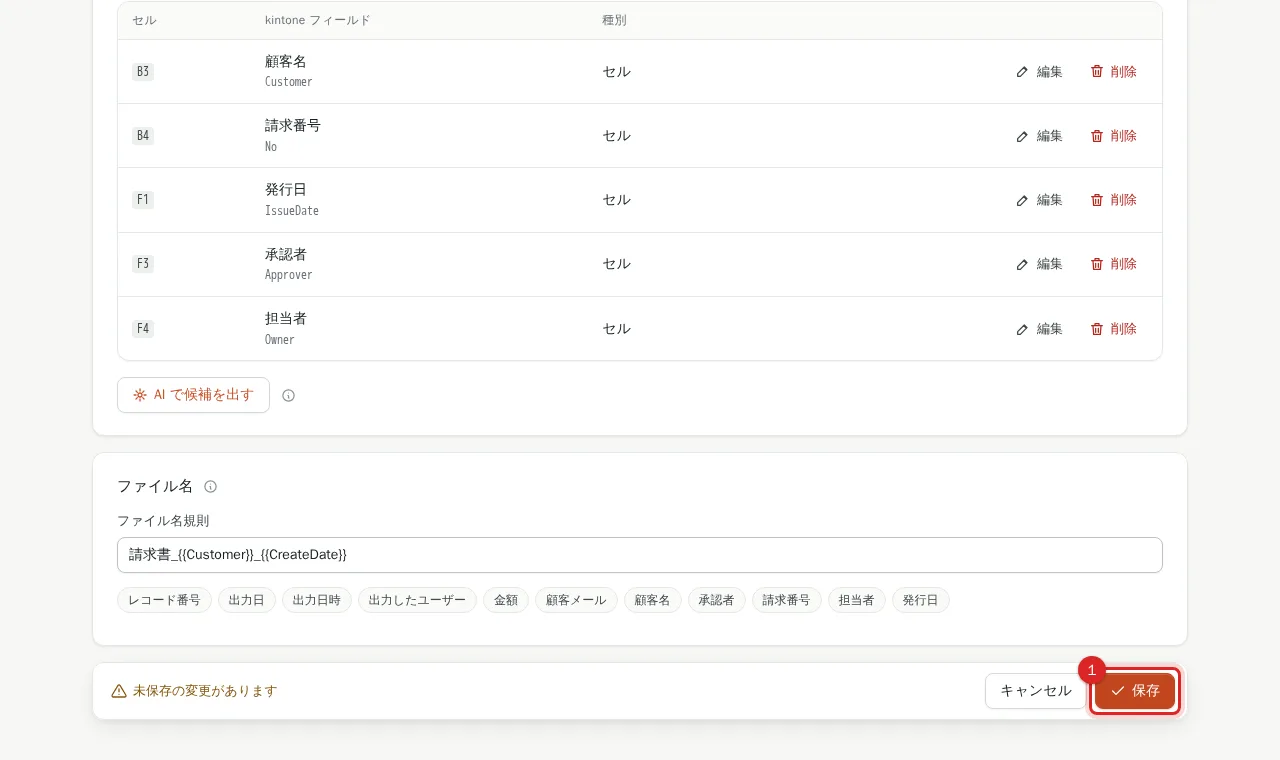
Press "保存" at the bottom of the screen. While "未保存の変更があります" (unsaved changes) shows on the left, nothing is saved yet. After saving the screen says the export buttons now appear on the record view.
9. Edit or delete from the list
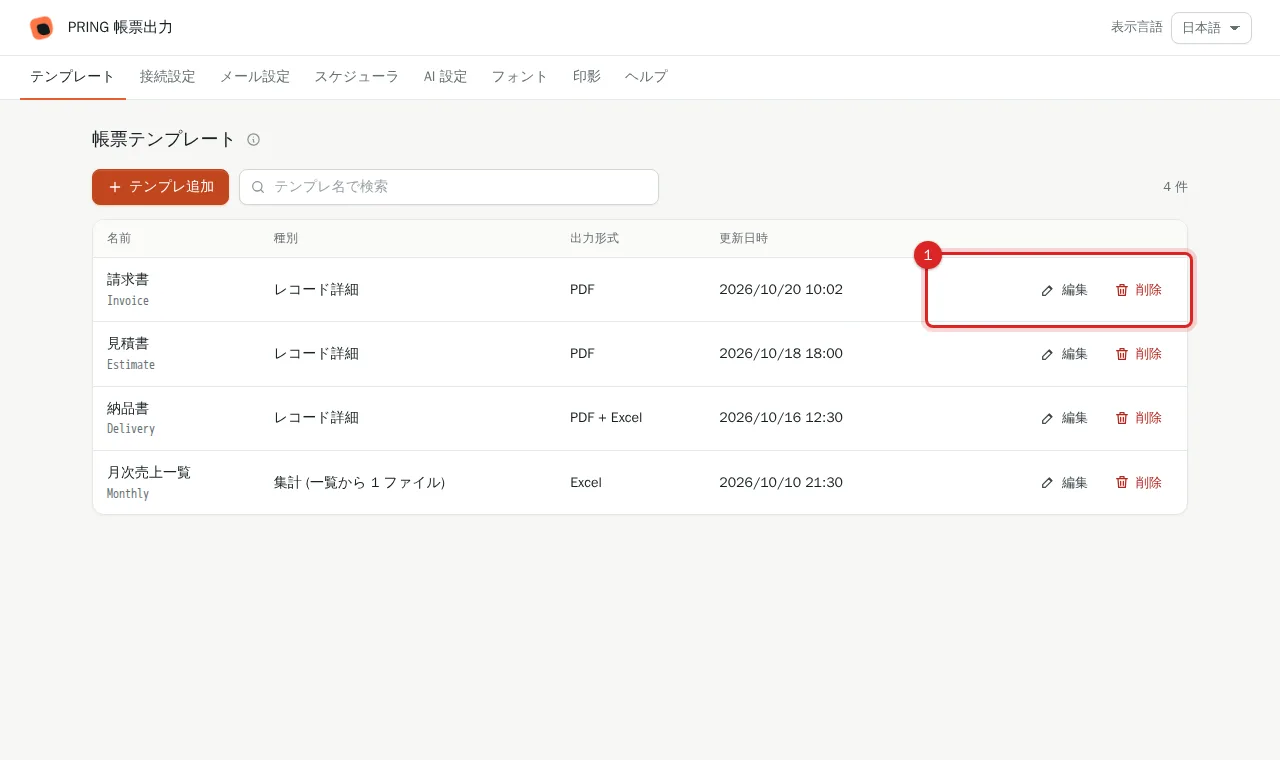
Each row in the template list has "編集" (Edit) and "削除" (Delete). Deletion cannot be undone; confirm the template name in the dialog first.
Template design tips
- One template = one document type (do not combine quote, invoice and delivery note in one file).
- Leave spare rows in areas where a subtable will expand.
- Set the print area and page breaks in Excel so the PDF layout is stable.
- Use standard Excel fonts (Yu Gothic, MS Mincho, Arial). Environment-specific fonts may be substituted in the PDF.
Related
- To get mapping suggestions, Set up AI mapping
- To use the template, Export a PDF or Excel from a record
Frequently asked questions
Do Excel formulas and pivot tables survive?
Yes. Formulas such as =SUM and =VLOOKUP are recalculated after the data is filled in, and pivot tables, charts, merged cells and conditional formatting are kept in the output.
Can I add mappings by hand?
Yes. Click a cell in the grid of "3. セルの対応付け", choose the field in "入れるフィールド" and press "この内容で対応付ける" (apply). You do not need the AI suggestions.
Can I change the template ID later?
No, it is fixed once saved. Use letters, digits and - _ . up to 64 characters. The name users see is the button name, which you can change at any time.