 PRING Help
Set the export button's colour, icon and batch listing
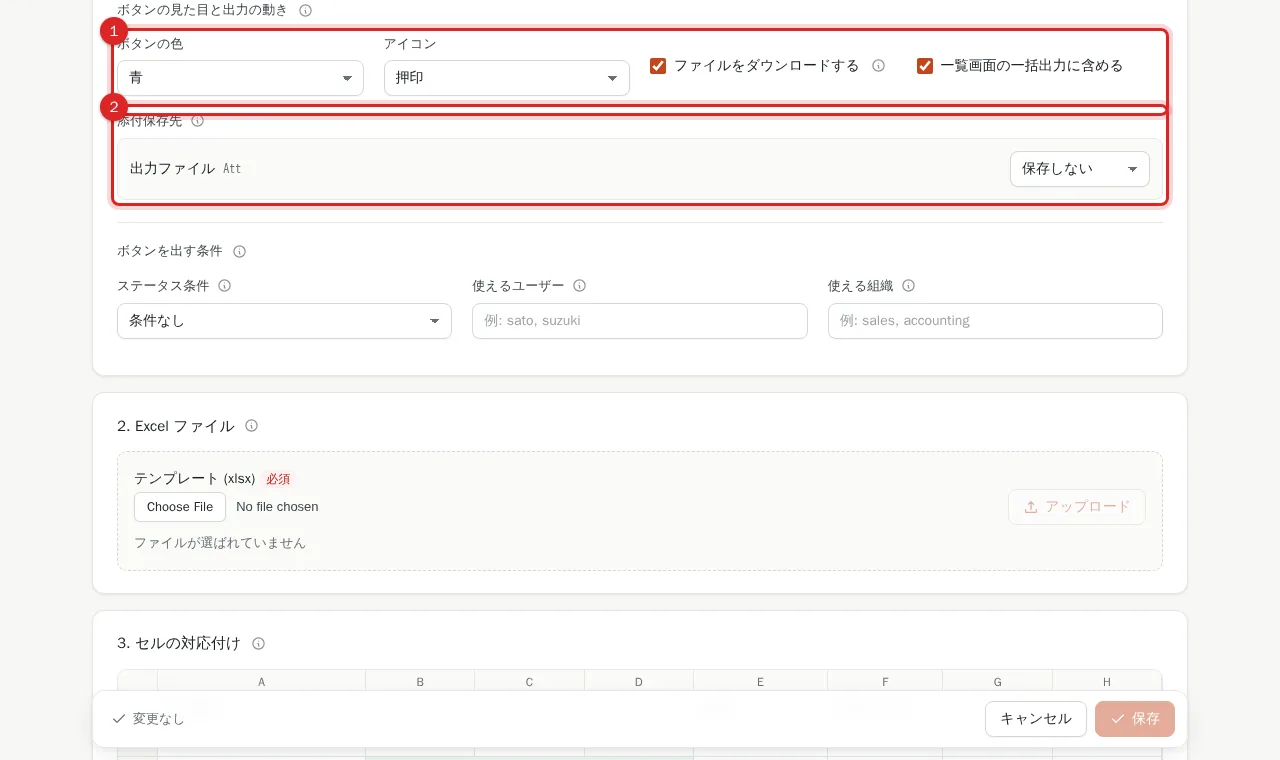
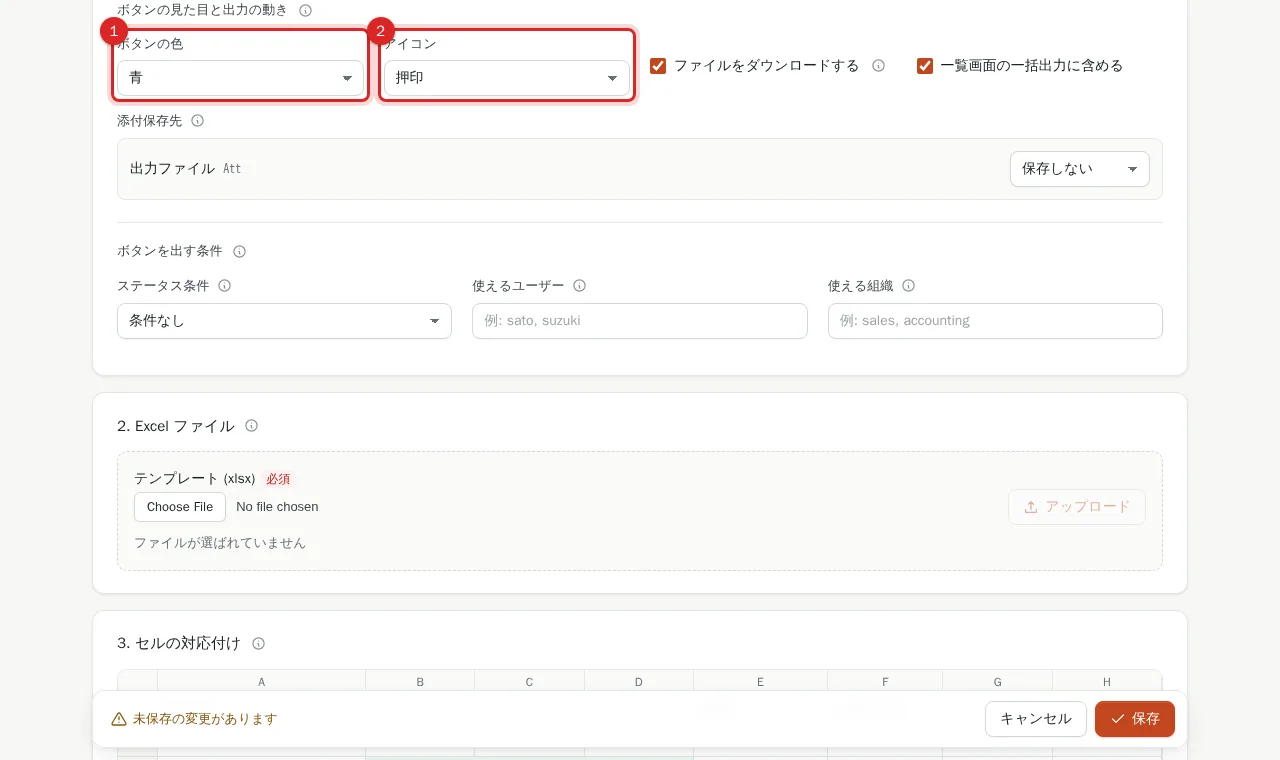
Under ボタンの見た目と出力の動き in the template editor, choose the button colour (標準 / 青 / 緑 / 赤 / オレンジ / グレー: default, blue, green, red, orange, grey) and icon (形式に合わせる / 書類 / 押印 / 一覧 / メール: by format, document, stamp, list, mail), whether the template is listed in batch export,. 添付保存先 saves the output to the record's attachment fields (add or replace); with ファイルをダウンロードする off, it only saves to attachments.
Steps
Screenshots are taken from the real PRING plugin (v6) with sample data; the surrounding kintone screen is simplified. Your kintone and plugin version may differ in details. The plugin UI is in Japanese.
1. Find ボタンの見た目と出力の動き in the template editor
Press 編集 (Edit) on the template list and find ボタンの見た目と出力の動き (button appearance and behaviour) inside "1. 基本". This sets the record-view button's colour and icon and whether the template appears in batch export.
2. Choose the colour and icon
ボタンの色: 標準 (default), 青, 緑, 赤, オレンジ or グレー. アイコン: 形式に合わせる (by format, PDF / Excel), 書類 (document), 押印 (stamp), 一覧 (list) or メール (mail). The text colour is picked automatically for readability.
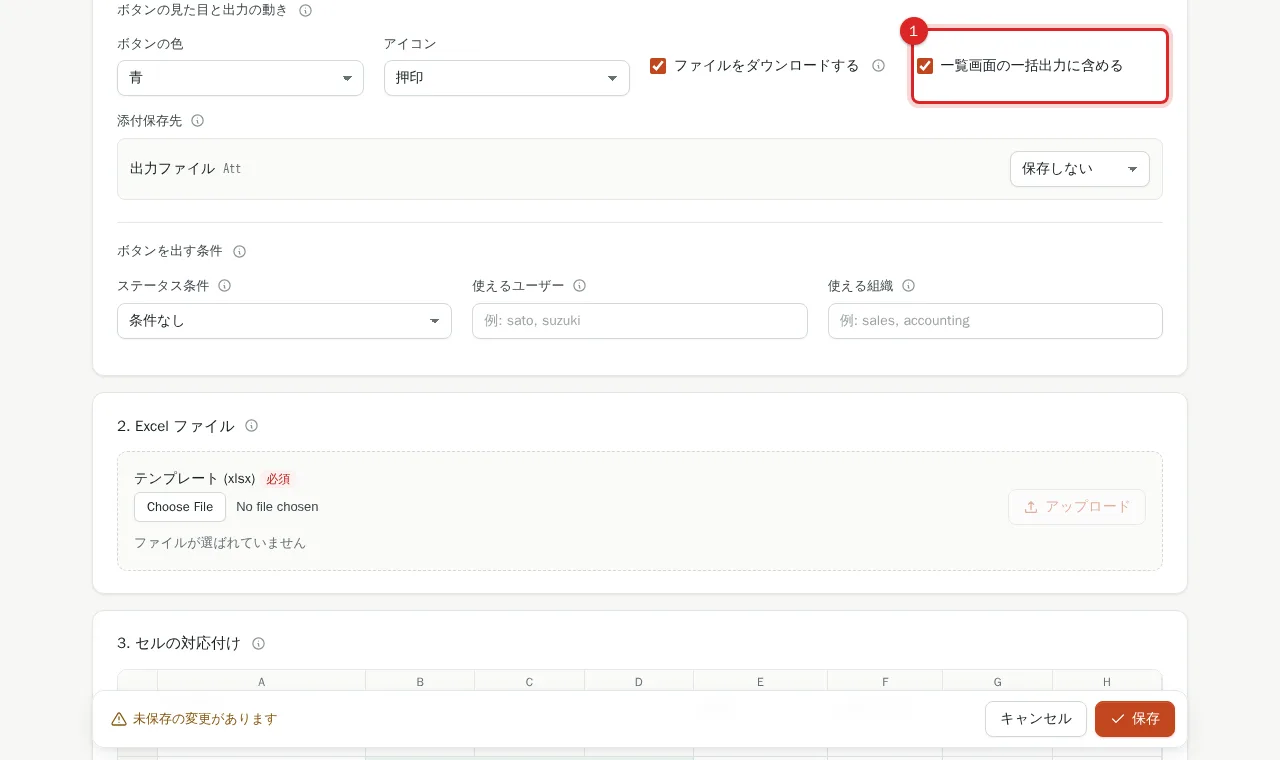
3. Decide 一覧画面の一括出力に含める
Turn it off and the template disappears from the template choice in the list view's batch export (the record-view button stays).
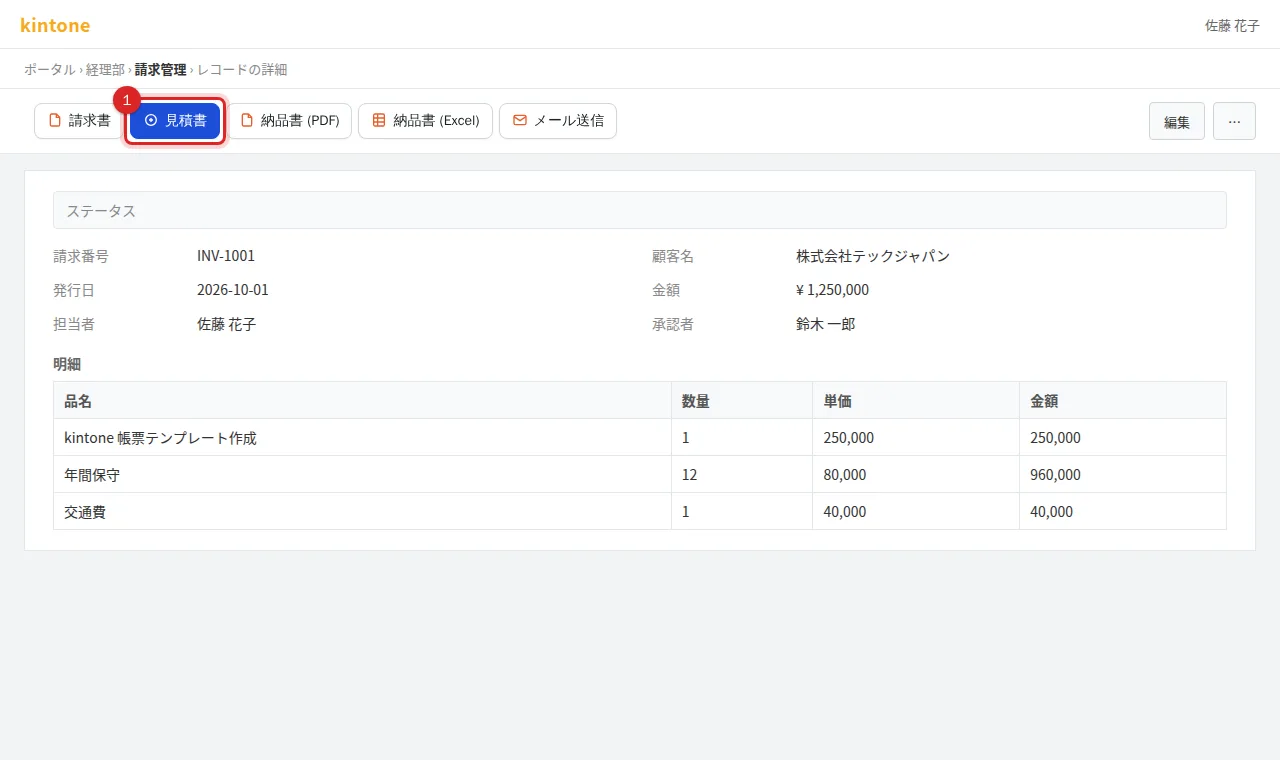
4. Save and check on a record
Press 保存 and check the button's colour and icon on a record.
Frequently asked questions
How do I attach the output to the record?
Under 添付保存先 choose the app's attachment field and 追加 (keep existing files and add) or 置き換え (replace existing files); several fields can be chosen. Turn ファイルをダウンロードする off to save to attachments only (choose at least one target). Outside kintone (preview) only saved values are shown.
Where do I change the button's name?
ボタン名 under "1. 基本". Blank shows the template ID.