 PRING Help
Set up subtable (line item) layout
Subtables are set in the template editor's "3. セルの対応付け": click the first line-item cell, choose the subtable in "入れるフィールド" (field), then set the direction, rows and columns per record, which field goes into each column, the overflow mode (page copy / fixed / growing rows), sorting and grouping, press "この内容で対応付ける" (apply) and save.
Steps
Screenshots are taken from the real PRING plugin (v6) with sample data; the surrounding kintone screen is simplified. Your kintone and plugin version may differ in details. The plugin UI is in Japanese.
1. Click the first line-item cell and choose the subtable
In "3. セルの対応付け" (cell mapping) click the first cell of the first line-item row (for example A7). In the "セル A7 の対応付け" panel that opens below, choose the kintone subtable in "入れるフィールド" (field) under "サブテーブル (明細) / 関連レコード".
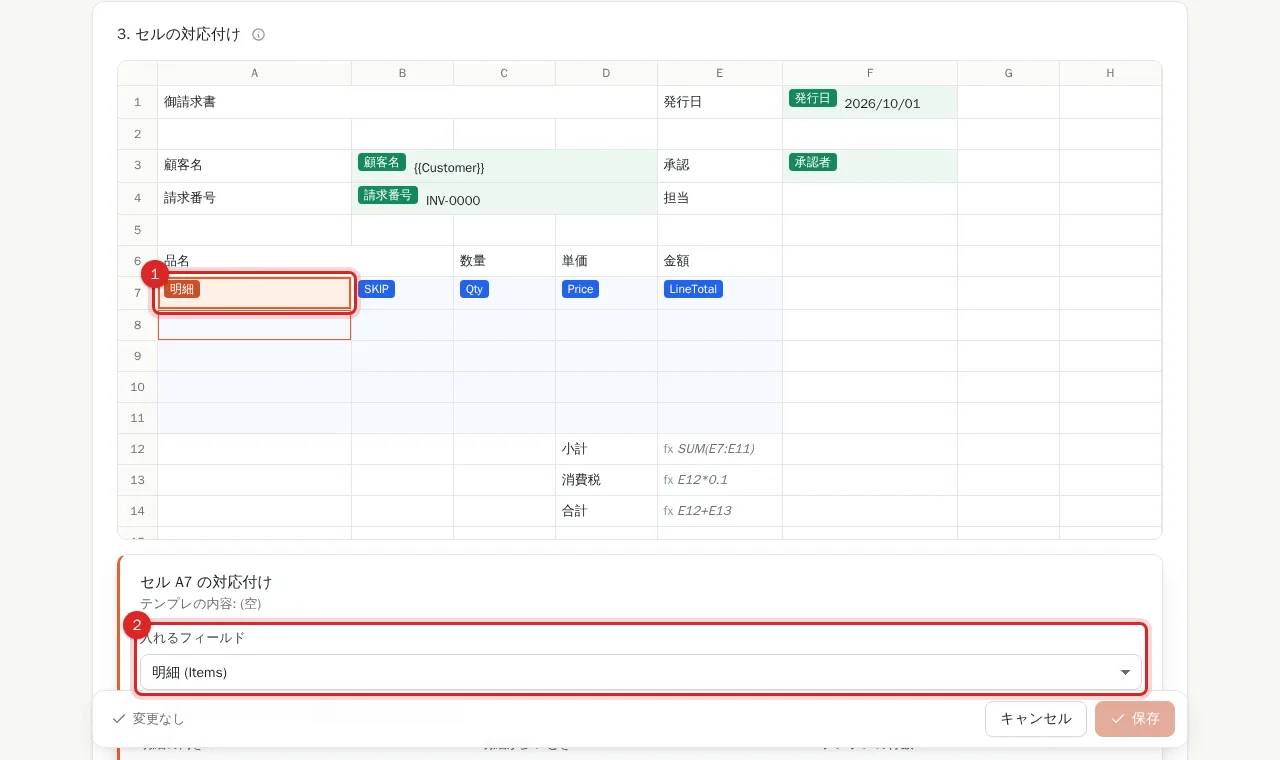
2. Set 明細の向き (direction) and the rows and columns per record
Choose 横 (horizontal: one item per row, grows down) or 縦 (vertical: one item per column, grows right) in 明細の向き, then enter テンプレの行数 / テンプレの列数, the size of the block one record occupies in the template. Merged cells inside the block must line up row by row and column by column.
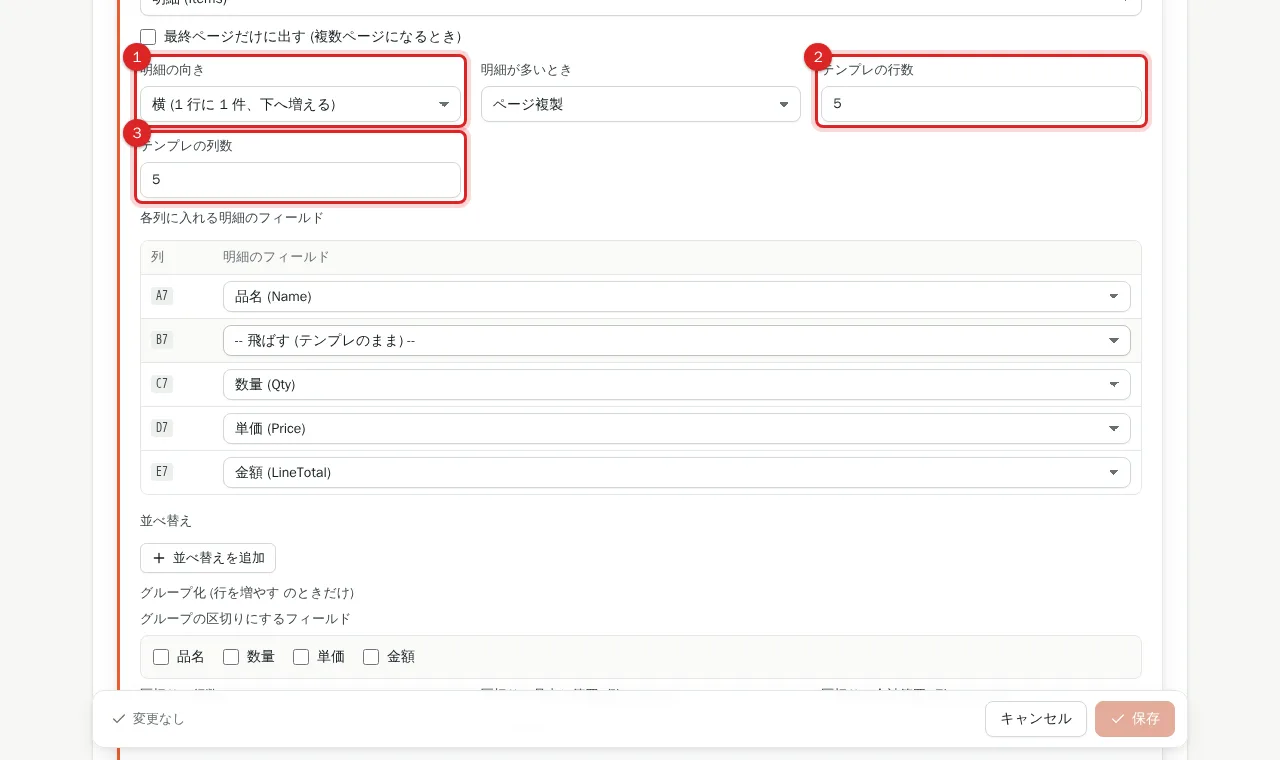
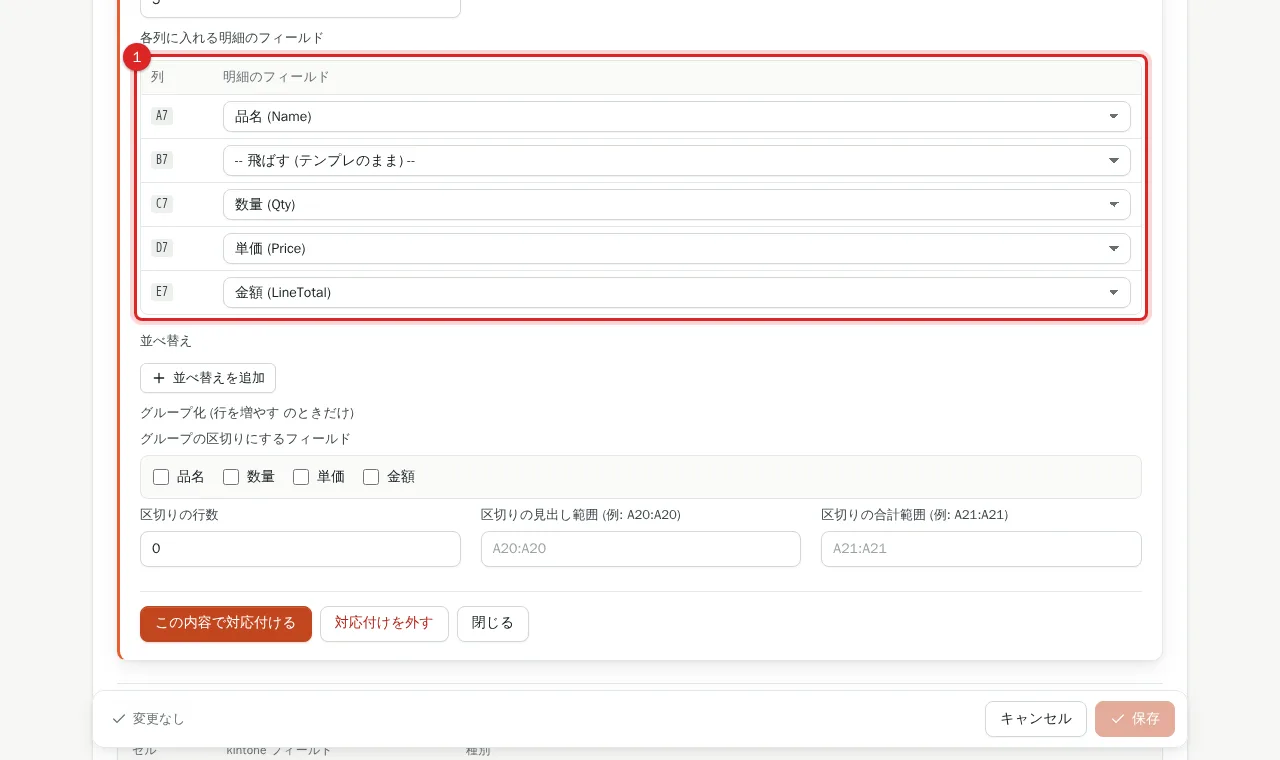
3. Assign a line-item field to each column (or row)
In the table "各列に入れる明細のフィールド" (each row for vertical), pick the line-item field for each column. "-- 空にする --" leaves the column blank; "-- 飛ばす (テンプレのまま) --" keeps the template text.
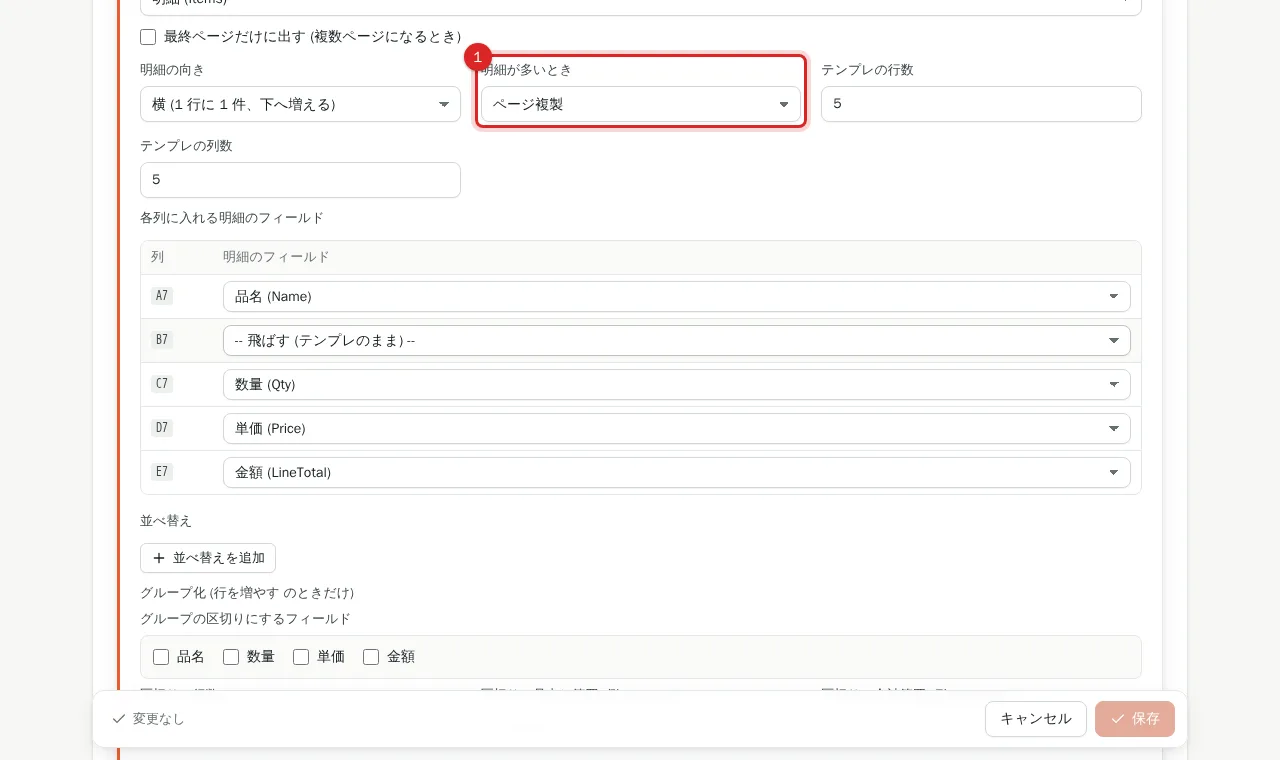
4. Choose what happens when there are more items than the block
In 明細が多いとき (when there are more items) choose: ページ複製 (page copy, default): copies the whole print-area page below and continues. 固定 (余りは捨てる) (fixed): writes only the template rows and drops the rest. 行を増やす (growing rows): inserts one block per record (include the blank row after the items in any SUM below).
5. Set sorting and grouping
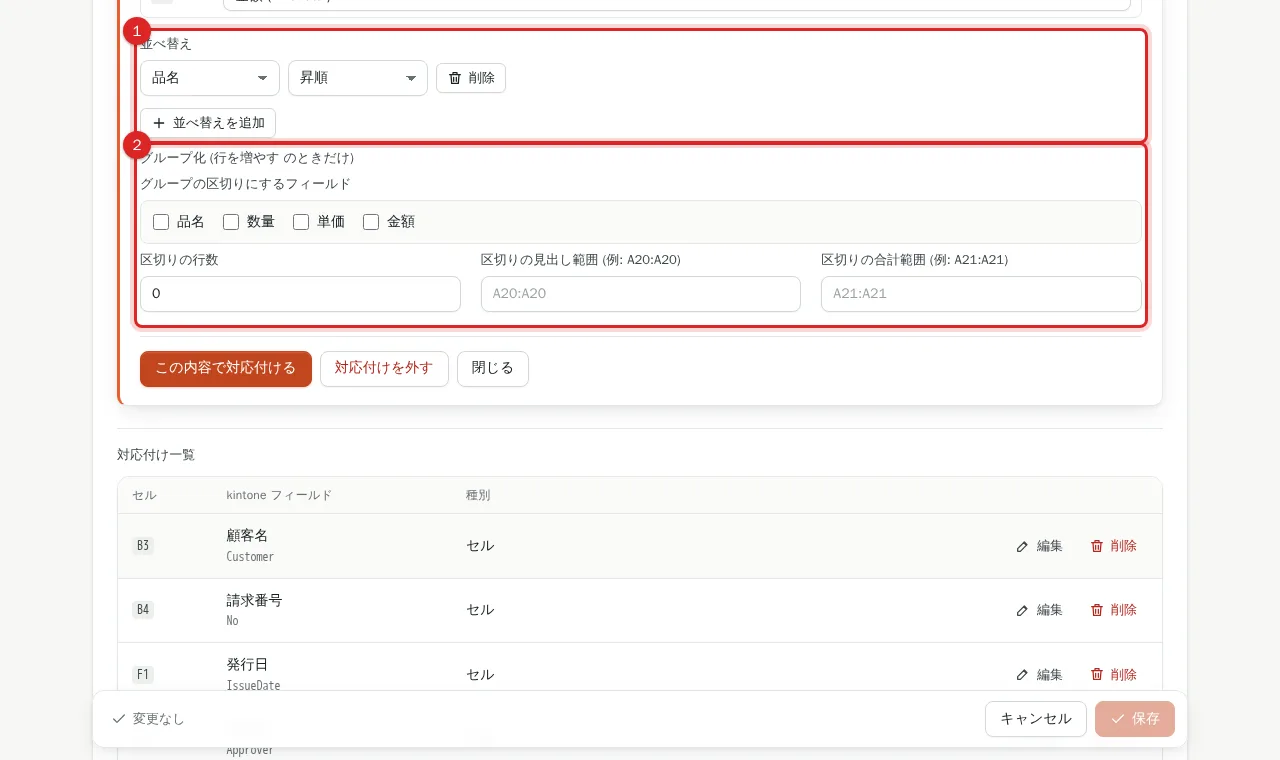
Press 並べ替えを追加 to add sort keys (field, ascending / descending; several levels applied top to bottom). グループ化 (grouping) is available only with 行を増やす: set the field that starts a new group, the number of separator rows, and the heading range (for example A20:A20).
6. Apply and save
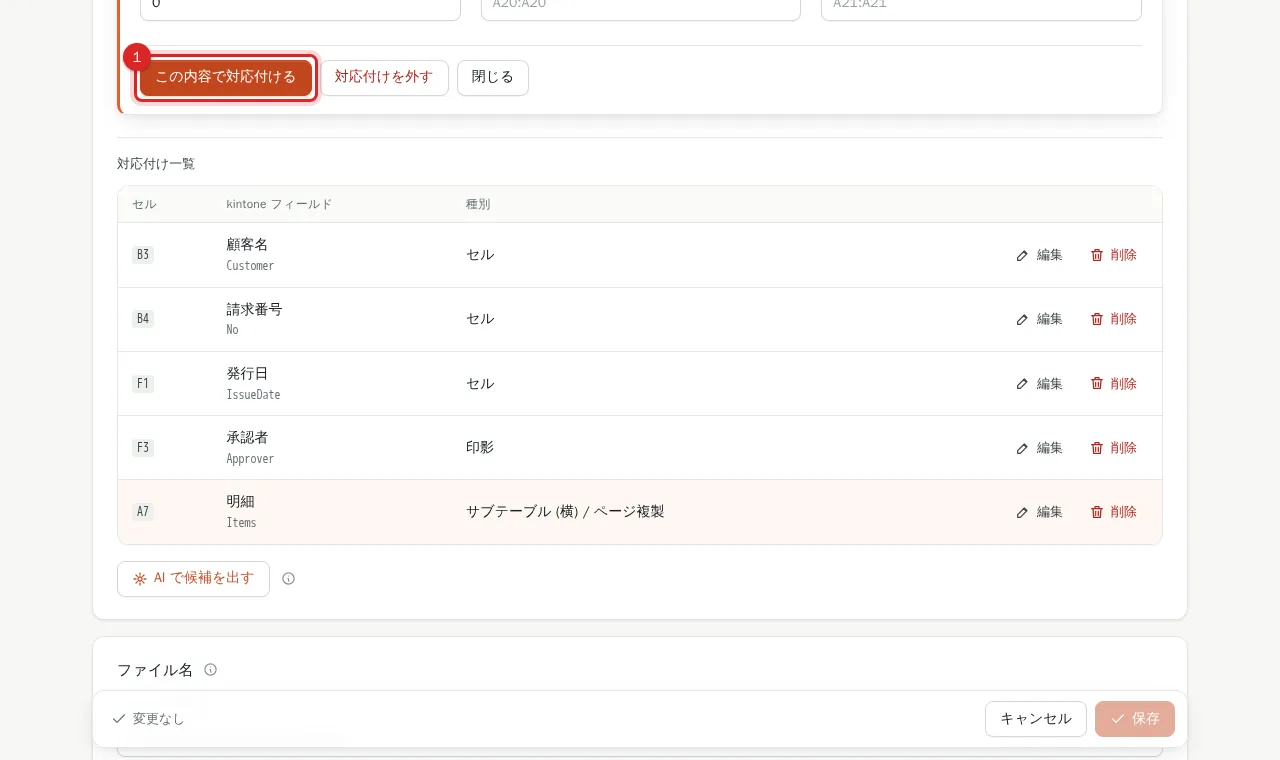
Pressing "この内容で対応付ける" (apply) validates the block (uneven merges or overlap with other mappings are errors). Then press 保存 at the bottom.
7. Show totals only on the last page (optional)
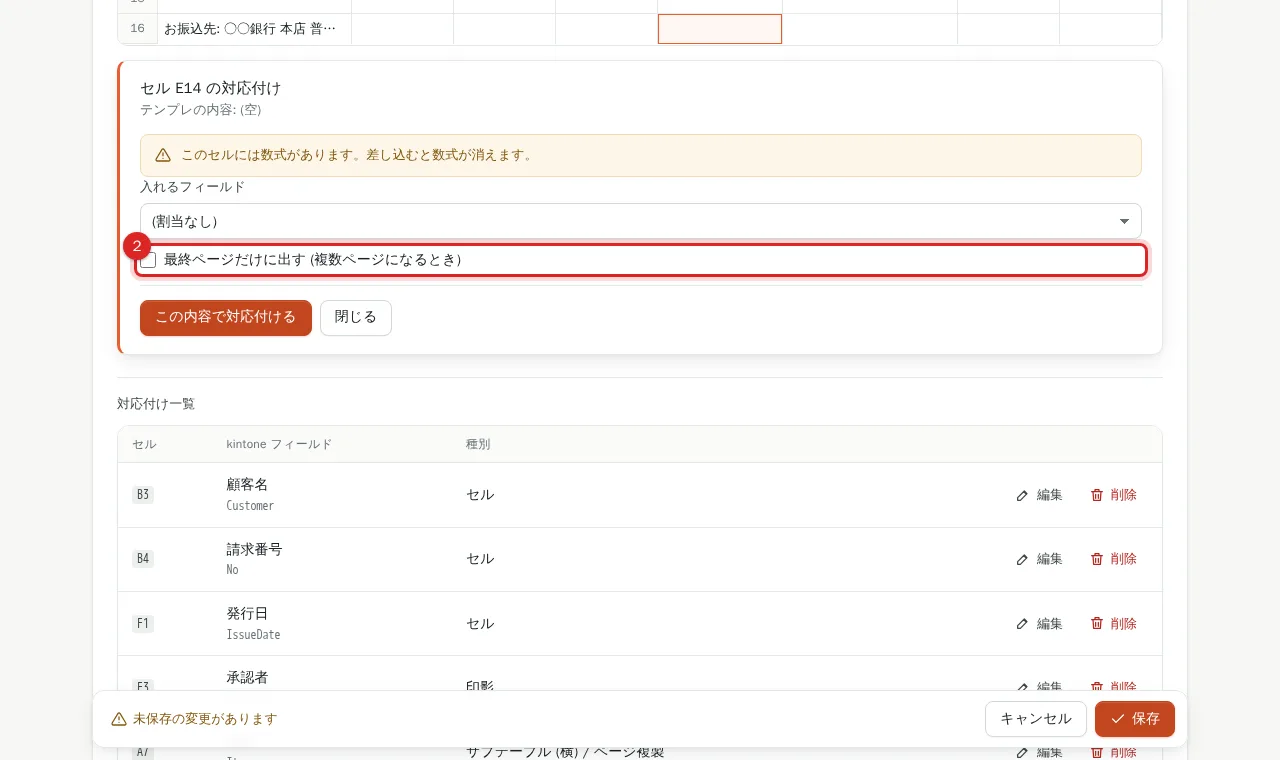
For page-copy documents that span several pages, click a cell such as the total and turn on 最終ページだけに出す (only on the last page) so it appears only on the last page.
Frequently asked questions
Which overflow mode do existing (v1) templates use?
v1-format mappings use page copy; templates created in v2 use growing rows. You can change it in the editor.
With growing rows my SUM below the items does not expand.
Row insertion works inside a range, as in Excel. Include the blank row after the items in the formula, for example SUM(B10:B11).
Are shapes copied?
Images are copied; auto-shapes are not copied.
Can related records (REFERENCE_TABLE) be output too?
Yes. A related-records field is mapped to a block like a subtable and output as line items.