 PRING Help
When an error appears
On an error the dialog shows which side failed ("PRING サーバーでエラーが起きました" server, "kintone 側でエラーが起きました" kintone, or "通信できませんでした" network), the reason and an inquiry number. Template not found, contract not confirmed and the monthly limit go to your administrator; for network errors wait and press "再試行" (Retry). When you contact someone, copy the inquiry number with "コピー".
Steps
Screenshots are taken from the real PRING plugin (v6) with sample data; the surrounding kintone screen is simplified. Your kintone and plugin version may differ in details. The plugin UI is in Japanese.
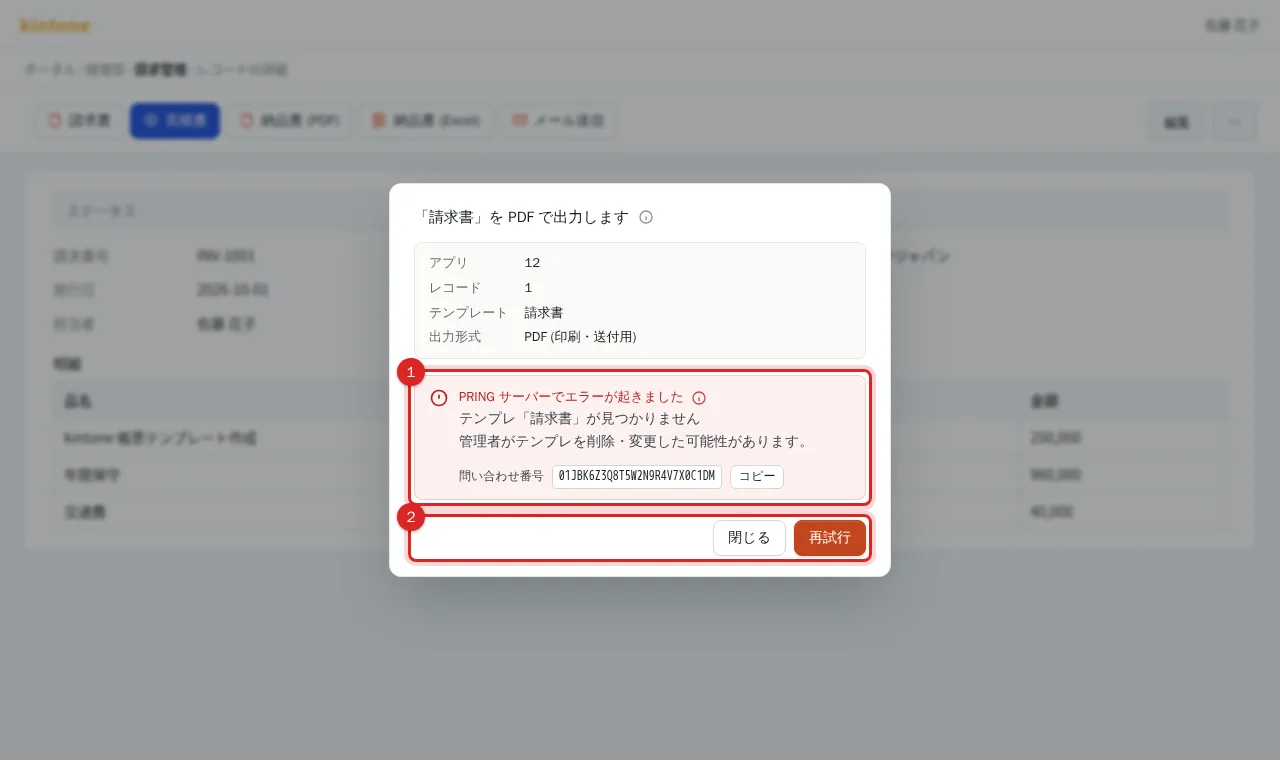
1. "テンプレ「…」が見つかりません" (template not found)
The template behind the button you pressed is not on the server; the administrator may have deleted or changed it. Reload and press the button again; if it persists, contact your kintone administrator.
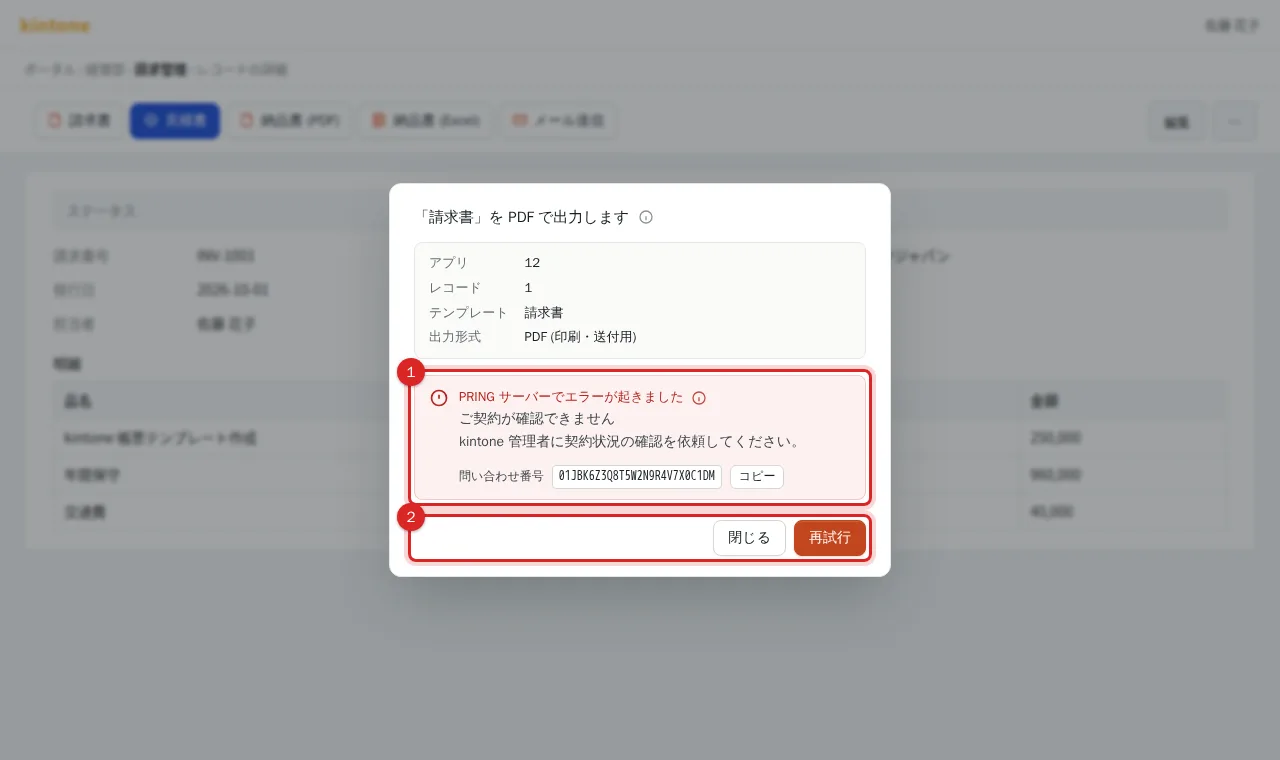
2. "ご契約が確認できません" (contract not confirmed)
The free trial has ended or the contract is not active. Ask your kintone administrator to check the contract. Users cannot fix this themselves.
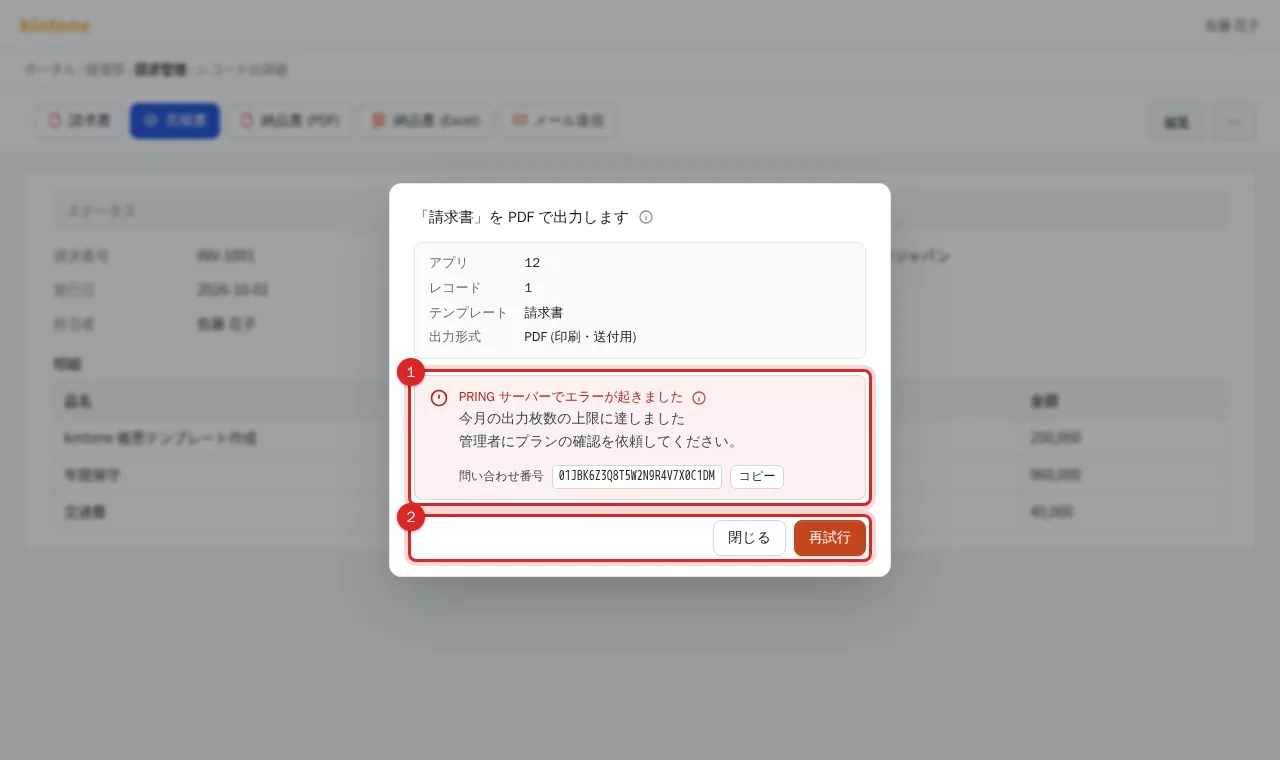
3. "今月の出力枚数の上限に達しました" (monthly limit reached)
This month's output allowance of the plan is used up. Ask your administrator to check the plan.
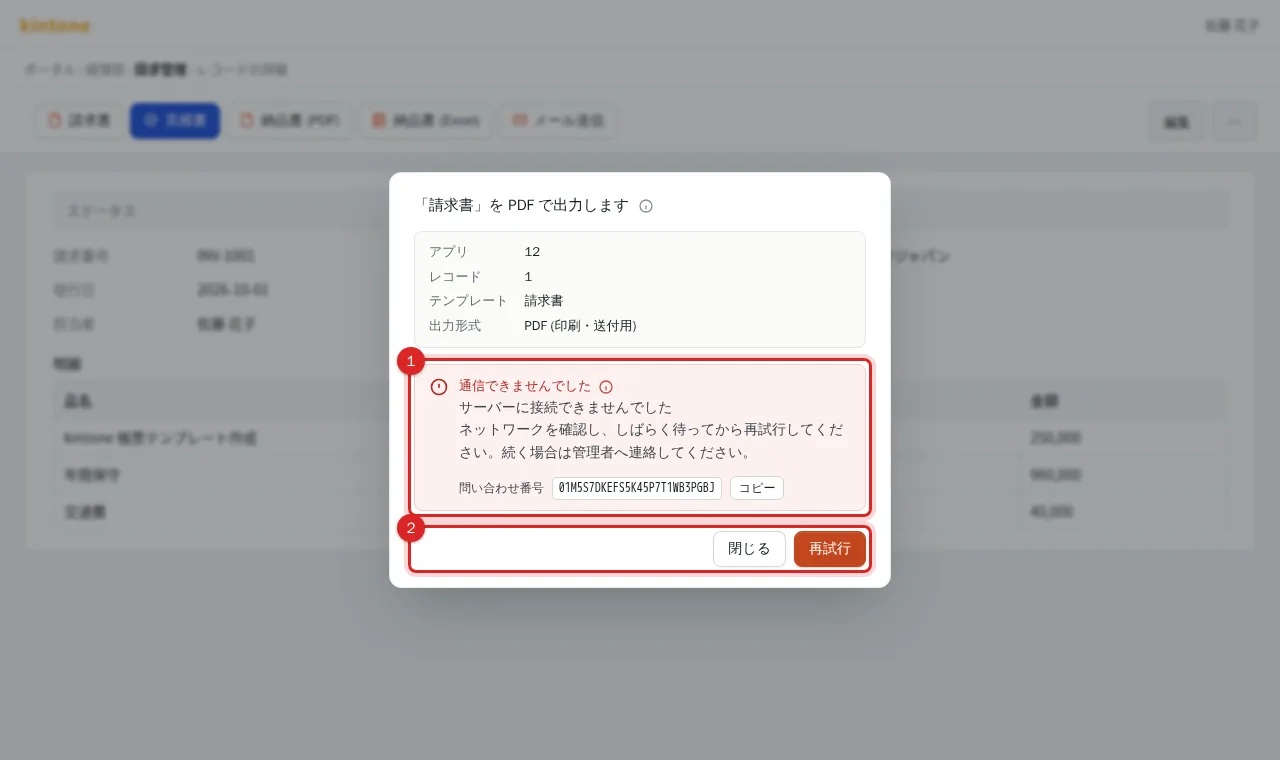
4. "サーバーに接続できませんでした" (cannot connect)
A network or temporary problem (the heading says 通信できませんでした, could not communicate). Check your connection, wait a moment and press "再試行" (Retry). If it persists, contact your administrator.
What to tell your administrator
- The kintone app name and record number
- The button (template) you pressed
- The heading, reason and inquiry number shown in the dialog (copy it with コピー)
Related
- Export a PDF or Excel from a record
- For administrators: Troubleshooting
Frequently asked questions
What is the inquiry number (問い合わせ番号)?
A 26-character ID attached to each export request. Copy it with "コピー" and give it to your administrator or send it through the contact form (https://pring.tech/en/contact) so the server records can be checked. The (i) next to it shows details such as the code and stage.
"API トークンを確認してください" (check the API token) was shown.
The plugin's connection settings have no API token or a wrong one. Ask your kintone administrator to fix the connection settings.
"Timeout" was shown.
Too many records or temporary congestion. Wait and retry; for batch export, select fewer records.
Nothing happens when I press a button.
Clear the browser cache, reload, and sign in to kintone again. If it still does not work, contact your administrator.
Values appear in the wrong cells of the document.
The template mapping is wrong. Tell your administrator the template name and the affected cells; they can fix it in "3. セルの対応付け" of the settings screen.