 PRING Help
Batch export from a list
Press "一括出力" (Batch export) in the list view header, choose the template and the records (from those shown on the current page) and press "一括出力を開始". PRING makes one document per record and bundles them into a ZIP. It runs in the background with progress at the top of the list, then shows a "ZIP をダウンロード" (Download ZIP) link.
Steps
Screenshots are taken from the real PRING plugin (v6) with sample data; the surrounding kintone screen is simplified. Your kintone and plugin version may differ in details. The plugin UI is in Japanese.
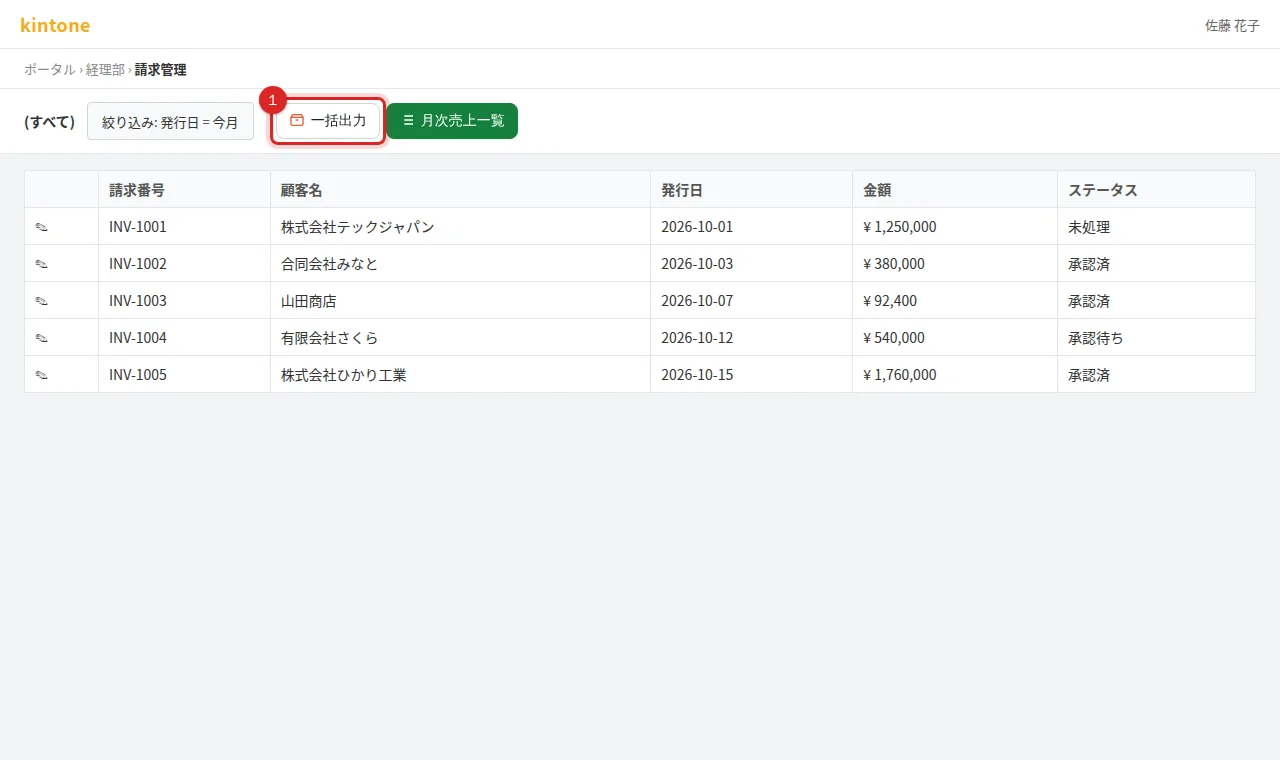
1. Filter the list, then press "一括出力" (Batch export)
Narrow the list so the records you want are shown, then press 一括出力 in the header.
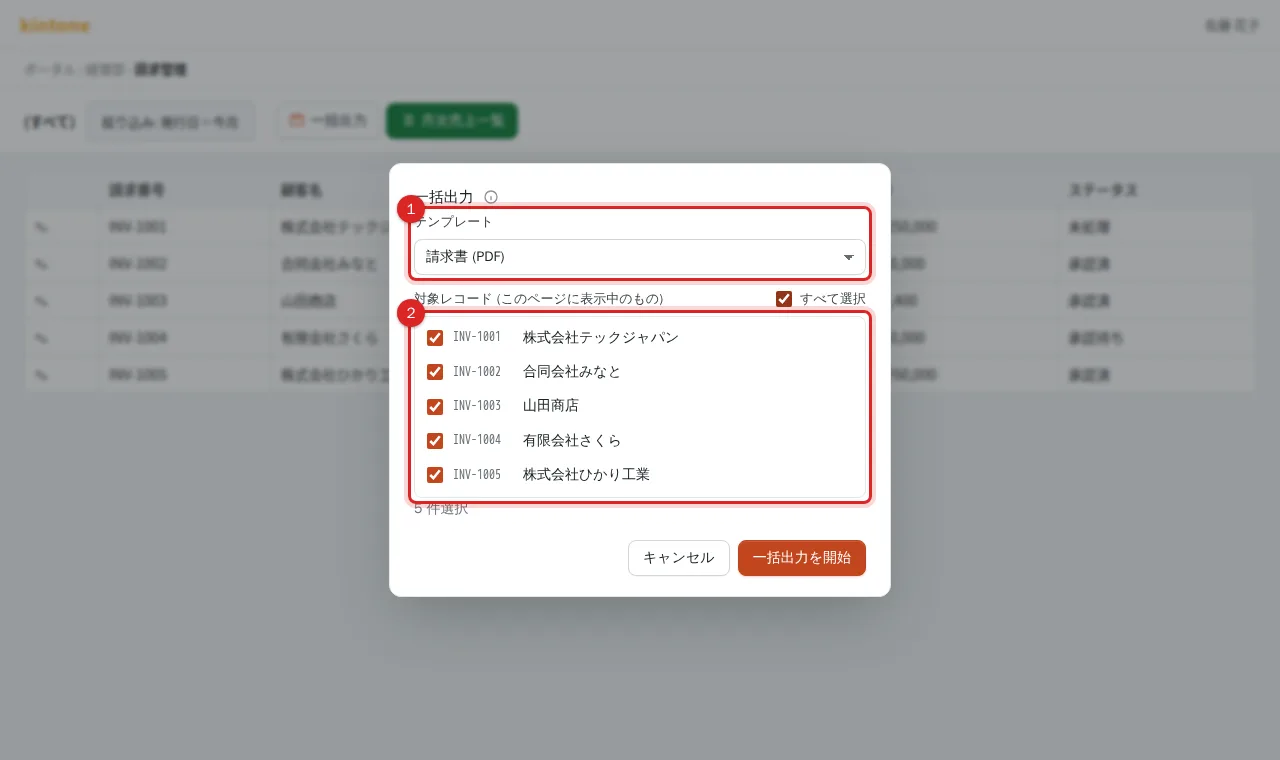
2. Choose the template and the records
In the dialog choose the document under "テンプレート" (Template; shown as is when there is only one), then tick the records under "対象レコード (このページに表示中のもの)" (records on this page). "すべて選択" (Select all) ticks the whole page. The number selected is shown below.
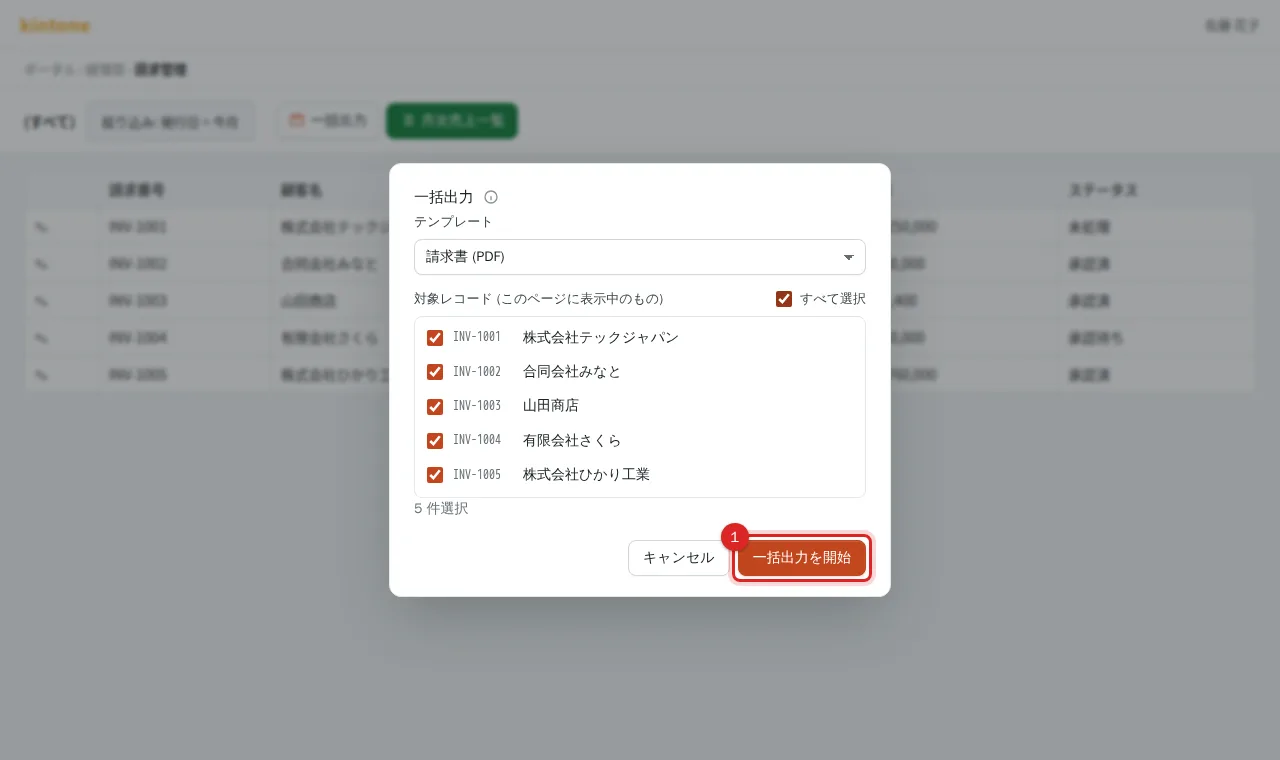
3. Press "一括出力を開始" (Start batch export)
The dialog closes and the job starts in the background. You can keep using the screen.
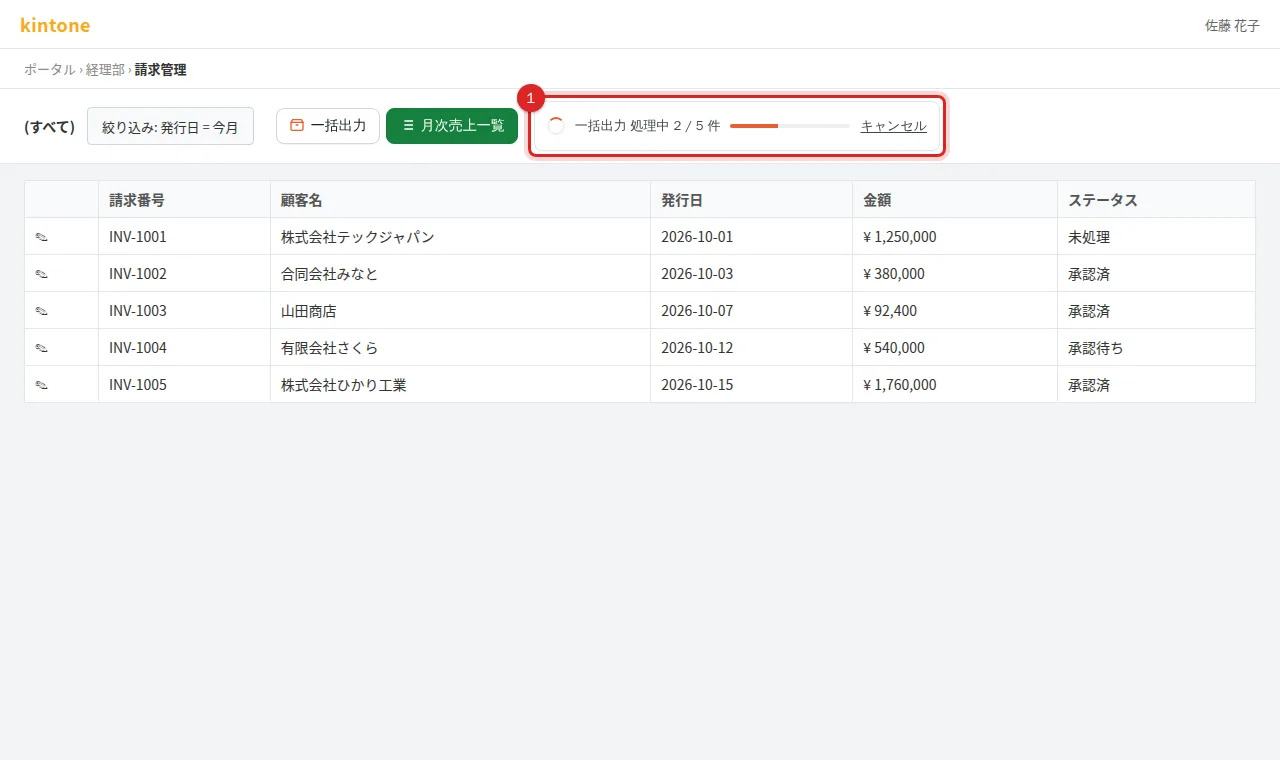
4. Watch the progress at the top of the list
The header shows "一括出力 処理中 n / m 件" (processing n of m) with a progress bar. Press "キャンセル" (Cancel) to stop.
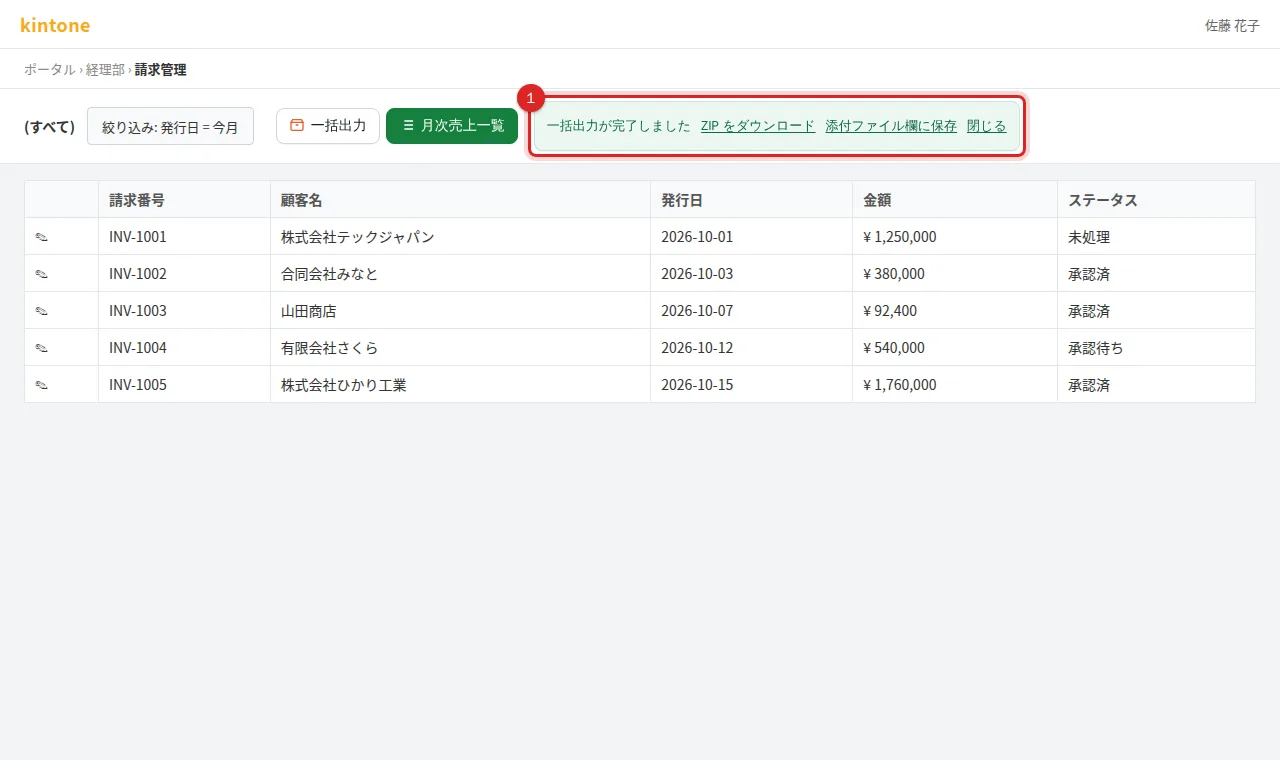
5. Press "ZIP をダウンロード" (Download ZIP)
When "一括出力が完了しました" (batch export finished) appears, press ZIP をダウンロード. If some records failed, their count is shown and the reasons are in failed.txt inside the ZIP. If the template has attachment targets, "添付ファイル欄に保存" (save to attachment fields) is also available.
Related
- One record at a time: Export a PDF or Excel from a record
- Errors such as ご契約が確認できません (contract not confirmed): When an error appears
Frequently asked questions
How many records can I export at once?
You can select the records shown on the current page of the list. For more, move to the next page or split the filter and run again. Each run is also limited by your plan.
Can I batch-export to Excel?
Yes. The template choices show (PDF) or (Excel); pick an Excel template.
I closed the page mid-way.
The job keeps running on the server, but the progress and the download link are shown only on that page. After closing it the link cannot be shown again, so run the batch export again.