 PRING Help
Settle expenses
An expense runs through 経費申請 (Expense request), 領収書登録 (Receipt registration) and 立替経費一覧 (Out-of-pocket expense list), carrying the request number. The applicant enters the line items and answers the questions in Decide accounts; the rules or AI propose an account, and the approver confirms it. After approval, the receipt registration is created automatically. Accounting records the payout.
Steps
Screenshots are taken from the real PRING plugin (v6) with sample data; the surrounding kintone screen is simplified. Your kintone and plugin version may differ in details. The plugin UI is in Japanese.
1. Create the expense request (applicant)
The app is 経費申請 (Expense request). Enter the request number, subject and line items (date of use, category, details, amount), and choose the approver and decider. The request date, applicant and department are filled in, and the total is calculated.
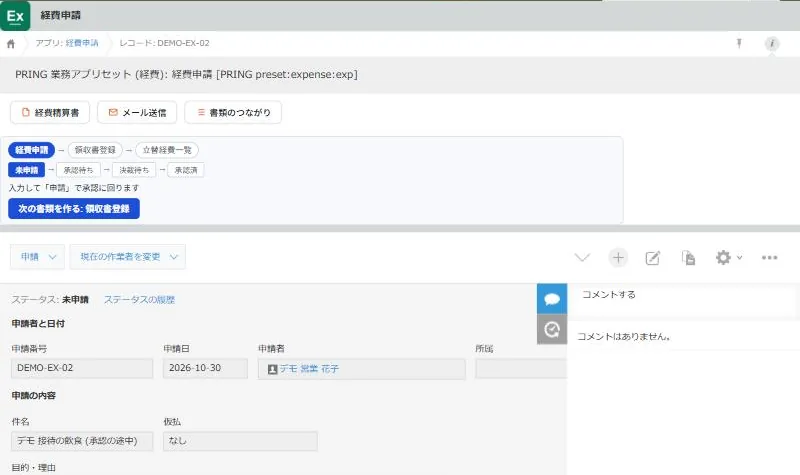
An unsubmitted expense request. The status bar shows where it is in the approval 2. Decide the accounts (applicant)
Press Decide accounts (勘定科目を判定) at the top of the create or edit screen of the expense request. Answer the category questions shown for each line and press Decide by rules; the company's rules propose an account. For a line the rules cannot decide, Ask AI gives a proposal. To take a proposal, press Accept proposal, save, and press Submit.
3. Approve (approver and decider)
On the detail screen, the approver presses Decide accounts to check the proposal and confirmed account of each line. For a line to correct, enter the confirmed account on the edit screen, save, and press Approve. The decider presses Decide. After approval, the receipt registration is created automatically.
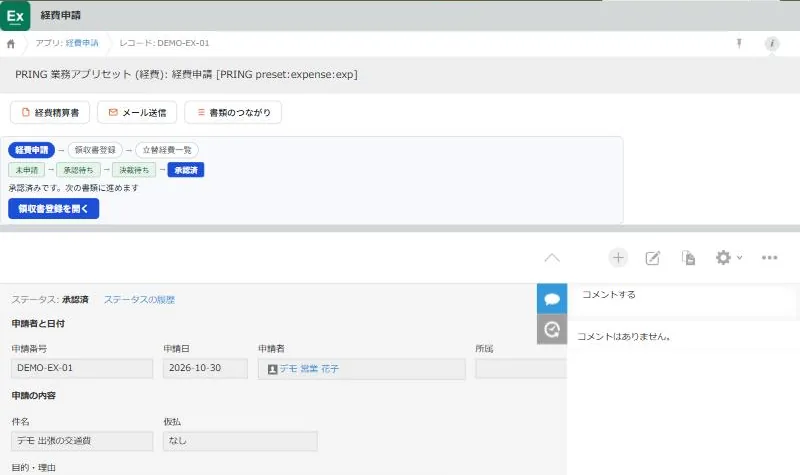
An approved expense request. A button to the next document (receipt registration) appears 4. Register the receipt (applicant)
The app is 領収書登録 (Receipt registration). The request number and subject are copied. Attach the original receipt and check and enter the receipt date, payee, amount and category. If an administrator has set up document reading, attaching the original lets AI fill in candidates.
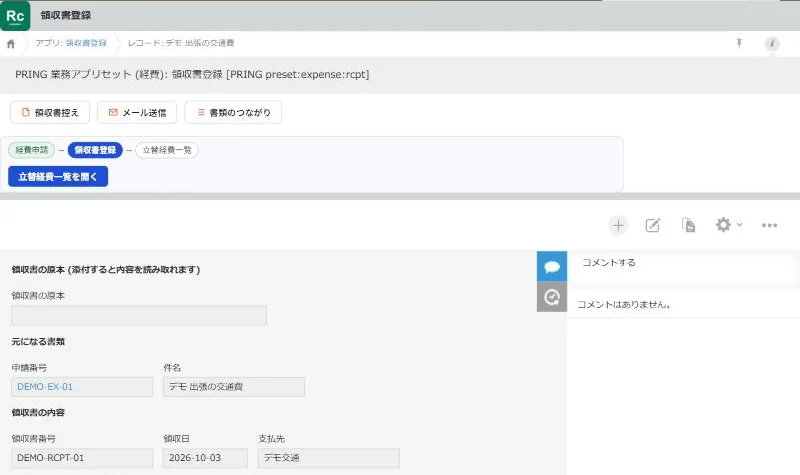
Receipt registration. The request number and subject come from the expense request 5. Reimburse the out-of-pocket payment (accounting)
The app is 立替経費一覧 (Out-of-pocket expense list). The receipt number, subject and payee are copied, and the person who paid is filled in. Accounting enters the amount paid and the settlement due date; after reimbursing, enter the settlement date, amount and method, and change the settlement status.
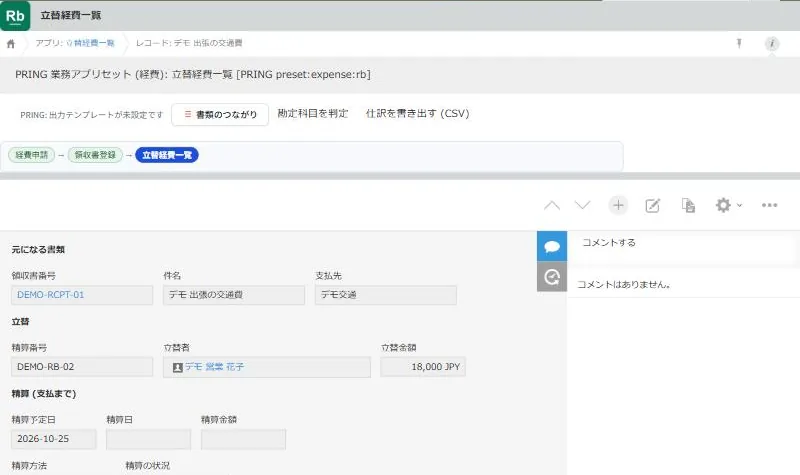
Out-of-pocket expense list. The settlement status follows the case until payment
What people do and what fills in automatically
For one expense (one receipt, including the account decision), the number of times a person decides a value goes from 33 to 27, compared with running the same apps by hand in standard kintone (a conservative comparison that counts default values as filled in by kintone too). Categories with questions, such as meetings and entertainment, add one decision per answer, but you can decide without knowing the account.
| Step | App | What people do | What fills in automatically | If you let AI do it |
|---|---|---|---|---|
| 1 | Expense request | Enter the subject and line items | Request date, applicant, department, total | — |
| 2 | Expense request | Answer the questions | Account proposals decided by rules | Proposes an account for lines the rules cannot decide |
| 3 | Expense request | Check and confirm the proposals, approve | Creating the next document (receipt registration) | — (the approver confirms) |
| 4 | Receipt registration | Attach the original, check the contents | Request number, subject | With document reading set up, fills in candidates from the original |
| 5 | Out-of-pocket expense list | Amount paid and reimbursement record | Receipt number, subject, payee, person who paid | — |
- AI proposals and reading work when an administrator has registered your own Gemini API key on the AI settings tab. AI only proposes; a person confirms and saves. When it is not available, a person chooses the confirmed account for lines the rules cannot decide.
- Requests, the history of account decisions and journal entries are saved in your own kintone apps.
Detailed pages for each app
- How to use the Expenses app set: the 4 apps, approvals and statuses, documents and where they are saved
- Decide accounts on expense claims: questions, rules, AI proposals and confirmation
Related pages
Frequently asked questions
The Decide accounts button does not appear.
It appears when an administrator has created the finance set and saved the Finance tab in the settings screen of the expense request app. If it does not appear, ask your administrator to check the settings in [Set up automatic account decisions](/en/help/admin/finance-accounts).
Can I use the AI proposal as a tax judgement?
No. AI proposals are not tax advice. The approver confirms the account, and who confirmed it is kept in the record.
Where do I export the journal?
Journal entries are created when the expense request is approved. On the list screen of the expense request, press Export journal, choose a period and save the CSV.