 PRING Help
Buy goods and services
A purchase runs through 購買依頼 (Purchase request), 購買稟議 (Purchase approval), 購買契約 (Purchase contract), 発注書 (Purchase order), 納品書 (Delivery note), 請求書 (Invoice) and 債務管理 (Payables), each carrying the upstream number. After approval, the next document is created automatically with the subject, supplier and line items. For delivery notes and invoices, AI reads the attached original.
Steps
Screenshots are taken from the real PRING plugin (v6) with sample data; the surrounding kintone screen is simplified. Your kintone and plugin version may differ in details. The plugin UI is in Japanese.
1. Submit a purchase request (requester)
The app is 購買依頼 (Purchase request). Enter the request number, subject and line items (item, quantity, unit price), choose the approver and decider, and press Submit. The request date, requester and department are filled in, and the amounts and total are calculated.
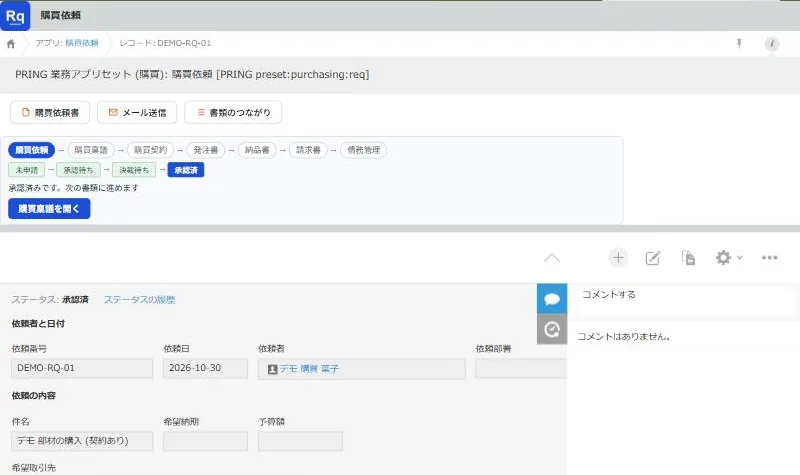
An approved purchase request. The flow bar shows how far the case has gone 2. Approve the purchase approval (approver and decider)
The app is 購買稟議 (Purchase approval). When the request is approved, the approval is created automatically with the request number and subject. The drafter adds the quotation comparison and reason and submits. The approver checks it and presses Approve, the decider presses Decide, and either can press Send back.
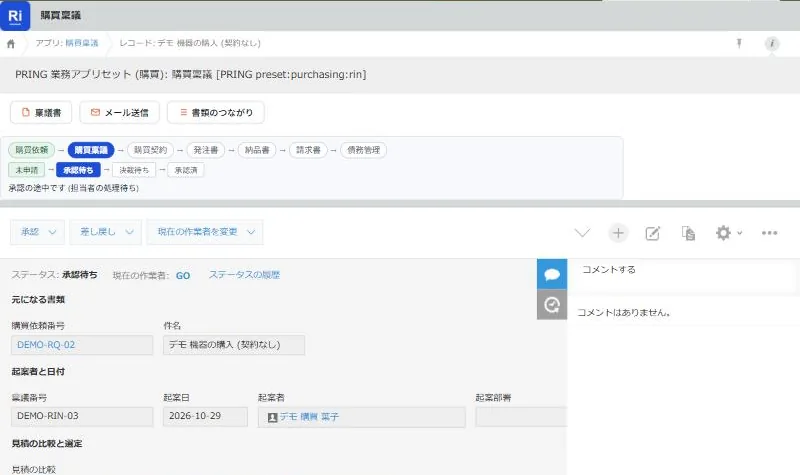
A purchase approval waiting for approval. The approver sees Approve and Send back 3. Keep the purchase contract (person in charge)
The app is 購買契約 (Purchase contract). This step is used only when the approval's contract field is yes. When the approval is approved, the contract is created automatically with the approval number, subject and supplier. Enter the amount, period and terms, attach the signed contract, and submit. When it is no, this step is skipped and the purchase order comes next.
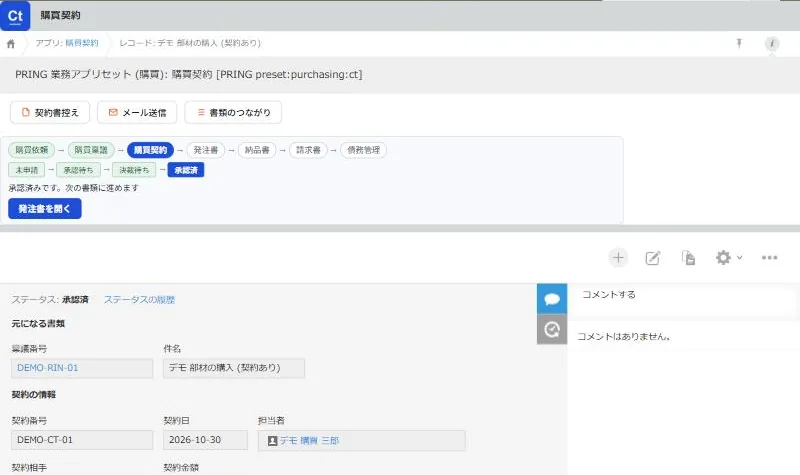
An approved purchase contract. The approval number and subject come from upstream 4. Issue the purchase order (buyer)
The app is 発注書 (Purchase order). When the contract (or the approval, without a contract) is approved, the order is created automatically with the contract number, subject, supplier and payment terms. The buyer checks the delivery date and line items, outputs the 注文書 (order form) and sends it. The subtotal, tax and total are calculated.
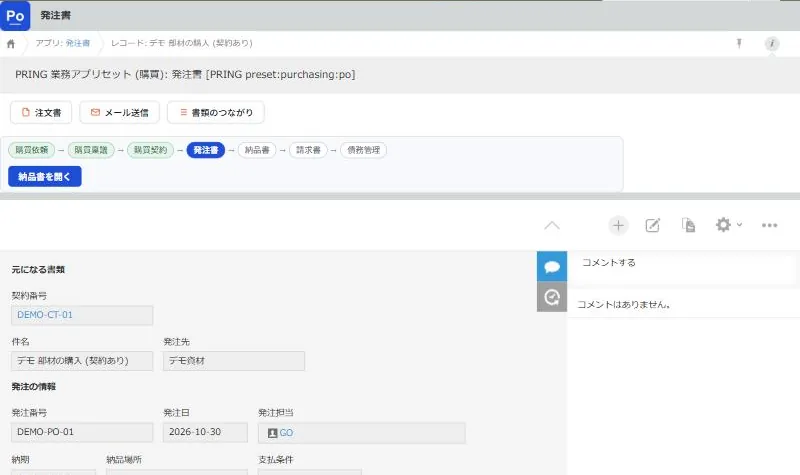
A purchase order. The order form button outputs a PDF to send to the supplier 5. Receive and inspect the delivery note (inspector)
The app is 納品書 (Delivery note). Create it from the order with the create-next-document button, and the order number, subject, supplier and line items are copied. Attach the supplier's delivery note as the original and AI reads the date and amounts as candidates. The inspector checks it against the order and enters the inspection status, inspector and date.
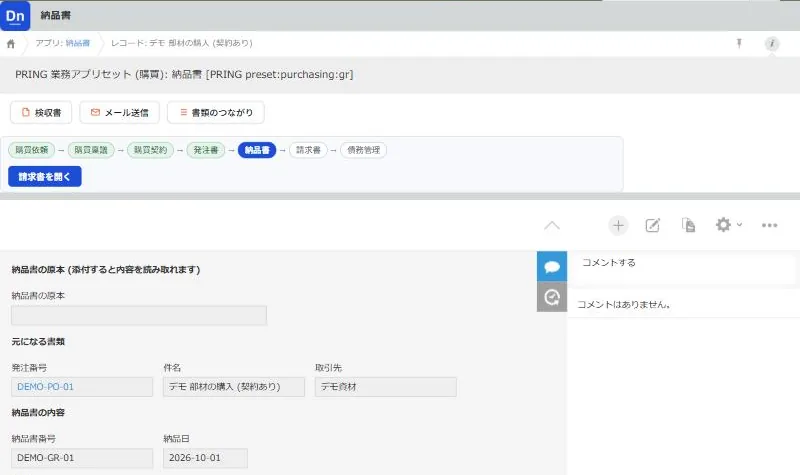
A delivery note. Attaching the supplier's document to the original field lets AI read it 6. Receive and match the invoice (accounting)
The app is 請求書 (Invoice). Created from the delivery note, it carries the delivery note number, subject, supplier, line items and amounts. Attach the supplier's invoice as the original to check the candidates AI reads. Accounting matches it against the order and delivery and writes the result in the three-way matching field.
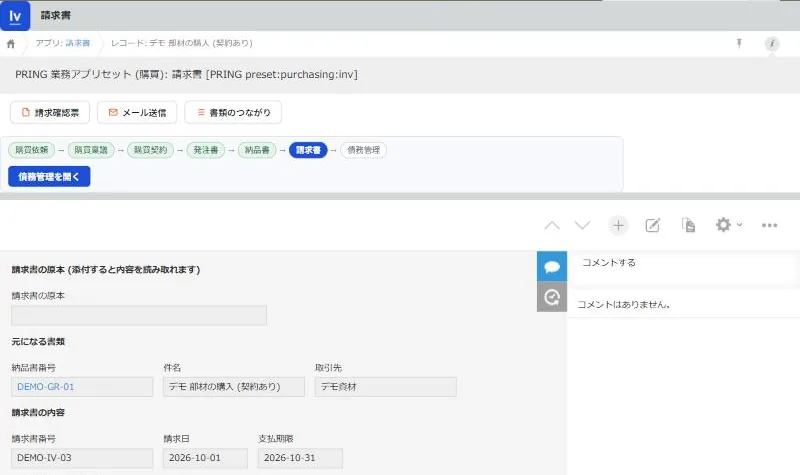
An invoice. The subject, supplier and line items come from the delivery note 7. Record the payment (accounting)
The app is 債務管理 (Payables). Created from the invoice, it carries the invoice number, subject and supplier; enter the date to pay. After paying, enter the payment date, amount and method, and change the payment status. The paid and unpaid totals per case are shown in 購買管理 (the case summary).
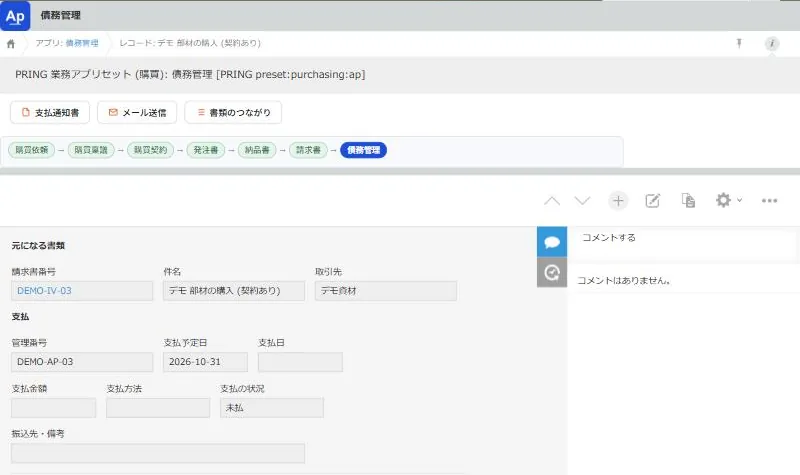
Payables. Changing the payment status updates the case totals
What people do and what fills in automatically
For one purchase case (request to payables, one line item), the number of times a person decides a value goes from 88 to 59, compared with running the same apps by hand in standard kintone (a conservative comparison that counts default values as filled in by kintone too).
| Step | App | What people do | What fills in automatically | If you let AI do it |
|---|---|---|---|---|
| 1 | Purchase request | Enter the subject and line items, submit | Request date, requester, department, amounts and total | — |
| 2 | Purchase approval | Quotation comparison and reason, approve and decide | Request number and subject (created after approval) | — |
| 3 | Purchase contract | Contract terms, attach the original | Approval number, subject, supplier | — |
| 4 | Purchase order | Check the delivery date and items, output the order form | Contract number, subject, supplier, payment terms, subtotal, tax, total | — |
| 5 | Delivery note | Attach the original, inspect | Order number, subject, supplier, line items | Reads the date and amounts from the original |
| 6 | Invoice | Attach the original, three-way matching | Delivery note number, subject, supplier, line items, amounts | Check the candidates read from the original |
| 7 | Payables | Date to pay and payment record | Invoice number, subject, supplier | — |
- AI reading works when an administrator has registered your own Gemini API key on the AI settings tab and set up document reading in the delivery note and invoice apps. AI only fills in candidates; a person checks and saves. When it is not available, enter the values by hand from the original.
- Documents and records are saved in your own kintone apps.
Detailed pages for each app
- How to use the Purchasing app set: the 8 apps, approvals and statuses, documents and where they are saved, three-way matching
- AI reading of supplier documents: setting up reading for delivery notes and invoices
- Case links and the evidence bundle: document links and the evidence bundle PDF
Related pages
Frequently asked questions
The approval is done, but the next document was not created.
When it cannot be created automatically, for example because a required field cannot be copied, the message "Could not create it. Opening the create screen" appears. Press the create-next-document button to open the create screen with the upstream number filled in, enter the rest and save.
How do I order without a contract?
Leave the contract field of the purchase approval at no (the default). When the approval is approved, the purchase contract is skipped and the purchase order is created.
Can I see all the documents of a case together?
Yes. Press Document links on any document's detail screen to list the documents from request to payables, and use the evidence bundle PDF to combine them into one PDF.