 PRING Help
Edit the cell mapping (which field goes in which cell)
In the template editor, open "3. Cell mapping", click a cell on the grid, choose a kintone field under "Field to insert" and press "Apply this mapping". The cell then receives that field's value. Press "Remove mapping" to clear it. Number, date and text appearance follow the cell format in Excel; use the format @ (text) for cells that must stay text. Press Save to finish.
Steps
Screenshots are taken from the real PRING plugin (v6) with sample data; the surrounding kintone screen is simplified. Your kintone and plugin version may differ in details. The plugin UI is in Japanese.
1. Open "3. Cell mapping" in the template editor
On the Templates tab of the settings screen, press Edit (or "Add template" for a new one) and upload an xlsx under "2. Template file". The cells of your Excel file then appear under "3. Cell mapping". Cells that contain a formula are marked. A large sheet shows only the first 200 rows by 50 columns.
2. Choose the sheet
If the workbook has several sheets, pick the sheet to map with the sheet tabs above the grid. The mapping is saved per sheet.
3. Click a cell on the grid
Click the cell that should receive a value. For a merged cell, click its top-left cell. The panel "Map cell B3" opens and shows the "Template content" (the text currently in the cell). If the cell has a formula you see "This cell has a formula. Merging a field will remove the formula."
4. Choose "Field to insert"
Pick the kintone field for that cell from the drop-down (shown as "label (field code)"). Items in the group "Fields" put one value in one cell. Items in "Subtable (line items) / related records" expand a table of rows: click the first cell and choose it there (see [Set up subtable (line item) layout](/en/help/admin/subtable)). If the field list cannot be loaded, type the code in the "Field code" box instead.
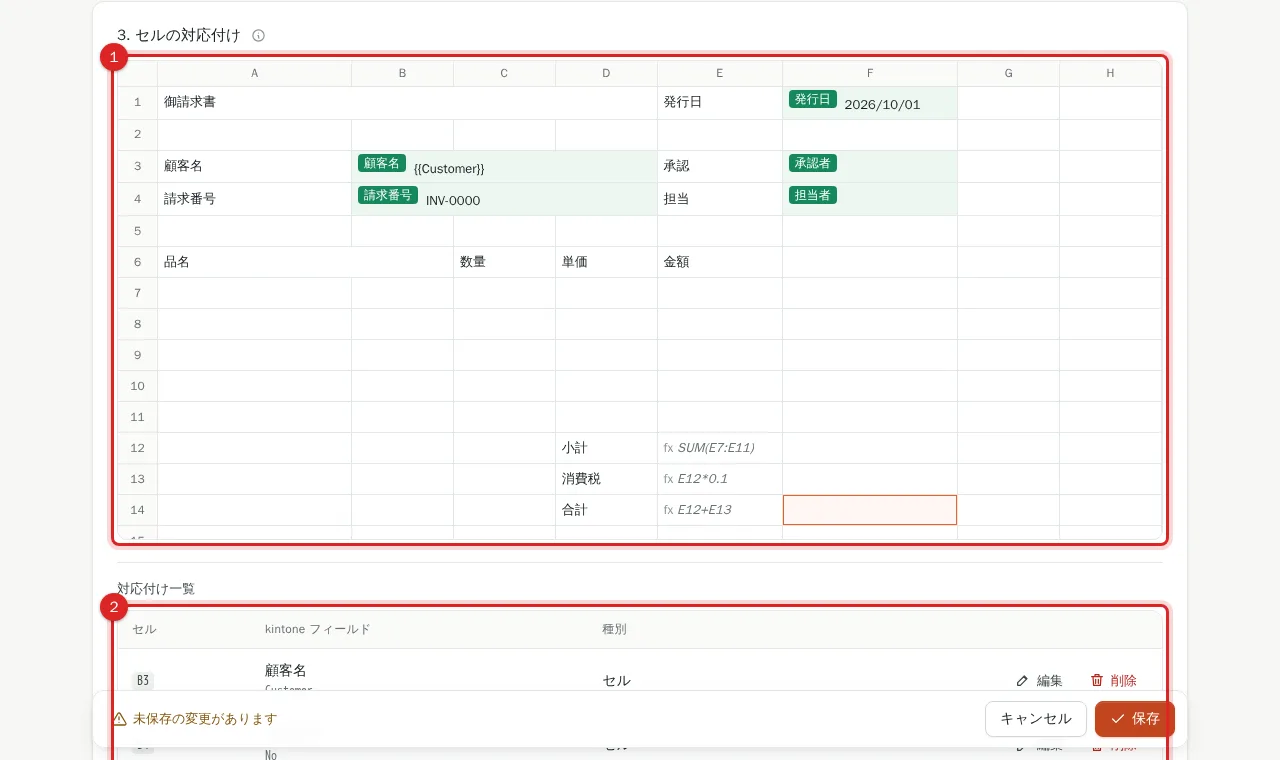
5. Press "Apply this mapping"
The cell on the grid gets a chip with the field name and changes color, and a row (for example B3 and the field) is added to the "Mapping list" below. Click the next cell and repeat. You can assign the same field to more than one cell.
6. Change or remove a mapping
Click a mapped cell again to open the panel with its current field. Choose another field and press "Apply this mapping" to switch, or press "Remove mapping" to empty the cell. The Edit (opens that cell) and Delete (removes it) buttons on each row of the Mapping list do the same.
7. Choose how it appears over several pages (optional)
For a single-cell mapping you can turn on "Show on the last page only (when output spans several pages)". Use it for a total cell that must appear only on the last page when the line items run onto more than one page.
8. Use a seal for user cells (optional)
When you pick a user field (approver, creator and so on) for a single cell, "Embed as a seal" appears. Turn it on and the registered seal image goes in instead of the name. For the frame size and date stamp, see [Register seals and place them in documents](/en/help/admin/seal).
9. Press Save
Press Save at the bottom of the screen. While "Unsaved changes" is shown on the left, nothing is saved yet. After saving you see "Saved. The export buttons now appear on the record screen." Export from a record to check the result.
How values are written
PRING keeps the cell format of your template. How each kintone field type is written:
| kintone field | What goes in the cell |
|---|---|
| Number, Calculated | A number (thousands commas are removed) |
| Date | A date value. Cells with the General format get yyyy/mm/dd |
| Date and time, Created time, Updated time | The date and time in the logged-in user’s time zone. General-format cells get yyyy/mm/dd hh:mm |
| Time | A time value in a time-formatted cell, otherwise text |
| User selection, Creator, Modifier and similar | The display name (several names joined with “, “) |
| Check box, Multi-choice | The selected values joined with “, “ as text |
| Text and others | The kintone text as is. A value of only digits such as 1200 becomes a number; one starting with 0 such as 00123 stays text |
- When the cell format is @ (text), every type is written as the text kintone shows
- An empty value gives an empty cell
- If you map a field to a cell with a formula, the formula is replaced by the value. Do not map cells whose formula you want to keep
Related pages
- Let AI suggest a first mapping: Set up AI mapping
- Expand a table of rows: Set up subtable (line item) layout
- Put a seal in an approval box: Register seals and place them in documents
- The full template procedure: Register a template
- When a field was deleted: Warning when a template’s field was removed from the app
- Word merge fields: Create and register a Word template
- QR codes, barcodes and attached images: Put QR codes, barcodes and attached images into documents
Frequently asked questions
How are numbers and dates written to the cell?
Number and Calculated fields go in as numbers and dates as dates, so =SUM and date subtraction keep working. The look (thousands separator, yyyy/mm/dd and so on) follows the cell format in your template. Only cells with the General format get a default: yyyy/mm/dd for dates and yyyy/mm/dd hh:mm for date-times. Date-times use the time zone of the kintone user who is logged in.
Leading zeros in product or phone numbers disappear. What should I do?
A text field whose value is only digits, such as 1200, is written as a number, but a value that starts with 0, such as 00123, stays text. In any other case where a number-like value must stay text, set the cell format to @ (text) in Excel and upload the file again. The text then appears exactly as kintone shows it.
Will a time field turn into a decimal such as 0.39?
No. A time such as 09:30 becomes a time value only when the cell format in Excel is a time format; otherwise it is written as the text 09:30. If you need time arithmetic, give the cell a time format in Excel.
Can an amount be printed in English words (One Thousand ...)?
If a template carried over from v1 contains the setting that spells an amount in English and adds a currency word such as Baht (PrintAsWord), it is applied on output. Example: 1234.56 becomes One Thousand Two Hundred Thirty-four Point Five Six. The settings screen has no switch for this, and the setting is kept when you re-map the cell.
Can I change column widths or row heights on this screen?
No. This screen decides which field goes in which cell. Adjust column widths, row heights, print area and margins in Excel, then upload the file again under "2. Template file". Print settings carry over to the PDF.
What happens to the mapping if I rename a sheet in Excel?
The mapping is saved per sheet name. If a mapping still points to a sheet name that the workbook no longer has, the export fails. After renaming a sheet and uploading again, check the mapping before you save.