 PRING Help
Create and register a Word template
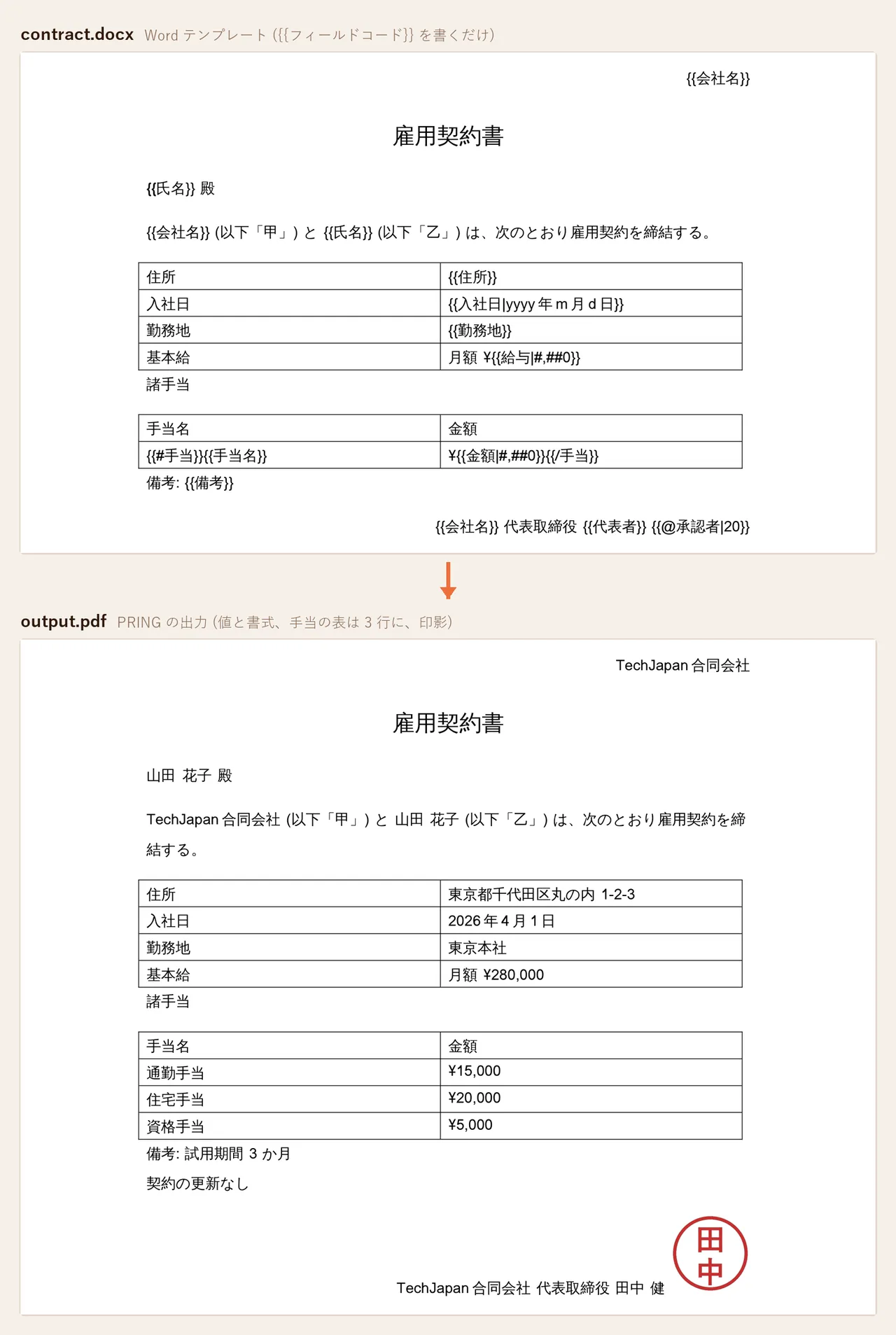
Contracts and notices use a Word (docx) template. Write {{fieldcode}} in the body, tables, header / footer or text boxes and the kintone value is merged in, with formats such as {{hire_date|yyyy/m/d}}, rows wrapped in {{#allowances}}…{{/allowances}} that repeat per subtable row, and seals with {{@approver}}. Upload the .docx, fix field codes the app lacks, save. Output PDF, Word or both.
Steps
1. Prepare the document in Word
Use the employment contract or notice you already have as a .docx. Images that are the same every time, such as the company logo, go straight into the template. If tracked changes are left in the file, accept them all first (if they remain, the merge outputs the document as if they were accepted).
2. Write {{fieldcode}} where the value goes
Wrap the kintone field code (the code shown in the app's form settings, not the field label) in double braces where the value should appear, for example {{employee_name}}. It works in body paragraphs, table cells, headers / footers and text boxes. Full-width braces typed with a Japanese IME are read as well. Keep each {{ }} inside one paragraph.
3. Add formats for dates and amounts
Write an Excel-style format after a vertical bar. {{hire_date|yyyy/m/d}} gives 2026/4/1, {{hire_date|yyyy年m月d日}} gives 2026年4月1日, {{salary|#,##0}} gives 280,000. Currency symbols are typed as text (¥{{salary|#,##0}}). Without a format, dates come out as 2026/04/01 and numbers as the kintone value.
4. Wrap one table row in {{#subtable}}…{{/subtable}}
To list a subtable, create one row that serves as the pattern, write {{#allowances}} at the start of its first cell and {{/allowances}} at the end of its last cell (allowances being the subtable's field code). {{allowance_name}} and {{amount|#,##0}} inside the row take each subtable row's values, and the row repeats once per subtable row. With zero rows the pattern row is removed. Related records fields work the same way.
5. Write {{@userfield}} where a seal goes
User selection, Created by, Updated by and Assignee fields become a seal image when prefixed with @. {{@approver|20}} is 20 mm high, {{@approver|20x15}} fits a 20 mm × 15 mm box, and without a size the seal is 12 mm high. Register seals on the Seals tab first (see Seals). A user without a seal image gets their display name as text.
6. Upload the .docx in the settings screen
On the Templates tab press テンプレ追加 (add template), fill in the template ID and button name under 1. 基本 and leave the kind as record detail. Under 2. テンプレートファイル choose the .docx and press アップロード. Instead of the cell mapping grid, the 3. 差し込み項目 (placeholder) table appears.
7. Fix warnings in the placeholder list
The table lists each placeholder found in the template: name, kind (field / table rows / seal), location (body / header / footer / text box), the matching kintone field (label and type) and status. A row flagged as a field code the app does not have means a typo on the Word side or on the kintone side; fix it and upload again. You can save with warnings, but those placeholders come out empty. Notices shown above the table, such as an unclosed {{, are fixed the same way.
8. Choose the output format and save
Under 出力形式 choose PDF, Word (docx) or PDF + Word. Button colour and icon, display conditions and attachment saving work exactly as for Excel templates. Press 保存, then kintone's アプリを更新 (update app), and the button appears on the record screen.
9. Output from a record and check
Press the button on a record detail screen and check the values, date formats, number of table rows and seals. If {{ }} remains as text, the field code is misspelled or Word split {{ and }} into different paragraphs.
Placeholder syntax
| Syntax | Result | Example |
|---|---|---|
{{fieldcode}} |
The field’s value (body, tables, header / footer, text boxes) | Dear {{employee_name}} |
{{fieldcode|format}} |
The value with a format (see Formats below) | {{hire_date|yyyy/m/d}} |
{{#subtable}} … {{/subtable}} |
One table row repeated per subtable row; {{column}} inside takes each row’s value |
{{#allowances}}{{allowance_name}} / ¥{{amount|#,##0}}{{/allowances}} |
{{@userfield}} |
A seal image (|20 = height in mm, |20x15 = width × height box) |
{{@approver|20}} |
{{$id}}, {{レコード番号}} and so on |
Built-in fields such as the record number (same names as in file name rules) | Document no. {{$id}} |
- Spaces inside the braces (
{{ employee_name }}) and full-width{{ }} | # / @are read the same way - The merged text takes the formatting (font, weight, colour, underline) of the position where
{{is written - The same placeholder can appear any number of times (for example
{{company}}in both the header and the body)
How values are written
| kintone field | Text without a format |
|---|---|
| Text, text area, rich text | As is. Line breaks in a text area become Word line breaks; rich text is written without tags |
| Number, calculated | The kintone value (add |#,##0 for thousands separators) |
| Date | 2026/04/01 |
| Date and time, created time, updated time | 2026/04/01 09:30 in the time zone of the person exporting |
| Time | 09:30 |
| User, department, group selection; created by, updated by, assignee | Display names (several are joined with , ) |
| Check box, multi-choice | Joined with , |
| Attachment | File names joined with , . The image itself is not inserted |
| Table (subtable), related records | Used column by column inside {{#…}}…{{/…}}; on its own it is empty |
A field code the record does not have becomes empty and the output still completes (upload shows a warning). Text inside a merged value that looks like {{…}} is not merged again.
Formats
| Applies to | Tokens | Example |
|---|---|---|
| Date, date and time, time | yyyy yy m mm d dd h hh mm (minutes right after h) ss ggg (Japanese era) e (era year) aaa / aaaa (weekday). Other characters are kept |
{{hire_date|yyyy/m/d}} gives 2026/4/1, {{hire_date|ggge年m月d日}} gives 令和8年4月1日, {{updated_at|m/d h:mm}} |
| Number, calculated | #,##0 thousands, #,##0.00 two decimals (rounded), 0 integer, 0.0 one decimal. % and currency symbols are typed as text |
¥{{salary|#,##0}} gives ¥280,000 |
A format that does not fit the field type is ignored and the plain text above is written.
Table rows
- Write
{{#allowances}}at the start of the first cell and{{/allowances}}at the end of the last cell of the row that serves as the pattern. If the start and end are in different rows, the whole range repeats per subtable row {{allowance_name}}inside the row takes the subtable row’s value; a code the subtable does not have (for example{{employee_name}}) takes the record’s value- With zero subtable rows the pattern row is removed; if the table has no rows left, the table is removed
{{#…}}and{{/…}}must be in the same table. Blocks outside a table, nested blocks and unclosed blocks are rejected at upload with the reason- Word templates do not sort or group rows; arrange the order on the kintone side
Seals
- Prefix a user selection, created by, updated by or assignee field with
@, as in{{@approver}}, and the first user’s seal is inserted as a picture. Surrounding text and formatting stay as they are - Size:
{{@approver\|20}}= 20 mm high (width keeps the ratio),{{@approver\|20x15}}= fits a 20 mm × 15 mm box, no size = 12 mm high - A user without a seal image gets their display name as text. The date stamp of Excel templates (a round stamp with approval, date, time and name) is not used in Word; write the approval time as its own field, such as
{{approved_at1\|yyyy/m/d}} - Images that are the same every time, such as a company logo, are placed directly in the template rather than merged
What a Word template does not do
| Not done | Do this instead |
|---|---|
Conditions ({{#if}}-style) and calculations |
Build the wording in a kintone calculated or text field and merge that field |
| Nested blocks (a subtable inside a subtable) | Use separate tables |
| Inserting a table the template does not have | Put the table in the template and grow its rows with {{#…}}…{{/…}} |
| Inserting attachment images | File names are written; place images directly in the template |
| Date stamps for seals (round stamp with the approval time) | Merge the approval time field as text |
| Merging inside footnotes or comments | Write in the body, tables, header / footer or text boxes |
| Changing formatting inside one merged value | The formatting at {{ applies to the whole value |
| Aggregate export (records of a list view into one document) | Use an Excel template |
| Email attachments | Attach a document made from an Excel template |
Reading the placeholder list
After the .docx is uploaded, 3. 差し込み項目 lists what was found in the template.
| Column | Meaning |
|---|---|
| 項目 (item) | The name written inside {{ }} (the same name is listed once) |
| 種類 (kind) | field / table rows (a {{#…}} block) / seal ({{@…}}) |
| 場所 (location) | body / header / footer / text box |
| kintone のフィールド | The label and type of the app field with the same code; items inside a block are looked up in that subtable’s columns |
| 状態 (status) | OK, or a warning: the app has no such field code, the block does not name a table or related records field, or the seal does not name a user field |
Saving with warnings is allowed; those placeholders come out empty. Notices found by the server at upload (an unclosed {{ and so on) are shown above the table. The step indicator runs 1 basics, 2 file, 3 placeholders, 4 save.
Output formats and page count
- Output formats are PDF, Word (docx) and PDF + Word. The kind is record detail: the record detail button, batch export from a list and scheduled output all work
- PDFs are produced with LibreOffice Writer, using the same 13 standard fonts as Excel templates plus fonts registered in kintone (see Fonts). The document ID and SHA-256 embedding of the audit log applies to the PDF in the same way
- Output as Word downloads the merged .docx, which can be edited in Word
- Pages are counted, for PDF and Word alike, as the number of pages when the merged document is rendered to PDF (more subtable rows can mean more pages)
Frequently asked questions
How is this different from an Excel template?
An Excel template is mapped cell by cell in the settings screen; a Word template only needs {{fieldcode}} written in the file, with no mapping step. Word has no formula recalculation or pivots, and aggregate export (records of a list view into one document) is Excel only.
Upload says there is an unclosed {{ or a {{# outside a table
A {{ has no }} in the same paragraph, or {{#…}} and {{/…}} are not in the same table. Put {{#…}} and {{/…}} in the same row of one table (or in a start row and an end row of the same table) and do not nest them. Fix and upload again.
{{employee_name}} is left as text in the output
Either the app has no such field code (the placeholder list shows a warning) or Word split {{ and }} into different paragraphs. Keep the whole placeholder in one paragraph; a change of formatting in the middle, such as bold to regular, is fine.
The PDF looks slightly different from Word
PDFs are produced with LibreOffice Writer. Vertical text, ruby, columns and unusual fonts can render differently, so use the standard fonts (BIZ UD Gothic / Mincho, Noto Sans JP and the other bundled fonts) and check a PDF. Output as Word keeps the Word look exactly.
I want wording that depends on a condition (fixed-term or permanent, probation or not)
Conditions and calculations cannot be written inside the template. Prepare the wording in a kintone text or calculated field and merge that field.
Which files are accepted?
.docx (and .dotx). Macro-enabled .docm files are rejected. Files that reach outside themselves, such as linked images or mail-merge fields, are rejected at upload with the reason.