 PRING Help
First setup (app set to first use)
First, an administrator creates the purchasing, expense or sales set with Create business app set on the Document links tab of the settings screen. Apps, fields, approval flows, document templates and document links are prepared, and the connection is shared automatically when creation finishes. The approval flow is chosen when the set is created. Finally, try it with demo data or one real case.
Steps
Screenshots are taken from the real PRING plugin (v6) with sample data; the surrounding kintone screen is simplified. Your kintone and plugin version may differ in details. The plugin UI is in Japanese.
1. Create the business app set (administrator)
Open the PRING settings screen from the plugins of the app settings and, at the top of the Document links tab, choose the purchasing, expense or sales set in Create business app set. Check the language of app and field names (日本語 / English / ไทย) in App language and press Create this set; the apps are created one by one. The language can be changed later with Update names. If creation stops, press Continue creating. You need permission to create apps.
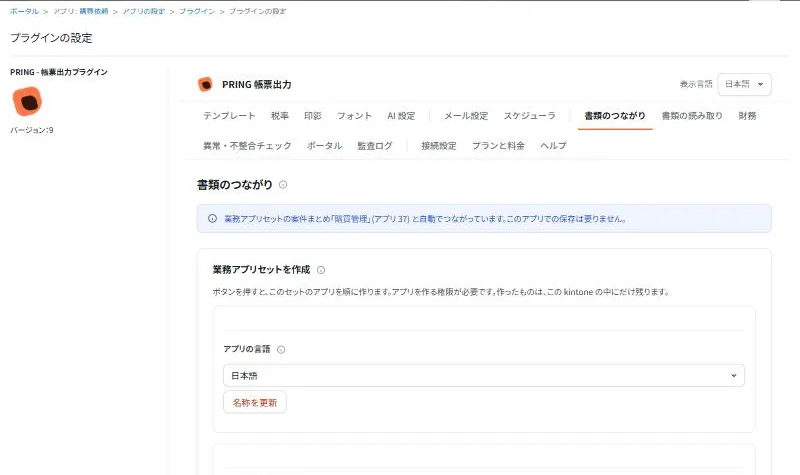
The Create business app set card. The app language can be changed later 2. Check that the connection is shared (administrator)
The connection is shared automatically when the set is created. When the completion screen says the connection of this environment was shared, or that the connection is shared in the environment, press Update all apps. The Connection tab of each app shows "This app uses the connection of this kintone environment". Press "Use a different connection for this app only" only when this app should use another connection token.
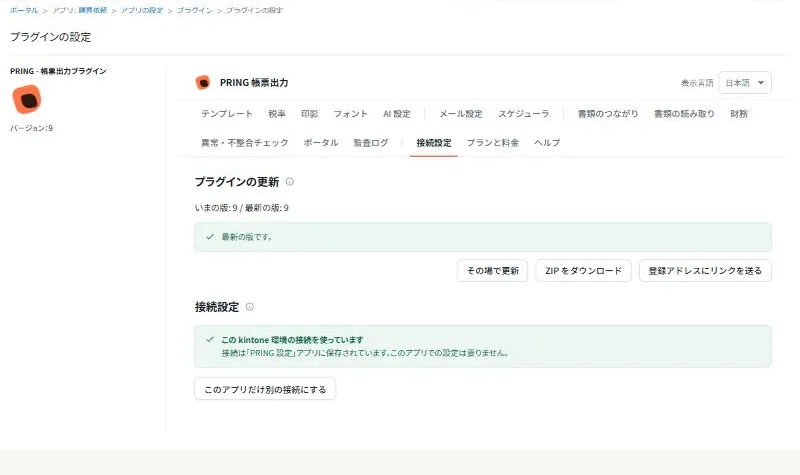
The Connection tab. When the environment's connection is used, nothing needs to be set per app 3. Check the approval flow and save the approval record (administrator)
The approval flow is chosen for each app that needs approval under Approval flow when the set is created. PRING standard (the default) needs no organization setup; the people chosen in the approver and decider fields of the record approve. You can also build it from the organization or import the flow of an existing app. After creation, open the Seals tab of each app, check the approval record settings prepared for you, press Save and update the app. Approvers and approval times are not recorded until you save.
4. Try it with demo data or one case (administrator)
On the Finance tab, press Add demo data under 4. Demo and check to put sample records numbered DEMO- into the sales, purchasing, expense and finance apps. To remove them, press Remove demo data twice. To try a real case, run one purchase from request to payment and finally check the documents and totals in Document links. Then point users to the how-to page of each set.
What people do and what fills in automatically
| Step | Screen | What people do | What fills in automatically | If you let AI do it |
|---|---|---|---|---|
| 1 | Document links tab of the settings screen | Choose the set and app language, and create | Apps, fields, layout, views, permissions, approval flows, document templates, document links | — |
| 2 | Completion screen, Connection tab | Check the message, press Update all apps | Sharing the connection through the PRING 設定 app | — |
| 3 | Seals tab, process management | Check the approval flow, save the approval record | Approval record settings (loaded when the tab opens) | — |
| 4 | Finance tab, each app | Add demo data or run one case | Sample records numbered DEMO- | — |
- Creating the set, sharing the connection and document links are automatic steps, not AI, so no Gemini key is needed. Register your own Gemini API key on the AI settings tab only to use AI account proposals and AI reading of supplier documents.
- The apps and documents you create are saved in your own kintone.
Detailed pages for each app
- Create business app sets: choosing a set, approval flows and conditional approval
- The first week with your app set: the checklist after creation and a one-purchase example
- Connect to your PRING contract: the shared environment connection and a separate connection per app
Related pages
Frequently asked questions
Does creating a set change my existing apps?
No. Only new apps are created. Customer data is saved in your own kintone apps.
The screen says the connection of this environment could not be shared.
Ask someone with permission to create apps to open the PRING settings screen; opening it shares the environment's connection. If that is not possible, save the connection token once on the Connection tab of each app, then press Update all apps.
The PRING buttons or Create the next document do not appear.
Press Update all apps on the completion screen, or update each app in kintone, and reload the screen.