 PRING Help
The first week with your app set
These are the administrator's tasks after creating a business app set, in order. First save the connection token in each app and press Update all apps. Then check the approval flow and seal settings and the document templates, and set up the File Log app and Document links if you want them. Finally, run one purchase from request to payment as a worked example to see how it behaves.
Steps
Screenshots are taken from the real PRING plugin (v6) with sample data; the surrounding kintone screen is simplified. Your kintone and plugin version may differ in details. The plugin UI is in Japanese.
1. Save the connection token in each app
When creation finishes, the finished screen shows Open the app and Plugin settings links for every app. The PRING plugin has been added to the created apps, but kintone saves plugin settings per app. Press Copy the connection token on the finished screen (it works only when the app whose settings screen you have open is already connected; do [Connection tab: link kintone to your PRING contract](/en/help/admin/connection) first), open each app's Plugin settings, paste the token into the Connection token field on the Connection tab and press Save. Do this in every app listed on the finished screen, including the link manager app such as 購買管理.
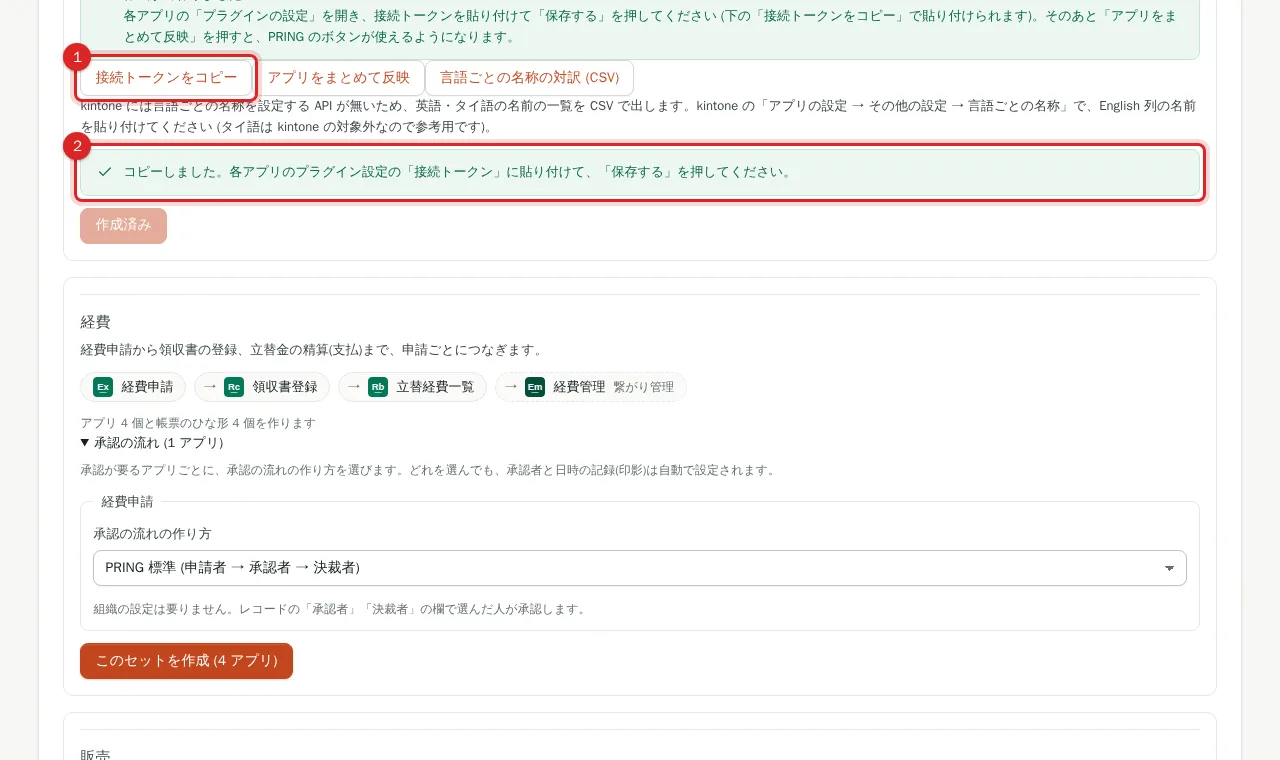
2. Press Update all apps
After you have saved in every app, press Update all apps on the finished screen. It does the "Update app" that is needed after saving for every app of the set (progress reads like "Updating… 3 / 8"). If some apps could not be updated, press "Update app" in kintone for those apps. After that, the record screens show PRING's document buttons, Document flow and Create the next document.
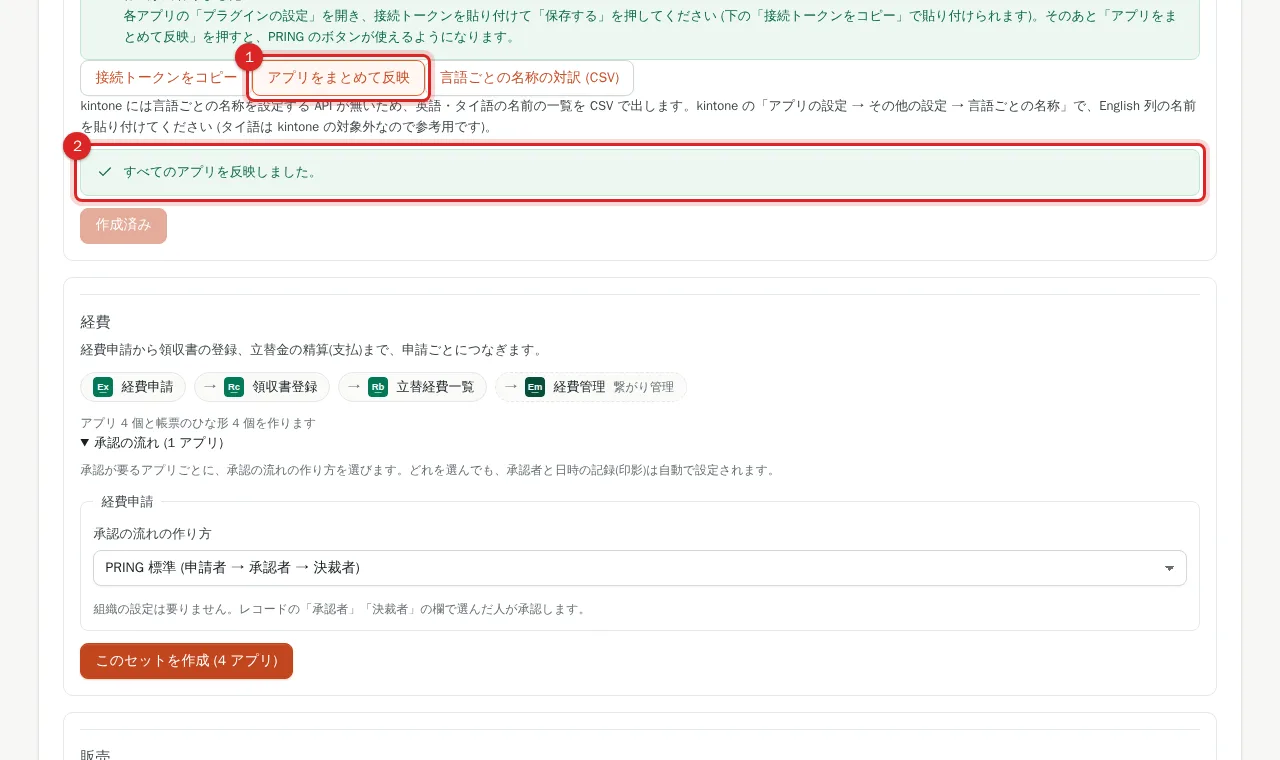
3. Check the approval flow and save the approval record
For the apps with approval (Purchasing: purchase request, purchase approval and purchase contract; Expenses: expense request; Sales: sales contract, and the sales quotation if you chose approval), check the approval flow you chose when creating the set. In kintone's app settings, open Process management and look at the statuses and assignees. With the PRING standard flow, the people chosen in the record fields 承認者 (Approver) and 決裁者 (Decision maker) are the assignees. For a step where you chose a title, the assignees are the people who held the title at the time of creation, so correct them when people move. Next, open the Seals tab of PRING's settings screen in each app. The approval record settings prepared by the business app set are loaded and the message "Loaded the approval record settings prepared by the business app set" appears; check them, press Save, and update the app. The approver and approval date-time are not recorded until you save.
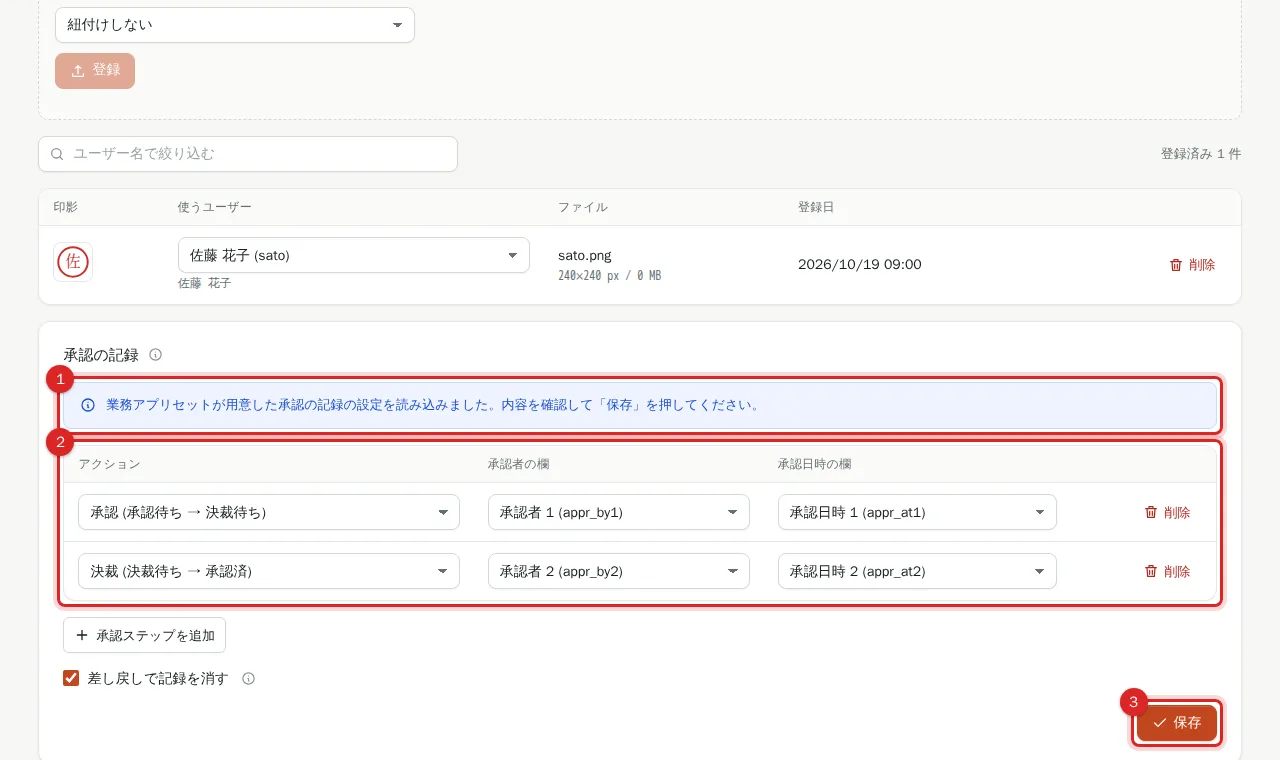
4. Check the document templates
Document templates are registered for every app when the set is created. On the Templates tab of each app, check the button names (for example the 注文書 button in the purchase order app) and output one record to try it. To change the company name, logo or layout, edit the template as in [Register a template](/en/help/admin/template). To place approval seals, register each user's seal as in [Register seals and place them in documents](/en/help/admin/seal) (users without one get a date stamp). The templates are registered in the language of the screen you used when creating the set.
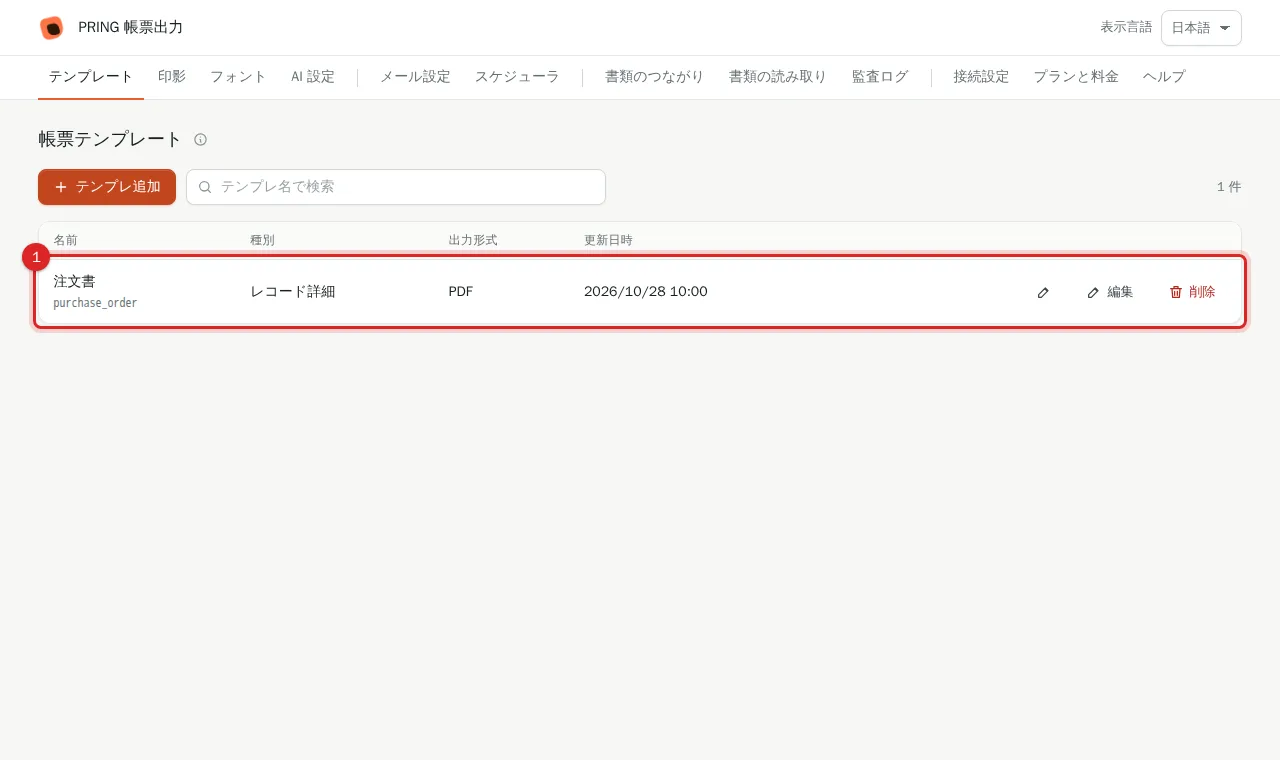
5. Set up the File Log app and Document links (if you use them)
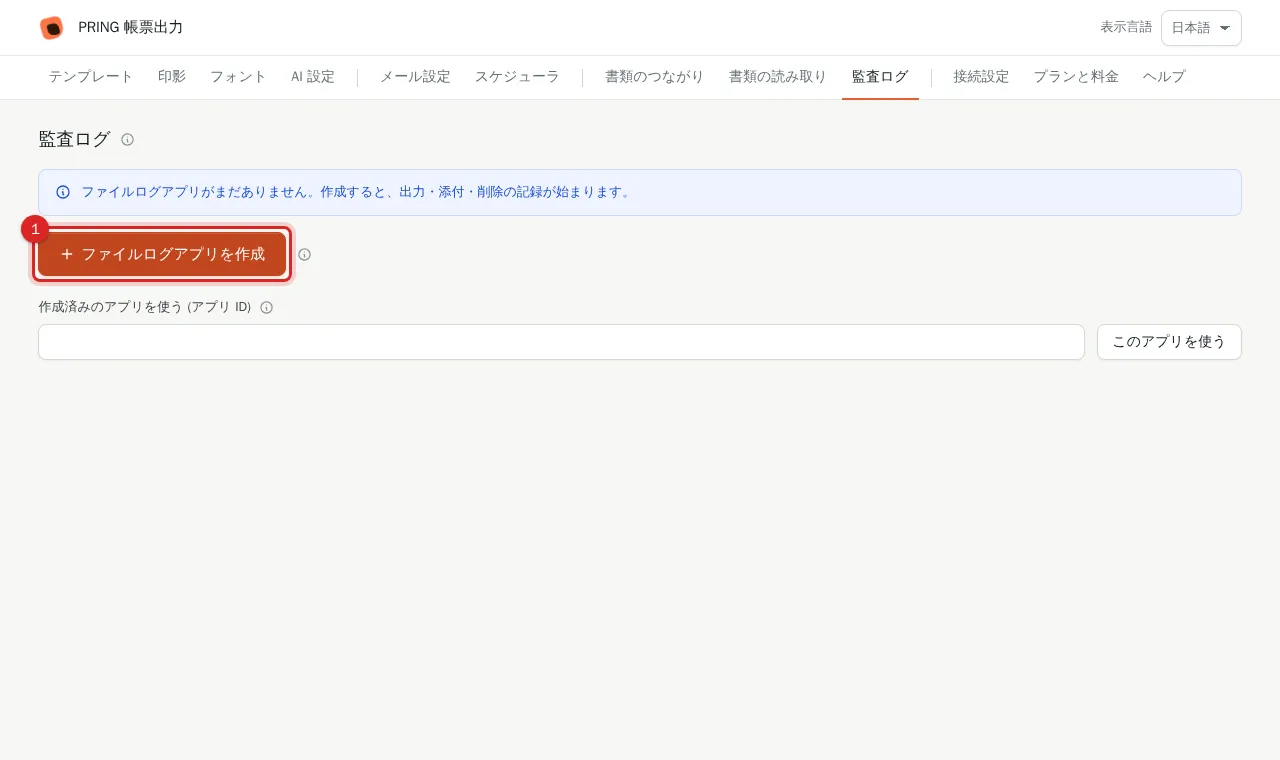
To keep a record of outputs, press "Create the File Log app" on the Audit log tab ([Audit log of output files](/en/help/admin/audit-log)). If the File Log app exists before you create the set, it is put into the Document links definition. If you create it afterwards, choose it in "File Log app" on the Document links tab and press Save. To use the Document links button, open the Document links tab of each app, choose the link manager app (such as 購買管理) and press Join this case. If it is not listed, open "Use a different case summary app", enter the link manager app's ID (the number after /k/ in its URL) and press "Use this app". Document flow and Create the next document work without this setting. For details see [Case links and the evidence bundle](/en/help/admin/document-trace).
6. Tell your users how to use the sets
Point your users to the usage page of each set: [How to use the Purchasing app set](/en/help/user/app-set-purchasing), [How to use the Sales app set](/en/help/user/app-set-sales) and [How to use the Expenses app set](/en/help/user/app-set-expenses). Tell them as well that document numbers are typed by hand and that approvals are made with the buttons on the record's detail screen.
Things to know first
- Plugin settings (the connection token) are saved once per created app.
- Document numbers (request number, order number and so on) are typed by a person. There is no automatic numbering.
- The approver and approval date-time are written only when an action button is pressed on the record’s detail screen. Approvals made with the bulk status update in a list, or on a mobile screen, are not recorded.
- Do not rename the link manager apps (購買管理, 経費管理, 販売管理). Document flow and Create the next document look for the app by that name.
- There is no app set for HR documents (hiring, onboarding and so on). How to use PRING for HR documents is explained on the use case page.
Example: one purchase from request to payment
A person on the floor buys five notebook PCs (120,000 yen each, 600,000 yen in total before tax). The company names, amounts and numbers are for illustration.
- Purchase request (requester): create a new record in the 購買依頼 (Purchase request) app. Enter PR-2026-0001 as the request number, the purchase of notebook PCs as the subject, and the item name, quantity and unit price in the line items; the estimated total is calculated. Choose the approver and decision maker under 承認の依頼先 and press 申請 (Submit). The status changes from 未申請 to 承認待ち.
- Approval and decision: the approver presses 承認 (Approve) and the status becomes 決裁待ち; the decision maker presses 決裁 (Decide) and it becomes 承認済. The approver and approval date-time go into the 承認の記録 (Approval record). Output the purchase request form and press Save to attachment field to put it in the 出力した書類 field.
- Purchase approval (drafter): on the purchase request’s detail screen, press “Create the next document: 購買稟議”. Enter RG-2026-0001 as the approval request number, enter two quotations in the comparison and mark them 採用 (Selected) and 不採用 (Not selected). Fill in the selected supplier, the approved amount and the reason for selection, then submit, approve and decide. The approval request form carries the approvers’ seals.
- Purchase contract (person in charge): press “Create the next document: 購買契約”. Enter CT-2026-0001 as the contract number, the counterparty, amount, period and payment terms, attach the signed contract to 契約書の原本 (Original contract), then submit, approve and decide.
- Purchase order (buyer): press “Create the next document: 発注書”. Enter PO-2026-0001 as the order number, the delivery date and the line items; the subtotal of 600,000 yen, the tax of 60,000 yen and the total of 660,000 yen are calculated. Output the order form, press Save to attachment field, and send it to the supplier (to send it by email, see Set up mail sending).
- Delivery note (inspector): press “Create the next document: 納品書”. Attach the supplier’s delivery note to 納品書の原本 (Original delivery note) and enter the delivery note number, the delivery date and the total of 660,000 yen. If the quantities agree, set 検収の状況 (Inspection status) to 検収済 (Inspected) and fill in the inspector and the inspection date. If not, choose 一部検収 (Partially inspected) or 差異あり (Discrepancy) and write the 差異の内容 (Discrepancy details). Download the inspection report and use it.
- Invoice (accounting): press “Create the next document: 請求書”. Attach the supplier’s invoice to 請求書の原本 (Original invoice) and enter the invoice number, the invoice date and the invoiced amount of 660,000 yen. Write the result of matching the order, the delivery note and the invoice in 三点照合の結果 (Three-way matching result) and output the invoice check sheet. Leave 支払の状況 (Payment status) as 未払 (Unpaid).
- Payables (accounting): press “Create the next document: 債務管理”. Enter AP-2026-0001 as the management number and the date to pay. After paying, enter the date paid, the amount paid of 660,000 yen and the payment method, and set 支払の状況 to 支払済 (Paid). Set the 支払の状況 of the invoice to 支払済 as well, and output the payment notice.
- Check the whole case: press Document links on the detail screen of Payables or any other app, and the documents from request to payment are listed under the case number PR-2026-0001. Check that the invoiced total is 660,000 yen, the paid total is 660,000 yen and the unpaid total is 0 yen, and press Save to case summary to write them to the 購買管理 app. Evidence bundle PDF also makes a single PDF with a cover sheet.
Related pages
- Create a business app set
- How to use the Purchasing app set
- How to use the Sales app set
- How to use the Expenses app set
- Connection tab: link kintone to your PRING contract
- Approval records and a seal per approval step
- Case links and the evidence bundle
- Audit log of output files (File Log app)
Frequently asked questions
I saved the connection token, but the PRING buttons and Create the next document do not appear
After saving the connection token you need to update the app in kintone. Press Update all apps, or press "Update app" in each app, and reload the screen. If Create the next document still does not appear, check that the last app (購買管理, 経費管理 or 販売管理) has not been renamed. The button looks for the app by that name.
I closed the finished screen
You can open each app's Plugin settings from kintone's app settings, under Plugins. The connection token can be copied with Copy the connection token on the Connection tab of an app that is already connected. However, if you close the finished screen and open it again, the buttons Copy the connection token, Update all apps and Translations for localized names (CSV) do not appear. In that case press "Update app" in kintone in each app.
I want to change the approval flow later
In kintone's app settings, open Process management and fix the statuses, actions and assignees. If you use approval records, choose the approval steps again on the Seals tab of PRING's settings screen, save, and update the app ([Approval records and a seal per approval step](/en/help/admin/approval-record)). Do not change field codes such as appr_by1.
Can the names be in English or Thai?
The names of apps, fields and statuses are created in Japanese whatever language your screen uses, because kintone has no API for writing localized names. If you save Translations for localized names (CSV) on the screen shown when creation finishes, you can paste its English column into kintone's App settings > Other settings > Language-specific names (Thai is not a kintone language, so it is for reference). The button names and file names of the templates follow the language of the screen you used when creating the set.