 PRING Help
How to use the Sales app set
Sales runs through seven apps linked by the upstream number, from the quotation to the payment received. The sales contract comes after the quotation and before the received purchase order. Press Create the next document on a record's detail screen to open the next app with the upstream number filled in. The sales contract goes through an approval flow. Document numbers are typed by hand.
The flow and the role of each app
The Sales app set has seven apps, one per document. Going from the top, each app passes its number on to the next app. The contract is made after the quotation and before you receive the customer’s purchase order. The apps and their field names are created in Japanese whatever language your screen uses; the English meaning is in parentheses.
| Order | App | Own number field | Role |
|---|---|---|---|
| 1 | 販売見積 (Sales quotation) | 見積番号 (Quotation number) | Sales creates the quotation for the customer with line items. The customer name and subject are required |
| 2 | 販売契約 (Sales contract) | 契約番号 (Contract number) | Keeps the contract agreed in the quotation, together with the signed original |
| 3 | 受領発注書 (Received purchase order) | 受注番号 (Order receipt number) | The customer’s purchase order is attached as the original and registered as an order |
| 4 | 納品書 (Delivery note) | 納品書番号 (Delivery note number) | Creates the delivery note based on the order and records whether the customer received it |
| 5 | 販売請求書 (Sales invoice) | 請求書番号 (Invoice number) | Creates the invoice based on the delivery. The payment due date is required |
| 6 | 債権管理 (Receivables) | 管理番号 (Management number) | For each invoice, manages the due date, the date received, the amount received and the status |
| 7 | 販売管理 (Sales link manager) | 案件番号 (Case number) | Gathers the list of documents of each case and the invoiced and received totals (the case summary app; the creation screen calls it the link manager) |
- The sales quotation, delivery note and sales invoice calculate amounts from the quantity and unit price of the line items, and also the subtotal, consumption tax and total (the default tax rate is 10%; the tax is rounded down). For the received purchase order you enter the figures from the customer’s document.
- A person types each document’s number. It is required and cannot be duplicated. There is no automatic numbering. Decide how to number them in your company (for example QT-2026-0001).
Who does what
The person in charge, delivery person and invoicing person fields are filled with the person who creates the record. In the sales contract (and the sales quotation, if you use approval), the person who submits chooses the approver and the decision maker.
| Role | What they do | Main apps |
|---|---|---|
| Sales (担当者, person in charge) | Creates the quotation and makes the contract. When there is approval, chooses the approver and decision maker and presses 申請 (Submit). Attaches the signed original contract | Sales quotation, sales contract |
| Approver | Checks the content and presses 承認 (Approve), or 差し戻し (Send back) if something needs fixing | Sales contract |
| Decision maker | Makes the final decision with 決裁 (Decide). Can also 差し戻し (Send back) | Sales contract |
| Sales administration | Attaches the customer’s purchase order and registers it as an order with the customer’s order number, the date received, the desired delivery date, the line items and the total | Received purchase order |
| Delivery person (納品担当) | Creates the delivery note based on the order. When the customer has received the goods, fills in 受領の状況 (Receipt status), 受領日 (Received on) and 受領者 (Received by) | Delivery note |
| Accounting (請求担当, invoicing person) | Creates the invoice based on the delivery and manages payments received in Receivables | Sales invoice, Receivables, Sales link manager |
By default, the person who created the apps can manage the apps and delete records, and everyone else can view, add, edit and export records. To restrict by role or department, use kintone’s app permissions.
Moving on to the next document
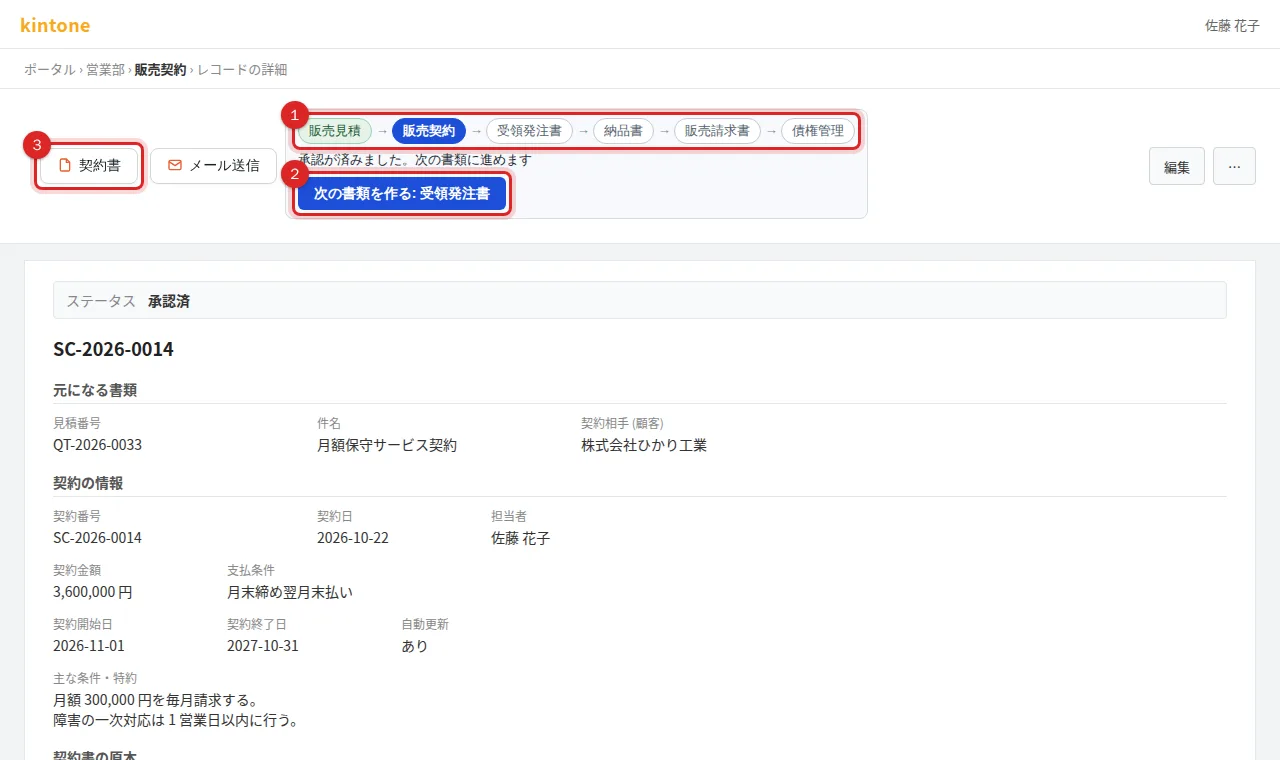
- Open the detail screen of the upstream record. Document flow at the top shows the previous documents, this document and the documents still to come.
- Press “Create the next document: ○○”.
- The create screen of the next app opens, and the upstream number is entered in the lookup field and fetched. The subject and the customer (the field that holds the customer, such as 契約相手 or 顧客名) are carried over, and “Carried over from the upstream document ○○” is shown.
- Enter the document’s own number (such as the contract number) and the other required fields. The top of the screen shows “Fill in next: ○○” for the next required field, and changes to “All required fields are filled. Please save” when everything is in.
- Save. If the next document already exists, the button changes to “Open ○○”.
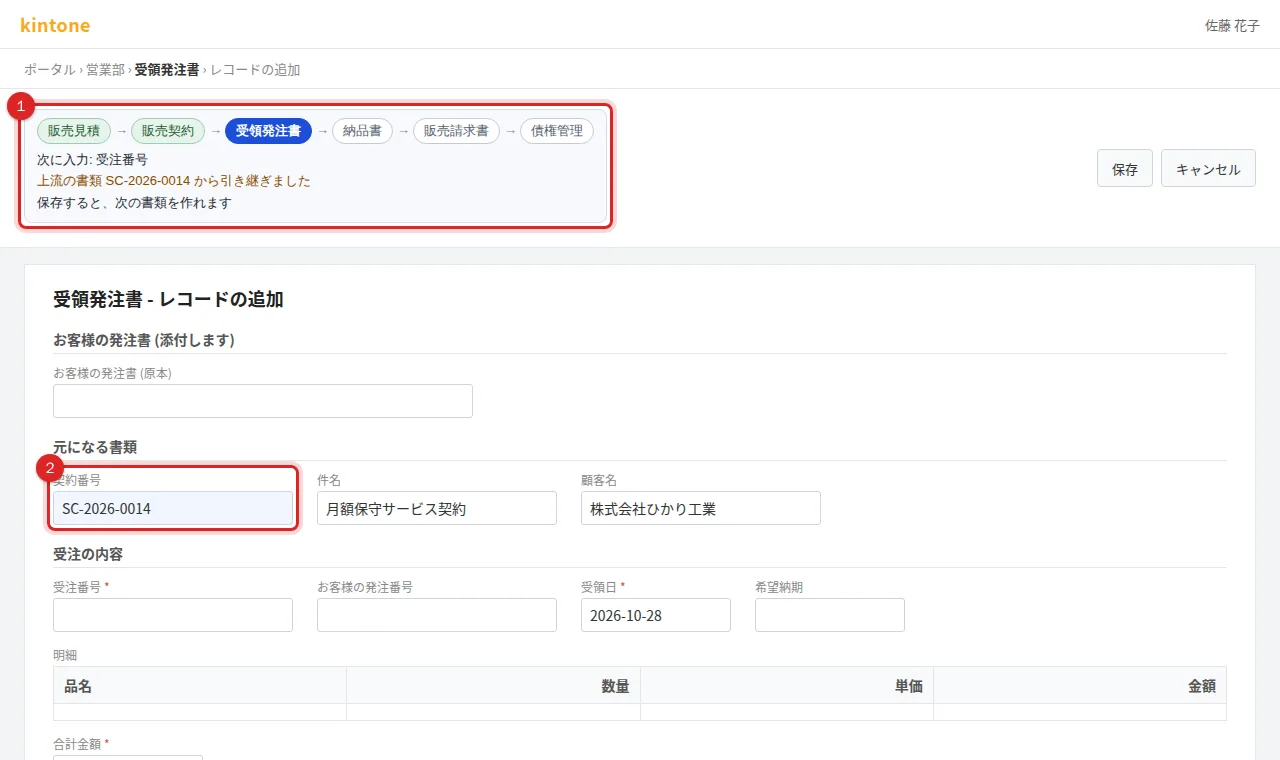
The lookup field in each downstream app that receives the upstream number. In all of them the subject and the customer are carried over.
| Downstream app | Field that receives the upstream number (lookup) |
|---|---|
| 販売契約 (Sales contract) | 見積番号 (Quotation number) |
| 受領発注書 (Received purchase order) | 契約番号 (Contract number) |
| 納品書 (Delivery note) | 受注番号 (Order receipt number) |
| 販売請求書 (Sales invoice) | 納品書番号 (Delivery note number) |
| 債権管理 (Receivables) | 請求書番号 (Invoice number) |
- Create the next document appears whatever the approval status is. Moving on to the received purchase order only after the sales contract is approved is a rule of your operation. When the status becomes 承認済 (Approved), the hint on the screen changes to “Approved. You can go on to the next document”.
- You do not have to use the button. Open the next app directly, enter the upstream number in the lookup field and press the fetch button, and the documents are linked in the same way.
- If the sum of the line items differs from the total field, the create and edit screens show “The line total ○○ differs from the total field ○○”. Saving is not blocked.
Approval and statuses
The sales contract has an approval flow, and the sales quotation can have one if you choose (it has none by default). The received purchase order, delivery note, sales invoice and Receivables have no approval flow; their progress is kept in fields of each app.
The PRING standard flow
These are the statuses and operations when the administrator chose “PRING standard (applicant → approver → decision maker)” while creating the set. The approver and decision maker are chosen in the 承認者 (Approver) and 決裁者 (Decision maker) fields under 承認の依頼先 (Who approves) on the record; both are required.
| Status | Meaning | Who moves it on, and how |
|---|---|---|
| 未申請 (Not submitted) | Being filled in. Not yet sent for approval | The applicant presses 申請 (Submit) and it becomes 承認待ち |
| 承認待ち (Awaiting approval) | Waiting for the approver to check | The approver presses 承認 (Approve) and it becomes 決裁待ち, or 差し戻し (Send back) and it becomes 未申請 |
| 決裁待ち (Awaiting decision) | Waiting for the decision maker | The decision maker presses 決裁 (Decide) and it becomes 承認済, or 差し戻し and it becomes 承認待ち |
| 承認済 (Approved) | Approved. You can go on to the next document | — |
If kintone could not rename the first status, it keeps kintone’s default name 未処理 instead of 未申請. The meaning is the same.
Ways to build the approval flow
When the set is created, the administrator chooses one of four ways for each app that has approval.
- No approval (承認を使わない): the app has no statuses (the default for the sales quotation).
- PRING standard (applicant → approver → decision maker): the table above. No organization setup is needed (the default for the sales contract).
- Build from organizations: 1 to 5 approval steps. For each step choose “By organization” (organization, title and the number of approvers: any one approves, or everyone approves) or “Choose in a record field”. The statuses are 未申請 → 承認待ち 1 → 承認待ち 2 → … → 承認済 (a single step is just 承認待ち). The actions are 申請, 承認 1, 承認 2 … and 差し戻し, which goes back one step. For a step with a title, the people who hold that title at the time of creation become the assignees.
- Import the flow of an existing app: uses the statuses and actions of another app in this kintone as they are.
Approval records and seals
When an approval action is pressed, the approver and approval date-time are written to the 承認の記録 (Approval record) group of the record (a closed group; it opens on the detail screen when there are records). With the PRING standard flow, the first is the approver and the second is the decision maker. The documents (quotation, contract) have approval boxes, and the seal of the person who approved (or a date stamp if none is registered) is placed in them. Sending back clears the records of the steps that have to be approved again.
The record is written only when the action button is pressed on the record’s detail screen. Approvals made with the bulk status update in a list, or on a mobile screen, are not recorded.
Status fields in the apps without approval
| App | Field | Choices |
|---|---|---|
| 販売契約 (Sales contract) | 自動更新 (Auto renewal) | あり (Yes) / なし (No) (default: なし) |
| 納品書 (Delivery note) | 受領の状況 (Receipt status) | 未受領 (Not received, default) / 受領済 (Received) |
| 債権管理 (Receivables) | 入金の状況 (Receipt status) | 未入金 (Not received, default) / 一部入金 (Partially received) / 入金済 (Received in full) |
You can narrow a list to 未受領 (Not received) in the delivery note app, and to 未入金 (Not received; it includes 一部入金) in Receivables, with the list switcher.
Documents PRING outputs, and where the PDF is saved
You output a document with the button named after it on the record’s detail screen. For a PDF, check the preview, then choose “Download” or “Save to attachment field” (Export a PDF or Excel from a record, Preview a PDF, then download it or save it to the attachment field). The file name is “document name_number” (for example 見積書_QT-2026-0001.pdf). The button labels follow your kintone language.
| App | Document | Where the PDF is saved |
|---|---|---|
| 販売見積 (Sales quotation) | 見積書 (Quotation, with approval seal boxes) | The 出力した書類 (Generated document) field |
| 販売契約 (Sales contract) | 契約書 (Contract, with approval seal boxes) | Download. The 契約書の原本 (締結済み) (Original contract, signed) field is for the signed document |
| 受領発注書 (Received purchase order) | 注文請書 (Order acknowledgment) | Download. The お客様の発注書 (原本) (Customer’s purchase order, original) field is for the customer’s document |
| 納品書 (Delivery note) | 納品書 (Delivery note) | The 出力した書類 field |
| 販売請求書 (Sales invoice) | 請求書 (Invoice) | The 出力した書類 field |
| 債権管理 (Receivables) | 入金通知書 (Payment received notice) | The 出力した書類 field |
| 販売管理 (Sales link manager) | 売掛金残高表 (Accounts receivable balance by customer) | Download. Narrow the list and output it from the list screen |
- The 出力した書類 field is inside the closed group 「PRING の設定」 (PRING settings) at the end of the record. When you output again, the previous file is removed and only the new PDF remains.
- The contract and the order acknowledgment have no save destination by default. Download them. To save them, the administrator sets the template’s attachment save destination.
- The PDFs of the set’s documents carry the document ID and the SHA-256 from before embedding in their metadata.
- If the administrator has created a File Log app, every output, attachment and download is logged with time, version, file name and SHA-256. For every document except the accounts receivable balance, the transaction date, amount and counterparty are logged too, so you can search the File Log app’s list by date, amount and counterparty (Audit log of output files).
Seeing the whole case
In apps where the administrator has set up Document links, the record’s detail screen has a Document links button. It lists the documents step by step, from sales quotation to Receivables, with the document number, file, version, approver, date, amount and check result, and shows any missing documents, all on one screen. At the top are the case number (the quotation number of the sales quotation), the subject, and the invoiced, paid and unpaid totals. In sales, the total of the sales invoices goes into the invoiced total and the amount received in Receivables goes into the paid total, so the unpaid total is the amount not yet received.
- Evidence bundle PDF: downloads one PDF made of a cover sheet followed by the PDF of each document.
- Save to case summary: writes the case’s totals to the Sales link manager app (the case summary).
See Case links and the evidence bundle and Approval seals, document links, document reading and the audit log for details.
Related pages
- How to use the Purchasing app set
- How to use the Expenses app set
- Create a business app set: creating the set (for administrators)
- The first week after creating a business app set: settings after creation (for administrators)
- Case links and the evidence bundle
- Approval records and a seal per approval step
- Audit log of output files (File Log app)
Frequently asked questions
How do I handle a deal without a contract document?
The 契約番号 (Contract number) field of the received purchase order is not required, but if it is left empty, Document links shows a gap saying the upstream number is empty. Even for a deal without a contract document, create a sales contract record (only 契約番号, 契約日 and 担当者 are required; the original contract may stay empty) and move on from it, and the chain stays unbroken.
I want approval on the sales quotation
The sales quotation has no approval by default. It gets statuses and the 承認の依頼先 (Who approves) fields only if the administrator chose an approval flow for it while creating the set. To add it later, set up kintone's process management and then the approval record on the Seals tab ([Approval records and a seal per approval step](/en/help/admin/approval-record)).
Are document numbers assigned automatically?
No. The quotation number, contract number, order receipt number, delivery note number, invoice number and management number are typed by a person. They are required and cannot be duplicated. Decide how to number them in your company (for example QT-2026-0001). The upstream number is filled in for you when you open the next app with Create the next document.
I deliver one order in several shipments
For an order that already has a delivery note, Create the next document is replaced by 納品書を開く (Open the delivery note), which opens the existing one. To add another, open the delivery note app directly, create a new record, enter the order's number in the 受注番号 (Order receipt number) field and press the lookup's fetch button. Document links lists every delivery note that belongs to the same order.
I approved a record, but the approver field and the seal were not filled in
The approver and approval date-time are written only when the action button (承認 or 決裁) is pressed on the record's detail screen. Approvals made with the bulk status update in a list, or on a mobile screen, are not recorded. They are also not recorded until an administrator has saved the approval record settings on the Seals tab once.