 PRING Help
Sell, invoice and collect
A sale runs through 販売見積 (Sales quotation), 販売契約 (Sales contract), 受領発注書 (Received purchase order), 納品書 (Delivery note), 販売請求書 (Sales invoice) and 債権管理 (Receivables), carrying the upstream number. After the contract is approved, the received purchase order is created automatically; documents without approval are created with Create the next document. The subject, customer and items are copied.
Steps
Screenshots are taken from the real PRING plugin (v6) with sample data; the surrounding kintone screen is simplified. Your kintone and plugin version may differ in details. The plugin UI is in Japanese.
1. Create the sales quotation (sales)
The app is 販売見積 (Sales quotation). Enter the quotation number, customer name, subject and line items (quantity, unit price) and save. The person in charge is filled in, and the amounts, subtotal, tax and total are calculated. For a deal with a contract document, set the contract field to yes and press Create the next document: 販売契約; the sales contract is created on the spot. When it is no (the default), the next document is the received purchase order.
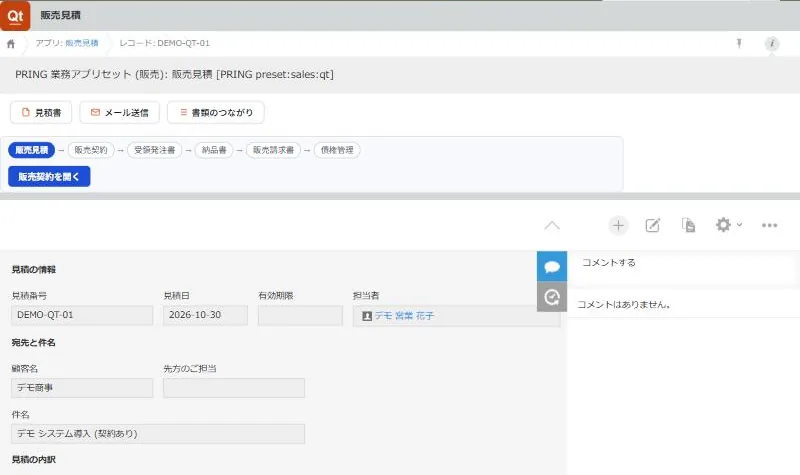
A sales quotation. Once the next document exists, the button opens the sales contract 2. Approve the sales contract (sales, approver and decider)
The app is 販売契約 (Sales contract). The quotation number, subject and customer are copied, and the number is entered as the upstream number plus a short code; correct it to your company's format. Sales attaches the signed contract to the signed-original field, chooses the approver and decider, and presses Submit. The approver presses Approve and the decider presses Decide. When you open the approved record, the received purchase order is created automatically.
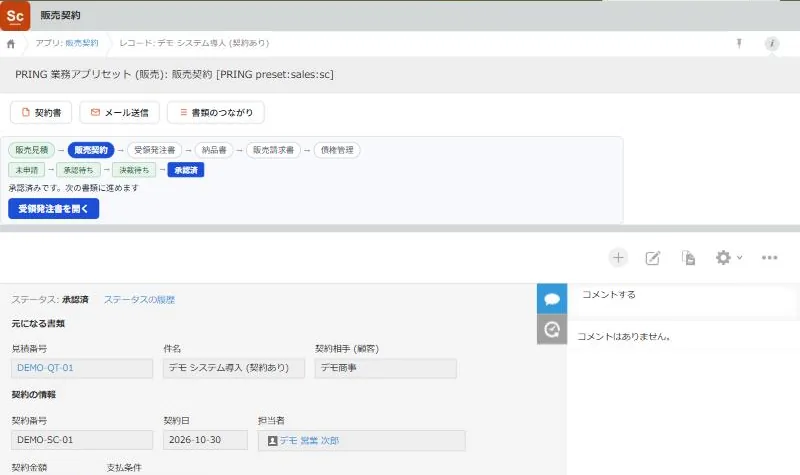
An approved sales contract. The approval bar shows how far the approval has gone 3. Register the order in the received purchase order (sales assistant)
The app is 受領発注書 (Received purchase order). The contract number, subject and customer are copied. Attach the customer's purchase order to the お客様の発注書 (原本) (customer's purchase order, original) field, and enter the customer's order number, date received, requested delivery date, line items and total as written on the customer's document. A notice appears when the line total and the total field differ. Press Create the next document: 納品書 to create the delivery note.
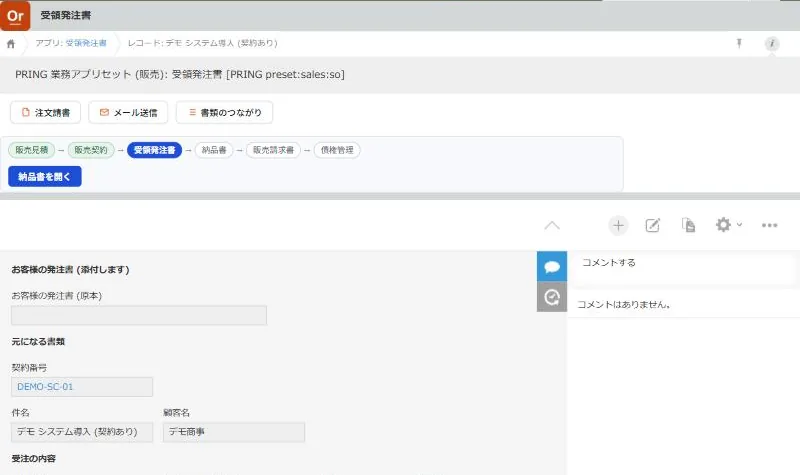
A received purchase order. A notice appears at the top when the line total and the total field differ 4. Issue the delivery note and record receipt (delivery person)
The app is 納品書 (Delivery note). The order number, subject, customer and line items are copied, and the delivery person is filled in. Output a PDF with the 納品書 document button and give it to the customer. When the customer has received the goods, enter the receipt status, date received and receiver. Press Create the next document: 販売請求書 to create the invoice.
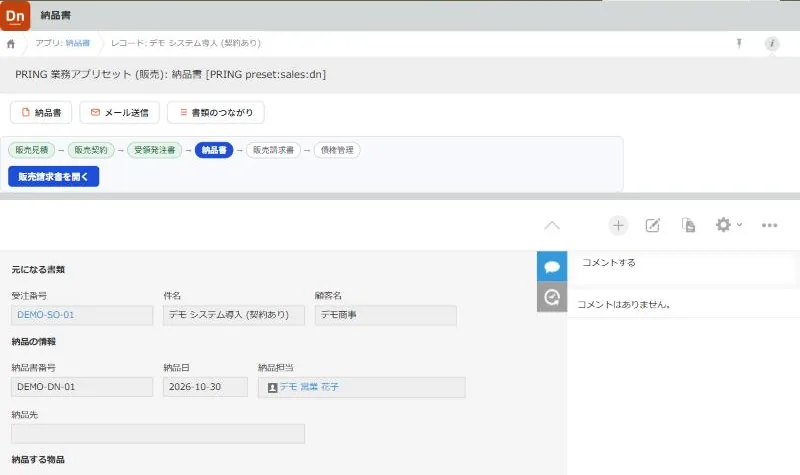
A delivery note. The order number, subject and customer come from the received purchase order 5. Issue the sales invoice (accounting)
The app is 販売請求書 (Sales invoice). The delivery note number, subject, customer and line items are copied, and the invoicing person is filled in. Accounting enters the invoice date and the payment due date (required), saves, and outputs a PDF with the 請求書 (invoice) document button. The subtotal, tax and total are calculated. Press Create the next document: 債権管理 to create the receivables record.
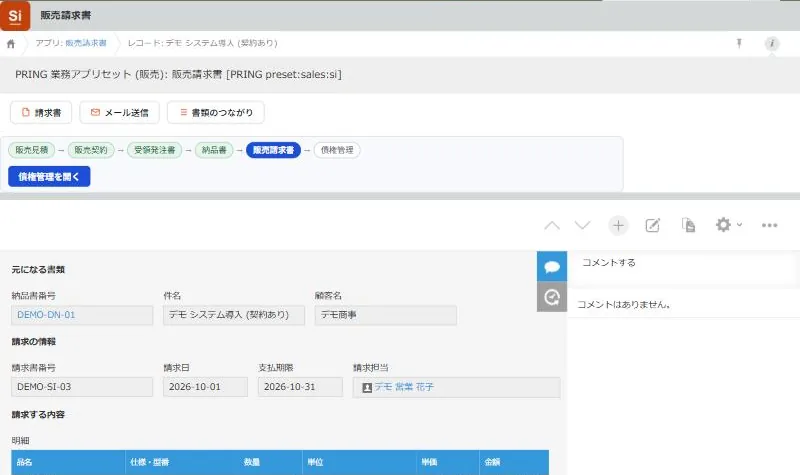
A sales invoice. The output PDF is saved in the output documents field 6. Record the payment received (accounting)
The app is 債権管理 (Receivables). The invoice number, subject and customer are copied. Accounting enters the due date; when the payment arrives, enter the date received and amount received, and change the payment status. The invoiced and received totals of each case are shown in 販売管理 (the case summary) and in Document links on the detail screen.
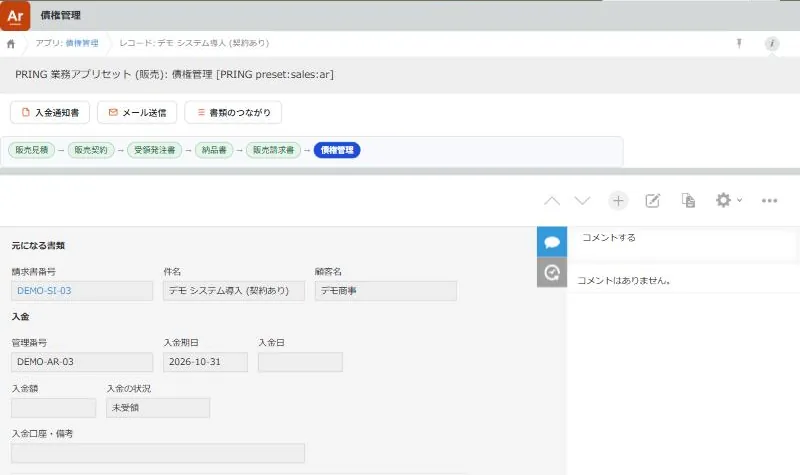
Receivables. The payment status follows the case until the money is collected
What people do and what fills in automatically
For one sales case (quotation to receivables), the number of times a person decides a value goes from 68 to 49, compared with running the same apps by hand in standard kintone (a conservative comparison that counts default values as filled in by kintone too).
| Step | App | What people do | What fills in automatically | If you let AI do it |
|---|---|---|---|---|
| 1 | Sales quotation | Enter the customer name, subject and line items | Person in charge, amounts, subtotal, tax, total | — |
| 2 | Sales contract | Attach the original, submit, approve and decide | Quotation number, subject, customer; the received purchase order after approval | — |
| 3 | Received purchase order | Attach the customer’s order and enter its figures | Contract number, subject, customer | — |
| 4 | Delivery note | Output the delivery note, record receipt | Order number, subject, customer, line items, delivery person | — |
| 5 | Sales invoice | Invoice date and due date, output the invoice | Delivery note number, subject, customer, line items, invoicing person, subtotal, tax, total | — |
| 6 | Receivables | Due date and payment record | Invoice number, subject, customer | — |
- Creating the next document is an automatic step after approval or Create the next document, not AI, so no Gemini key is needed. Dates, people and attachments are not copied; they take the next document’s defaults.
- Documents and records are saved in your own kintone apps.
Detailed pages for each app
- How to use the Sales app set: the 7 apps, approvals and statuses, documents and where they are saved
- Case links and the evidence bundle: document links and the evidence bundle PDF
Related pages
Frequently asked questions
How do I run a deal without a contract document?
Leave the contract field of the sales quotation at no (the default). The sales contract is skipped and the next document is the received purchase order. Document links shows that no sales contract was chosen in the quotation, and it does not count as missing.
I deliver one order in several parts.
For the second delivery, open the delivery note app directly, create a new record, enter the order's number in the 受注番号 (Order receipt number) field and press the lookup's fetch button. Document links lists every delivery note of the same order.
The next document was not created automatically.
When the message "Could not create it. Opening the create screen" appears, press Create the next document to open the create screen with the upstream number filled in. Enter that document's number and the remaining required fields and save.