 PRING Help
Hire, onboard and offboard staff
HR runs one person as one case through seven apps, from 応募 (Applications) to 社員台帳 (Employee ledger) and 退社 (Offboarding). Approving the application creates the offer with the name, kana, birth date, job title, start date, base pay and employment type, with no typing. The labor conditions notice and retirement certificate are PDFs with a document ID and SHA-256. PRING does not store My Number.
Steps
Screenshots are taken from the real PRING plugin (v6) with sample data; the surrounding kintone screen is simplified. Your kintone and plugin version may differ in details. The plugin UI is in Japanese.
1. Record the application and decide to hire (recruiter and approver)
The app is 応募 (Applications). Enter the application number, name, kana, birth date and job applied for, attach the application documents and record the interviews. To hire, set the selection status to the hire direction, enter the employment type, start date and base pay, and submit. When the approver presses Approve and the decider presses Decide, the status becomes approved and the hire is decided.
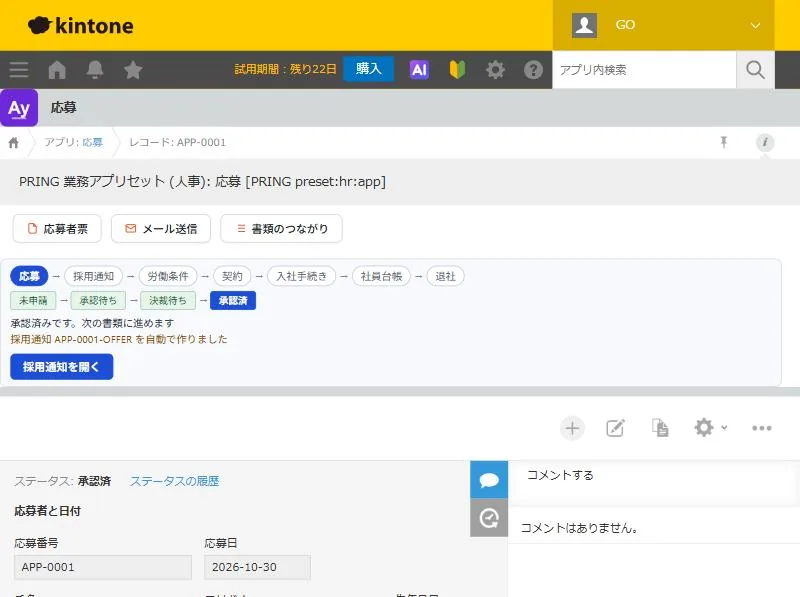
An approved application. The bar shows that the offer was created automatically 2. Issue the offer letter (HR)
The app is 採用通知 (Offer). When the application is approved, the offer is created automatically and the name, kana, birth date, job title, start date, base pay and employment type are copied with no typing. The notice date and issuer are filled in. Enter the reply deadline and conditions, output the 採用通知書 (offer letter) as a PDF and give it to the person. When the person accepts, set the reply to accepted.
3. Issue the labor conditions notice (HR)
The app is 労働条件 (Employment terms). Press the create-next-document button on the offer to open the create screen with the upstream values filled in (it is not created automatically because many fields are required). Fill in the contract period, workplace, duties, hours, holidays, wages and retirement fields, save, and output the 労働条件通知書 (labor conditions notice) as a PDF. It includes the fields added in April 2024, such as the scope of changes to workplace and duties.
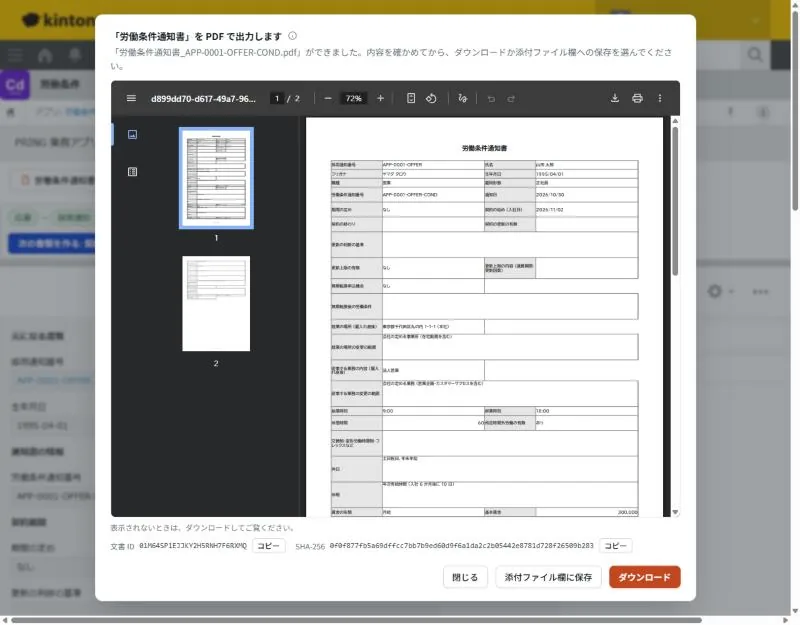
The labor conditions notice PDF carries a document ID and SHA-256 and can be saved to the attachment field 4. Conclude the employment contract (HR and approver)
The app is 契約 (Contracts). Press the create-next-document button on the employment terms, and the employment terms number, name, start date and job title are filled in. The contract type defaults to 雇用契約書 (employment contract), and you can also choose pledges such as the joining pledge or confidentiality pledge. Output the employment contract as a PDF, attach the signed original, submit, and the approver approves it.
5. Check that the onboarding documents are in (HR)
The app is 入社手続き (Onboarding). When the employment contract is approved, onboarding is created automatically and the 10 documents to receive from the person are listed as not submitted. Set each to received, or not needed, and the not-submitted count goes down. Also enter the address, phone, emergency contact and basic pension number, and when everything is in, set the procedure status to complete.
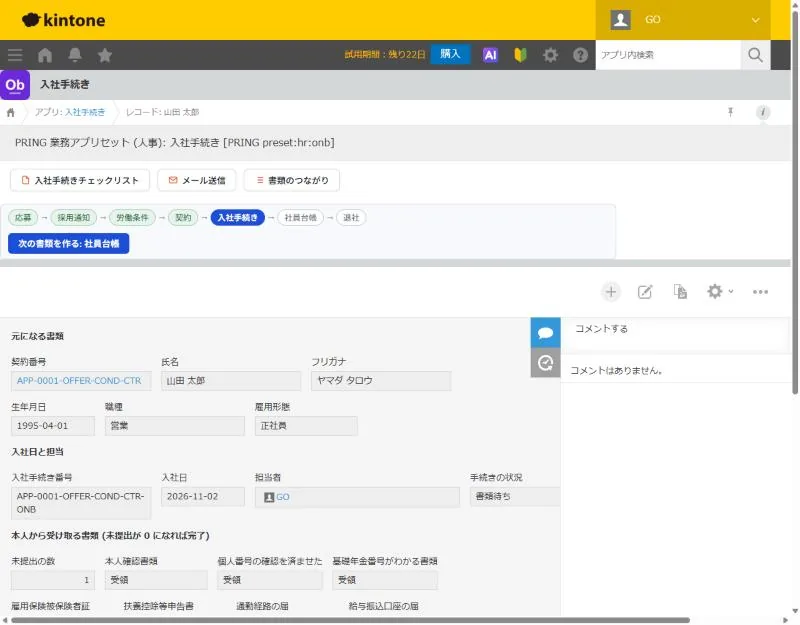
The onboarding checklist. When the not-submitted count is 0, everything is in 6. Register in the employee ledger (HR)
The app is 社員台帳 (Employee ledger). Press the create-next-document button on onboarding, and the name, kana, birth date, start date and job title are filled in, along with the address, phone and basic pension number. Enter the employee number and save. Press Document links to see the documents from application to employee ledger bundled as one case for that person.
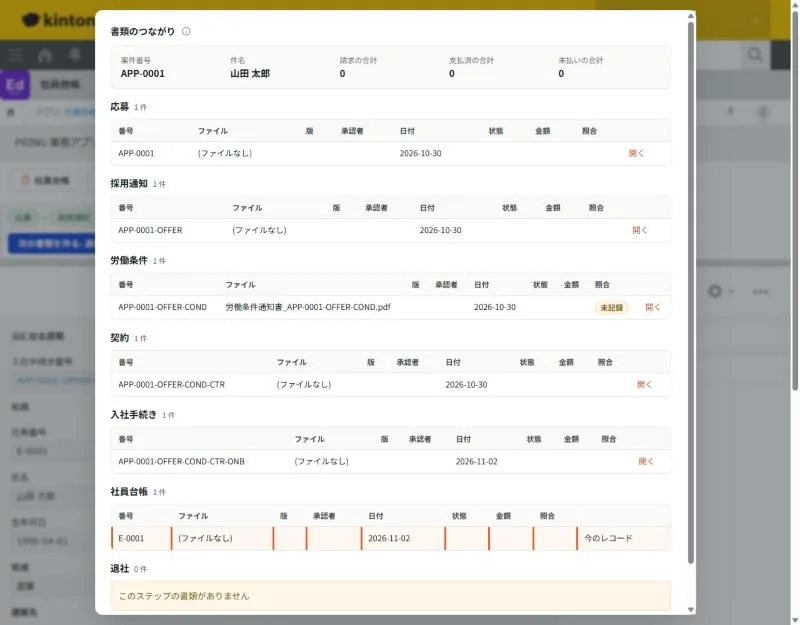
Document links. One person's documents are bundled in six stages, from application to employee ledger 7. Handle leaving (HR)
The app is 退社 (Offboarding). Press the create-next-document button for leaving on the employee ledger, and the employee number, name, start date and job title are filled in. Attach the original resignation letter and enter the leaving type and date, the status of the separation notice procedure and the return of lent items. When a 退職証明書 (retirement certificate) is requested, enter only the requested items and output it as a PDF. Change the employment status in the employee ledger to retired by hand.
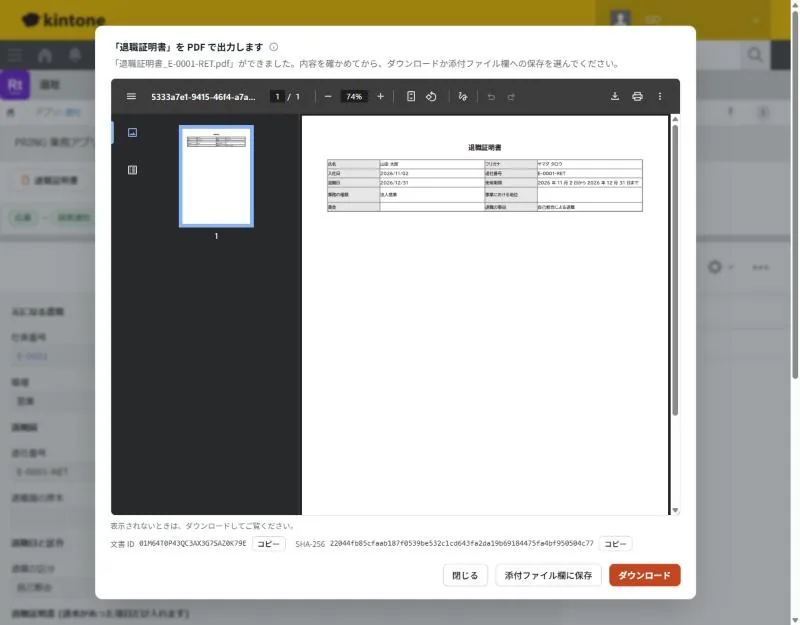
The retirement certificate PDF. Only the requested items have values; the rest are blank
What people do and what fills in automatically
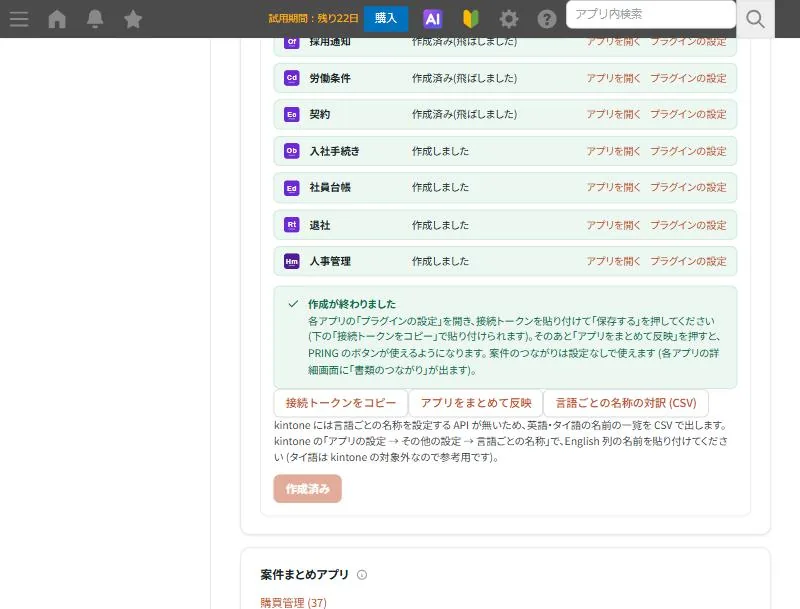
Creating the HR app set gives you the 7 apps from application to leaving, plus 人事管理 (HR cases), which gathers each person’s case. The name, kana, birth date, start date, employment type and job title reach the next document with no typing once entered.
| Step | App | What people do | What fills in automatically | If you let AI do it |
|---|---|---|---|---|
| 1 | Applications | Applicant details and selection records, submit and approve the hire | Application date | — |
| 2 | Offer | Reply deadline and conditions, output the offer letter, the person’s reply | Name, kana, birth date, job title, start date, base pay, employment type (created after approval), notice date, issuer | — |
| 3 | Employment terms | Labor condition fields, output the labor conditions notice | Offer number and upstream values (the create screen opens) | — |
| 4 | Contracts | Contract type, output the employment contract, attach the original, approve | Employment terms number, name, start date, job title | — |
| 5 | Onboarding | Receive documents, the person’s details, procedure status | Contract number and upstream values (created after the employment contract is approved), not-submitted count | — |
| 6 | Employee ledger | Employee number, department, employment status | Name, kana, birth date, start date, job title, address, phone, basic pension number | — |
| 7 | Offboarding | Original resignation letter, leaving date and type, certificate items, return of lent items | Employee number, name, start date, job title, unreturned count | — |
- PRING does not judge whether to hire. Application documents are not passed to AI reading. PRING only records HR decisions and manages the documents.
- PRING does not store My Number (the individual number). The apps have no fields for individual numbers, bank account numbers or images of ID documents. If you keep individual numbers in kintone, an administrator prepares a dedicated app or field, limits access, and uses them only for the tasks the My Number Act allows. Do not put images of ID documents in the HR set’s attachments, and for health checks record only whether the result was received, not its contents.
- Only the creator and the organization chosen at creation (such as the HR department) can use the HR set.
- The documents use a generic “item | value” layout and are templates. Your work rules and a labor and social security attorney’s check are needed.
- PRING does not calculate payroll, attendance, year-end adjustment or social insurance premiums, and does not send filings (e-Gov). For the separation notice, it only records the status of the procedure. The employment status in the employee ledger does not change automatically when you create leaving. There are no reminders for contract renewal or conversion to an indefinite term, and no dedicated pledge templates (manage pledges by attaching the original).
- Documents and records are saved in your own kintone apps.
Detailed pages for each app
- Create business app sets: creating a set and choosing who can use it
- Case links and the evidence bundle: document links and the case summary
- Approval records and step seals: records of the hiring and contract approvals
Related pages
Frequently asked questions
The employment terms are not created automatically from the offer.
Employment terms have many required fields, so they are not created automatically; the create-next-document button on the offer opens the create screen instead. Enter the remaining fields on that screen, where the upstream values are filled in, and save.
I approved a joining pledge, but no onboarding was created.
Onboarding is created automatically only when a contract whose type is 雇用契約書 (employment contract) is approved. Approving pledges and other contracts does not add onboarding.
Where do I enter My Number?
PRING does not store, read or output individual numbers. The HR apps have no field for them; onboarding only records whether the individual number check is done. If you keep them in kintone, an administrator prepares a dedicated app or field and limits access to the people in charge.
What about people who join without an application (referrals, existing staff)?
You can create them directly in the employee ledger. Document links show that the pre-joining documents are missing. To register existing staff in bulk, use kintone's standard Import from File.