 PRING Help
Monthly accounting tasks
There are three monthly accounting tasks. The cash flow table is built for the next 12 months from the sales, purchasing and expense apps, and you read it to find negative months. Journal entries are created when an expense request is approved, so at month end press Export journal and save the CSV. For an audit, gather evidence with Document links and join it into one PDF with Evidence bundle PDF.
What this page covers
- Read the cash flow table for the next 12 months and find the months when the balance goes negative
- Export the journal entries created after approval as CSV for a period you choose
- Gather evidence with Document links, join it into one PDF and keep the case totals
Steps
Screenshots are taken from the real PRING plugin (v6) with sample data; the surrounding kintone screen is simplified. Your kintone and plugin version may differ in details. The plugin UI is in Japanese.
1. Cash flow: Bring the cash flow table up to date (accounting)
The app is 資金繰り表 (Cash flow table). Press Update the cash flow table above the list; PRING reads the sales, purchasing, expense and finance apps and rebuilds it on the spot, with no token needed. When an administrator has saved the tokens under 1. Daily automatic update (optional) on the Finance tab, it is also updated automatically every morning at 04:00 (JST). Only the 期首残高 (opening balance) of the first month is entered by hand: enter the current bank balance and save. From the second month on, the previous month's closing balance is used.
2. Cash flow: Read the cash flow table list (accounting)
The list has one record per month with 年月 (year-month), 期首残高 (opening balance), 売上入金 (sales receipts), 仕入支払 (purchase payments), 経費支払 (expense payments), 給与 (salaries), 社会保険 (social insurance), 源泉所得税 (withholding tax) and 調整 (adjustments). Sales receipts are amounts not yet received in receivables and sales invoices, purchase payments are amounts not yet paid in payables and invoices, and expense payments are amounts not yet settled in the out-of-pocket expense list. Salaries and similar come from the payroll app, and loans, repayments and similar from the adjustments app.
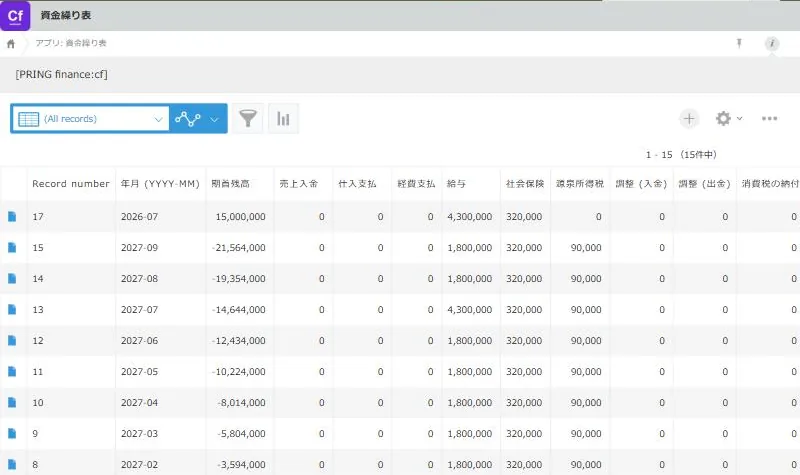
The cash flow table list. Each row is one month 3. Cash flow: Find months whose balance goes negative (accounting)
In the list, look for months whose opening balance and closing balance are negative. A month whose closing balance is negative shows 資金不足 (shortfall) and is listed in the 資金不足の月 (shortfall months) view. When you decide on a receipt or payment that is not in the sales, purchasing or expense apps, such as a loan or repayment, enter the date, in or out, and the amount in the adjustments app and update again.
4. Journal: Confirm the accounts and approve (approver)
The app is 経費申請 (Expense request). On the detail screen, the approver presses Decide accounts (勘定科目を判定) to check the proposal and confirmed account of each line. For a line with no confirmed account or one to correct, enter the confirmed account from the same button on the edit screen, save, and press the approval action. Approval stops while any line has no confirmed account. If you let AI do it, Ask AI gives a proposal for lines the rules cannot decide.
5. Journal: Journal entries are created after approval (automatic)
When the expense request reaches the approved status (by default 承認済), PRING writes the account decision history and the journal. There is one entry per line (two for a line with tax when tax is split into two lines); the debit is the confirmed account and the credit depends on the payment method. Re-approving the same request number replaces its entries instead of adding more. Nobody needs to do anything.
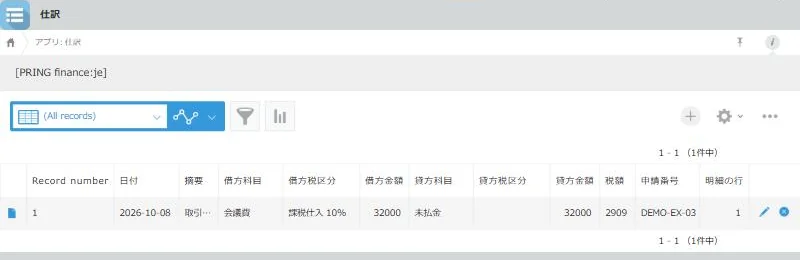
When an expense request is approved, one journal entry is created automatically for each line 6. Journal: Choose a period and export the CSV (accounting)
On the list screen of the expense request, press Export journal at the top, choose the From and To dates and press Export; the journal entries of that period are saved as CSV. The default is from the 1st of this month to today. The period is chosen by the journal date (the date of use of the line, or the approval date when it is empty). For one request only, press Export journal (CSV) at the top of its detail screen.
7. Audit: Open Document links and output the evidence bundle PDF (accounting)
Any document of the case will do (for example 債務管理 (Payables)). Press Document links on its detail screen: the case number, subject, invoiced total, paid total and unpaid total appear at the top, and the documents of each stage below. Check what is missing and the matching results, then press Evidence bundle PDF to download one PDF that joins a cover (case information, document list, missing documents, SHA-256) and the PDF of each document.
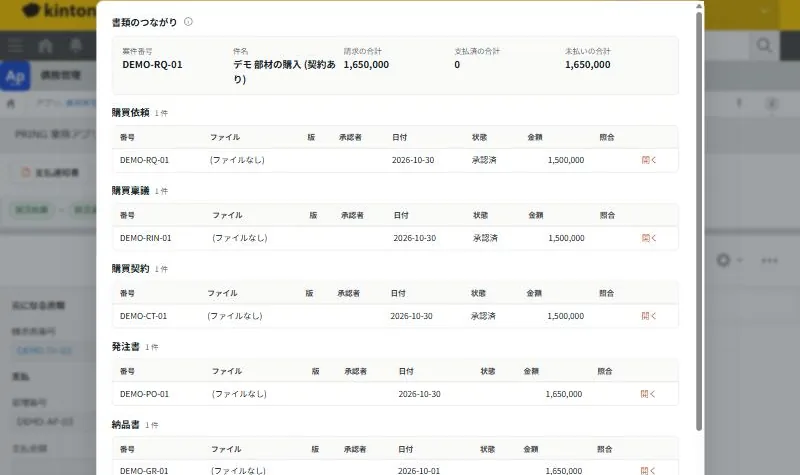
Document links. The case's documents are listed by stage, starting from the request 8. Audit: Save to the case summary and review the list (accounting)
Press Save to case summary on the same screen; the case number, subject, totals and missing documents are written to the case summary app (for purchasing, 購買管理). The 購買管理 list shows the unpaid and paid totals of each case. For each case you hand to the auditor, output the evidence bundle PDF from Document links on a document of that case.
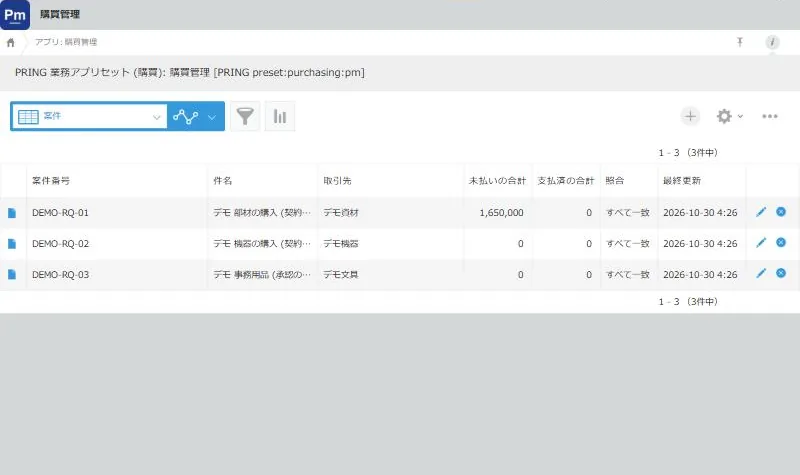
The purchasing case summary list. Each case's totals on one screen
Check your cash flow
The cash flow table is built by month for the next 12 months from upcoming receipts and payments in the sales, purchasing and expense apps (steps 1 to 3 above). The only value people enter is the opening balance of the first month.
| Step | App | What people do | What fills in automatically | If you let AI do it |
|---|---|---|---|---|
| 1 | Cash flow table | Press Update the cash flow table, enter the first month’s opening balance | Monthly receipts, payments, net and closing balance; opening balance from the second month | — |
| 2 | Cash flow table | Read the list | Figures from the sales, purchasing, expense, payroll and adjustments apps | — |
| 3 | Cash flow table, adjustments | Find the negative months, enter loans and similar in the adjustments app | 資金不足 (shortfall) on months whose closing balance is negative | — |
- The daily automatic update is not AI, so no Gemini key is needed. Months checked as fixed are not rewritten automatically.
- The figures are saved in the cash flow table app in your own kintone.
Export the monthly journal
Journal entries are created when an expense request is approved. The debit is the confirmed account and the credit depends on the payment method. At month end, press Export journal on the expense request list, choose the month and save the CSV (steps 4 to 6 above).
| Step | App | What people do | What fills in automatically | If you let AI do it |
|---|---|---|---|---|
| 1 | Expense request | Check the confirmed accounts and approve | Account proposals decided by rules | Proposes an account for lines the rules cannot decide (the approver confirms) |
| 2 | Account decision history, journal | — | History and journal entries per line (debit from the confirmed account, credit from the payment method) | — |
| 3 | Expense request (list) | Choose a period and export | CSV of the journal entries of that period | — |
- AI proposals work when an administrator has registered your own Gemini API key on the AI settings tab. AI only proposes; a person confirms and saves. AI proposals are not tax advice.
- Accounts, the history and journal entries are saved in your own kintone apps.
Gather evidence for an audit
Gather the evidence for an audit with Document links on the detail screen of any document in the case. The documents from request to payment are listed by stage, with number, file, version, approver, date, status, amount, matching result and missing documents, all on one screen (steps 7 and 8 above).
| Step | App | What people do | What fills in automatically | If you let AI do it |
|---|---|---|---|---|
| 1 | A document of the case (for example payables) | Open Document links, check, press Evidence bundle PDF | Documents by stage, totals, missing documents, SHA-256 matching, a PDF with a cover | — |
| 2 | 購買管理, 経費管理 or 販売管理 (case summaries) | Press Save to case summary and review the list | Case number, subject, totals, missing documents | — |
- Apps created with a business app set show Document links without any setup. For matching results, an administrator creates the file log app.
- The case summary is saved in your own kintone apps. Download the evidence bundle PDF and keep it on your side.
When something does not work
| Symptom or message | Cause | What to do |
|---|---|---|
| Update the cash flow table cannot be pressed, and a message says it becomes available after you create the finance set under Finance | The cash flow table app does not exist yet | Ask your administrator to create the finance set under Finance in the settings screen |
| A month shows 資金不足 (shortfall) | The closing balance of that month is negative | For a loan, repayment or other receipt or payment that is not in the sales, purchasing or expense apps, enter the date, in or out, and the amount in the adjustments app and update again |
| Figures you corrected by hand are overwritten | Each update overwrites them with the figures PRING writes | Check 確定 (fixed) for the months you want to keep, and enter receipts and payments that are not in the apps in the adjustments app |
| Approval does not go ahead | A line has no confirmed account | On the edit screen, enter the confirmed account from Decide accounts (勘定科目を判定), save, and approve again |
| Export journal cannot be used | You do not have permission to view the journal app | Ask your administrator to check your permission to view the finance set apps |
| No journal entries after approval | The request did not reach the status named as the approved status name on the Finance tab, or the approver has no permission to add and delete records in the account decision history and journal apps | Ask your administrator to check the settings and permissions |
| The matching result shows mismatch or not recorded | Mismatch: a record with the same file name exists but no SHA-256 matches. Not recorded: the file was attached without going through PRING | Compare the attached file with the record in the file log app |
| No matching result appears | The file could not be fetched (permission or deletion), or no file log app is set | Check the permission and the file, and ask your administrator to create the file log app |
| The contract stage says the contract was skipped and is not counted as missing | The contract was set to none in the purchase approval or sales quotation | Nothing is missing, so you can leave it as it is |
Related pages
- Use the cash flow table: the cash flow table, payroll and adjustments apps, how amounts are counted and the update results
- Set up automatic account decisions: how to create the finance set, the payment method field and the approved status name
- Decide accounts on expense claims: questions, rules, AI proposals and confirmation, journal examples and the CSV columns
- Case links and the evidence bundle: the case summary app, step definitions and matching
- Seals, document links and audit log: the Document links screen and its buttons
- How to use the Sales app set
- How to use the Purchasing app set
- How to use the Expenses app set
Frequently asked questions
Is it connected to my bank balance?
No. The cash flow table is a forecast built from the receipt and payment dates in your kintone apps. Salaries, social insurance and withholding tax are amounts you enter; they are not calculated.
Can I correct the figures in the cash flow table by hand?
Each update overwrites them with the figures PRING writes. For a month whose figures you want to keep, check 確定 (fixed). Receipts and payments that are not in the sales, purchasing or expense apps stay after updates when entered in the adjustments app.
I cannot press Update the cash flow table.
When the cash flow table app does not exist yet, a message says it becomes available after you create the finance set under Finance in the settings screen. Ask your administrator to create the finance set.
I cannot use Export journal.
Exporting needs permission to view the journal app. Ask your administrator to check your permission to view the finance set apps.
I approved, but no journal entries were created.
They are created when the request reaches the status with the same name as the approved status name on the Finance tab. If the approver has no permission to add and delete records in the account decision history and journal apps, the approval goes ahead but no entries are created. Ask your administrator to check the settings.
What does the CSV look like?
It is UTF-8 with BOM, and the first row is the header. The nine columns are date, debit account, debit tax class, debit amount, credit account, credit tax class, credit amount, description and request number. The headers are in Japanese whatever the screen language.
The matching result shows mismatch or not recorded, or no result appears.
Matching compares the SHA-256 of the attached file with the records in the file log app. Mismatch means there is a record with the same file name but no SHA-256 matches; not recorded means the file was attached without going through PRING. No result appears when the file could not be fetched (permission or deletion) or when no file log app is set.
Where is the evidence bundle PDF saved?
Keep the downloaded file on your side; the PRING server does not keep it. Its creation is recorded in the audit log. One bundle holds up to 30 MB and 100 files, and only PDFs and images are included. For documents other than PDF, such as xlsx, only the file name and SHA-256 are listed on the cover.
Is a case that skipped the contract shown as missing?
No. For a case where no contract was chosen in the purchase approval or sales quotation, the contract stage says the contract was skipped, and it does not count as missing.